CapCut 5 Photo Beat Sync Template: Trending Instagram Reels
Five photos. One song. Every photo change lands exactly on a beat. That simple idea sits behind one of the most repeated photo reel formats on Instagram, and you do not need any special file to make it. With five good photos and the free CapCut app, you can build it yourself in about twenty minutes.
To be clear right at the start: this guide does not offer a downloadable template link, a QR code, or a ready-made project file. Instead, it teaches the full manual workflow to build a 5-photo beat-sync reel yourself in the free CapCut app — the same result as trending templates, with full control over your photos, timing and text. Build it yourself, and every choice is yours.
Quick answer: Create a new 9:16 project in CapCut, add your audio first, use the beat marker feature on the audio track to mark the beats, then add five photos and trim each one so it starts and ends on a beat marker. Hold the first photo a little longer, cut the middle photos on each beat, and let the final photo stay longer. Add a slow zoom with keyframes, one simple transition style, a short text overlay, and export at 1080 x 1920.
Step-by-Step: Build the 5-Photo Beat-Sync Reel in CapCut
Follow these steps in order. One rule matters more than any setting: audio comes before photos. Most failed beat-sync reels fail because the editor added photos first and tried to fit the music later. Music is the skeleton; photos are fitted onto it, never the other way round.
Step 1: Choose and Prepare Your 5 Photos
Before opening CapCut, pick your five photos and decide their order. Think of them as a tiny story: a beginning, a middle, and an end. A reliable pattern is one wide or scene-setting photo first, two or three strong middle photos, and your best photo last, because the last photo stays on screen longest.
Check each photo for sharpness by zooming in slightly in your gallery. A photo that looks fine as a thumbnail can look soft at full screen, so reject anything blurry or very dark. Reels are vertical (9:16), so vertical photos fit naturally; horizontal photos can work, but CapCut will crop them, which you will fix with the zoom step later. If two photos are almost identical, drop one. Do basic correction now: straighten the horizon and lift brightness a little. No effect can rescue weak raw material.
Step 2: Create a New 9:16 Project
Open CapCut and tap New Project. Before adding anything, set the format to 9:16 using the Format or Ratio option. Its location varies a little by version and device, so look for the ratio icon on the editing screen or in project settings. Setting 9:16 first matters: changing the ratio at the end can shift your crops, zooms and text.
Step 3: Add the Audio First
Tap Audio, then Music, and add your track before any photo. Use a track from CapCut’s own library or audio you have saved from Instagram. As general advice, browse Reels and note which audio is being used repeatedly on photo reels at the time you plan to post, then choose audio in that style. No specific song is named here, because trending audio changes quickly.
What matters is structure: pick a track with a clear, strong beat that is easy to hear. Songs with long silent intros or a hard-to-find beat make trimming much harder. Choose the short section your photos will cover — often between eight and twenty seconds — trim the clip to that section, and drag it to the very start of the timeline.
Step 4: Mark the Beats on the Audio Track
This step is the heart of the format. Tap the audio clip to select it. In the toolbar, look for an option named Beats, Mark Beats or Beat Markers. The exact name and position vary by CapCut version and device. Inside that option, CapCut typically offers a way to generate markers automatically, and may also let you add markers manually while the song plays.
Treat the automatic result as a first draft, not final truth. Play the section and watch the markers: do they land where your ear hears the beat? Detection usually works well on clear pop and electronic tracks, but it can drift on live recordings, soft intros or songs with a loose feel. Where a marker is clearly early or late, move it if your version allows, or delete it and add your own. You can also mark beats fully by hand — play, pause at each beat, add a marker — which is realistic here, since a 5-photo reel needs only a handful of markers. Do not rush past a bad marker: one wrong marker makes one photo change feel wrong.
Step 5: Add the Photos and Trim Each One to the Markers
Add your five photos in your planned order. They will arrive with default durations that have nothing to do with your song — ignore those. Drag the edge of each clip so it ends exactly on a beat marker, which means the next photo begins on that beat. Pinch to zoom the timeline in so you can align edges precisely. A misalignment of a fraction of a second is what viewers feel as an off-beat cut.
Use an example timing pattern like one of these — patterns, not fixed rules, because real spacing always depends on your song’s beats. Classic build: photo one holds across two beats to set the scene, photos two, three and four take one beat each, and photo five holds across three or four beats so the reel settles on your best image. Even run: all five take the same number of beats, suiting travel and product sequences where every photo matters equally. Slow-fast-slow: photo one takes two beats, photos two to four take one each, and photo five takes three. Let the markers overrule the pattern wherever the music pauses or drops.
Step 6: Add a Slow Zoom with Keyframes
A still photo with no movement can feel flat, so add a gentle zoom, often called a Ken Burns style movement. Select a photo clip, move the playhead to its start, and tap the keyframe button — a small diamond icon whose position varies slightly by version. Move the playhead to the end of the clip, then pinch the photo slightly larger, or drag it a little to one side. CapCut adds a second keyframe, and the photo now moves slowly between the two positions.
Keep the movement small: a zoom of roughly ten to fifteen percent across a clip feels rich, while a large zoom feels dizzy and reveals softness. Alternate directions if you like, but avoid the same strong movement on every photo, which looks mechanical. If a horizontal photo does not fill the frame, use this same step to scale it up until it does, checking that faces are not cropped out.
Step 7: Add Transitions Between Photos
Tap the transition area between two clips, or select a clip and open the Transition option. A plain cut exactly on the beat is the most classic choice, and many strong reels use no transition at all in the middle run, because the beat itself provides the punch. If you want transitions, choose one subtle style, such as a soft fade or a clean slide, keep it short, and use it throughout. Five different transitions looks restless and hides the beat.
Step 8: Add Effects Sparingly
Effects are seasoning, not the meal. A brief flash on the strongest beat, or a very light shake on a drop, can add energy. CapCut groups these under its Effects section, and the catalogue changes over time. The safe rule is at most one or two effect moments in the whole reel, placed where emphasis is deserved — usually the first fast cut or the arrival of the final photo. A flash on every cut becomes tiring. If unsure, remove the effect and compare — most beginners keep the version without it.
Step 9: Add Text Overlay and Captions
Tap Text and add a short overlay: two to five words, a date, a place name, or one line that adds information the photos cannot give. Keep text away from the top and bottom edges, because Instagram’s interface covers those areas with the username, caption and buttons. The middle-lower area is usually safe. Use a clean font at a readable size, with a subtle shadow if the photo behind it is busy. Keep the same font, size and position on every photo. Most 5-photo reels have no speech, so spell this overlay carefully.
Step 10: Preview the Full Reel and Export
Watch the complete reel at least three times before exporting. First, watch only the cuts: does every change land on the music? Second, watch faces and cropping. Third, read only the text. Fix problems now, while fixing is cheap. Then export using the settings below. After export, watch the saved file once in your gallery — it sometimes reveals a problem the preview hid, such as a black frame at the start. For a shorter version of the same idea, our guide to the 3 photos edit CapCut template uses the same beat logic with fewer photos.
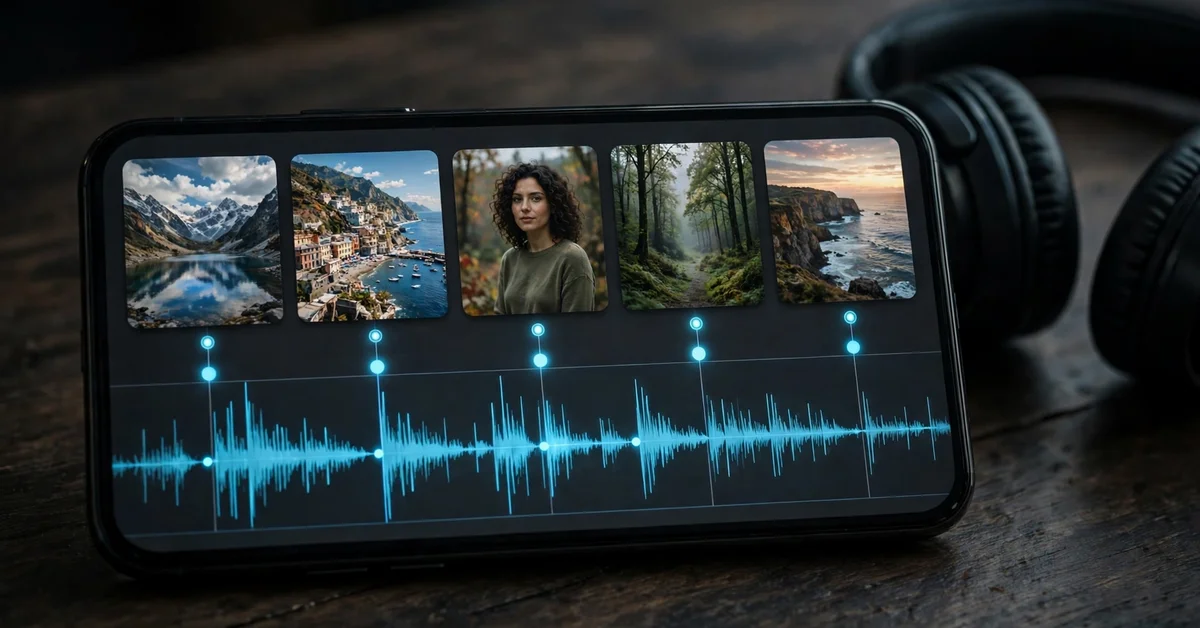
Photo Selection Guide: Which 5 Photos Work Best
A photo order that works for most subjects is this. Photo one, the opener: a wide shot or the clearest scene-setting image. Photo two, the approach: a closer or different angle that moves the story forward. Photo three, the detail: a close-up — a face, a product detail, a plate of food, a texture. Photo four, the change: a different location, outfit, angle or moment that renews attention. Photo five, the hero: your single strongest photo, because it holds longest and is the last thing viewers see.
Avoid three traps. Do not use five photos from the same burst with tiny differences; the reel will look like one photo flickering. Do not mix very warm and very cool photos without correction, because the colour jump on each beat feels like a mistake — apply a similar correction to all five. And do not save your best photo for the middle: the final hold is your signature.
Beat-Sync Methods Compared: Automatic Beat Marks vs Manual Tapping
There are two honest ways to get your markers, and most good editors combine them. The automatic method uses CapCut’s beat generation on the audio clip. Its strengths are speed and consistency: on a clear, steady track it marks a section in seconds, with even spacing. Its weakness appears on songs with quiet intros, live drums, tempo changes, or a beat sitting behind the vocal. There, markers can sit slightly off the beat your ear hears — and because every cut copies the markers, every cut inherits the error.
The manual method means listening carefully and adding markers yourself where you hear each beat, sometimes called tapping the beats in. Its strength is accuracy to your own ear, which is what the viewer judges. Its weakness is time and inconsistency: tap while distracted and markers bunch up. The practical answer is the hybrid — generate markers automatically, then play the exact section your photos cover and fix only the wrong ones. This takes a few minutes and gives you automatic speed with manual accuracy. Editors working with South Indian film music may also find our Telugu trending CapCut template guide useful for hearing how strong downbeats are usually cut.
6 Popular Variations of the 5-Photo Beat-Sync Format
Here are six named variations, each with a photo order and timing notes.
1. Travel Recap
Photo order: wide view of the place, a street or journey shot, a famous spot, a food or local detail close-up, and your best sunset or portrait shot last. Timing: opening shot holds two beats so viewers register the place, middle three at one beat each like quick postcards, final shot gets the long hold.
2. Birthday Reel
Photo order: a childhood or throwback photo, a recent casual photo, a friends or family group photo, the cake moment, and the best birthday portrait last. Timing: classic build — the throwback holds slightly longer so viewers recognise it, the middle photos step quickly like a countdown, and the portrait holds longest under a short name-and-date overlay.
3. Couple Story
Photo order: an early photo or the place you met, a candid laughing photo, a close two-shot, a special occasion photo, and your most recent favourite last. Timing: slow-fast-slow, so the reel breathes at both ends. Gentle zoom-ins only, no shake effects, and short text on the first and last photos only.
4. Before and After Transformation
Photo order: the plain before photo, a work-in-progress photo, a second progress angle, the almost-finished photo, and the full after photo last. Suits room makeovers, fitness journeys, detailing, makeup and craft projects. Timing: before photo holds two beats so the contrast registers, progress photos at one beat each, after photo gets the longest hold. Keep camera angles matched across photos — that is what makes the change feel dramatic.
5. Product Showcase
Photo order: the product in its setting, the product alone on a clean background, a close-up of material or finish, the product in real use, and the strongest styled shot last. Timing: even run, because each angle deserves equal weight, with the final hold still extended. Slow zoom-in on the detail photo only, and keep text factual: name on photo one, one key feature on the detail photo.
6. Festival Look
Photo order: an outfit detail such as jewellery or fabric, a preparation moment, the full look, a photo with family, friends or the decorated setting, and the best portrait under festival lights last. Timing: classic build with a quick middle run, so the sequence feels like a reveal. One light flash on the full-look beat only, and correct all five photos to a similar warmth so cuts stay smooth.
Best Export Settings for Instagram Reels
These settings are general guidance, not magic numbers, and CapCut’s export screen layout varies a little by version. Set the resolution to 1080 x 1920, the standard delivery size for Reels. For frame rate, 30 frames per second is a safe, widely compatible choice for photo reels, because photos have no motion of their own; higher rates rarely help and increase file size. For bitrate, choose the higher or recommended quality option your version presents rather than the lowest. Instagram will compress your upload again, and a cleaner starting file survives that second compression better. Low-quality exports save little space and show softness on faces and text.
For uploading, use a stable connection, and choose a cover frame from the final photo if the app offers that choice. After uploading, watch the reel once from the feed view to confirm the text is not hidden behind interface elements; if it is, adjust its position and re-upload. As general advice, post when your audience is usually active, which your account insights will show.
Common Mistakes That Break a Beat-Sync Reel
Off-beat cuts. The defining mistake of this format. It comes from trusting automatic markers without listening, or trimming photos to round durations like exactly one second instead of to markers. The fix: the markers decide, and your ears verify.
Over-zooming. Large, fast zooms on every photo feel dizzy and expose soft areas. Keep zooms slow and small.
Low-resolution photos. Screenshots, images downloaded from chats, and heavily compressed files fall apart at full screen. Always start from the original photo in your gallery.
Too many transitions and effects. Five different transitions plus flashes and shakes turn a music format into an effects demo. One style, or clean cuts, wins.
Text in the danger zones. Text at the very top or bottom gets covered by the app interface. Keep it in the safe middle area and check the uploaded result.
Weak final photo. Ending on an average photo wastes the longest hold. Best photo last, always.
Troubleshooting: When Something Feels Wrong
The cuts feel close to the beat but not on it. Zoom the timeline in fully and check each clip edge against its marker. A small gap or overlap at one joint shifts your perception of every following cut. Fix joints one by one.
The beat option is missing on my screen. Menu names and locations vary by version and device. Update the app, select the audio clip itself (not the whole project), and check the toolbar again. If your version lacks the feature, mark beats manually — play, pause at each beat, note the positions, and trim to them.
One photo looks blurry after export. Check the original first. If it is sharp, reduce the zoom on that clip and re-export with the higher quality option.
The audio does not start where I want. Trim the clip’s start to the section you need, drag it to the beginning of the timeline, then re-check the markers for that section.
The reel looks different after upload. Platform compression is normal. Exporting at 1080 x 1920 with the higher quality option gives it the best starting file.
Frequently Asked Questions
Do I need a template link to make a 5-photo beat-sync reel?
No. This guide teaches the complete manual method in the free CapCut app: audio first, beat markers second, photos trimmed to the markers. A template can be quicker for one reel, but the manual method gives full control and works with any song and any photos.
How long should each photo stay on screen?
There is no fixed number; it depends on your song’s beats. Use a pattern: first photo slightly longer, middle photos on each beat, final photo with a longer hold. Close-together beats mean shorter photos; a slower song means longer ones.
Can I use horizontal photos in a vertical reel?
Yes. Scale the photo with the zoom step until it fills the 9:16 frame, positioned so faces are not cropped. If the crop would cut something essential, choose a different photo instead.
Why do my cuts still feel off the beat after using beat markers?
Usually because the automatic markers were slightly wrong for your song, or one clip edge was not aligned exactly. Correct any marker that disagrees with your ear, zoom the timeline in, and align every edge precisely.
Which export settings should I use for Instagram Reels?
Export at 1080 x 1920, use 30 frames per second as a safe standard for photo reels, and pick the higher or recommended quality option your version offers. These are general guidelines; export screen labels vary by version.
Can I use any song I like for my reel?
For personal reels posted inside Instagram, using audio from the app’s own library, or the trending audio it offers at the time of posting, is the normal route. Rules for commercial use are stricter.
Conclusion
A 5-photo beat-sync reel is not really about templates. It is about one repeatable skill: hear the beat, mark the beat, and cut on the beat. Choose five photos that tell a small story, put the music down first, let beat markers shape every trim, add a gentle zoom, one consistent transition choice, a short piece of honest text, and export cleanly at 1080 x 1920. Do that once and you own the format. Build your first reel slowly, and check it with your ears as much as your eyes.
Related Guides
- RSP editing template guide — another popular editing style, and how its pacing compares with beat-sync photo reels.
- Healing CapCut template guide — a calmer, slower format, for contrast with fast beat cuts.