CapCut Cricket Highlights Template: Sports Video Editing Guide
A good cricket highlights reel is not a random pile of clips. It is a short, tight story: the build-up, the big moment, the reaction, and a clean finish. Done well, a 20 to 40 second reel can make a practice session or a friendly match feel like a proper broadcast package. Done badly, it becomes a shaky minute of everything, and nobody watches to the end.
This guide teaches you how to build that reel yourself in CapCut, using the free editor on your phone. There is no template link, download link, QR code, or ready-made project file here, and none is needed. You will build the edit from your own footage, step by step, so every cut, speed change, and caption is under your control.
One rule comes before everything else in this guide. Use only footage you filmed yourself, or footage you have clear permission to use: your own practice sessions, your own match clips, and clips of friends who agreed to be filmed. Do not re-upload broadcast footage, match telecasts, or other creators’ clips. Re-uploading footage you do not own risks a copyright strike, a takedown, or a muted or removed reel, and it can damage your account. Your own footage also looks more original, because nobody else has the same angles.
Quick answer: Start a new 9:16 project in CapCut, add your music first, and mark the beats. Choose only your strongest 8 to 12 short clips, trim each one to a single moment, and place the cuts on the beats. Slow down the best moment with a speed change, add one consistent transition style, put short bold text on the key moments, keep the colour consistent across clips, and export at 1080 x 1920. The whole reel should run 20 to 40 seconds.
18 Cricket Highlights Reel Ideas You Can Build in CapCut
Each idea below is a complete mini-format. Pick one, gather the clips it needs, and follow its steps in order. Every idea works with your own practice or friendly-match footage, and none of them needs a downloaded template.
1. The Single Big Moment Reel
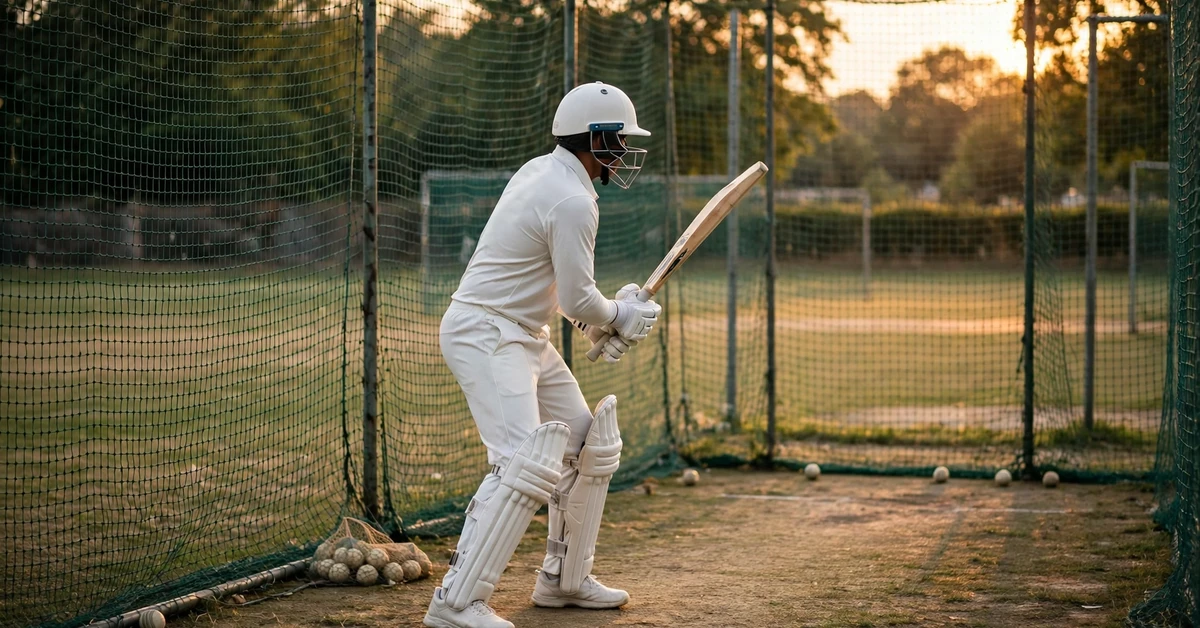
Choose one moment only: one shot, one catch, or one delivery. Open with two seconds of the build-up, such as the bowler starting the run-up or the batter settling at the crease. Cut to the moment itself at full speed, then replay the same moment in slow motion. End on the reaction, a raised bat, a celebration, or teammates walking in. Add one line of text, such as the type of shot, and nothing more. This format works because it respects the viewer’s time and gives one moment room to breathe.
2. The Beat-Cut Highlights Montage
Pick 8 to 10 short clips and one energetic track. Mark the beats on the audio track, then trim every clip so it starts and ends on a beat. Keep most clips between one and two seconds long. Alternate wide shots, such as the full ground view, with close shots, such as the bat meeting the ball. The rhythm of the cuts does the work here, so keep transitions simple and let the beat changes carry the energy.
3. The Before and After Practice Reel
Film the same drill twice: once at the start of practice and once near the end. Place the early attempt first, add a short text label such as “First try”, then cut to the improved attempt with a label such as “After practice”. Keep both clips short and at the same camera angle so the improvement is easy to see. This format is honest, relatable, and easy to film in a single session.
4. The Slow Motion Shot Breakdown
Take one batting or bowling action and slow it to around half speed. Split it into three parts with short text labels: the setup, the contact or release, and the follow-through. Pause briefly on the contact frame by splitting the clip and holding that section slightly longer. Viewers love seeing technique in slow motion, and this format teaches as well as entertains.
5. The Fielding Highlights Reel
Fielding rarely gets the attention batting does, which is exactly why it stands out. Collect your best stops, catches, and throws from a session. Open with a wide shot of the field, then cut quickly between the stops, keeping each clip under two seconds. Add a short text label naming the skill, such as “Diving stop” or “Direct hit”. Finish with the team’s reaction, because fielding is a team effort and the reaction sells it.
6. The Bowling Spell Recap
Choose three or four deliveries from one bowling spell. For each delivery, show the run-up briefly, the delivery, and the result. Keep the order the same every time so viewers learn the rhythm: run-up, release, result. Use a subtle speed-up on the run-up and normal speed on the delivery itself. A short closing text line, such as “Spell complete”, gives the reel a clean ending.
7. The Batting Session Highlights
Pick five or six shots from one net session and arrange them from the simplest to the most impressive. Start with a solid defensive shot or a simple drive, then build towards the biggest shot of the session. This rising order keeps viewers watching, because each clip promises something better. Keep the background music steady and avoid changing songs halfway through.
9. The Catch Compilation
Catches are naturally dramatic, so let them speak. Collect four or five catches, trim each one to start just before the ball arrives and end just after the catch is completed. Put a brief freeze or slow-motion moment on the hardest catch. Do not add a text label to every catch; one opening line and one closing line are enough, and the catches themselves carry the middle.
10. The Match Day Mini Highlights
For a friendly match, film short clips through the day: the toss area, the first over, a key wicket or boundary, and the final moments. In the edit, keep only one clip per phase of the match, and arrange them in the order they happened. Add a short text line for each phase, such as “First over” or “Final over”. This gives viewers the feeling of following the match in under 40 seconds.
11. The Technique Focus Reel
Pick one skill, such as a cover drive, a yorker, or a throwing action, and show it three times from three angles: front, side, and behind. Film each angle in the same session so the light matches. In CapCut, place the three angles back to back with simple hard cuts, and add a short label to each angle. Viewers who play the game will watch this format twice, once for fun and once to study.
12. The Comeback Moment Reel
Start with a clip that did not go well, such as a missed catch or a mistimed shot, then cut to the same player succeeding later in the session. The contrast is the story. Keep the first clip short so the reel does not feel negative, and let the successful moment run slightly longer. A simple two-line text structure, “Not quite” followed by “Got it”, tells the whole story without a voiceover.
13. The Warm-Up to Match Energy Reel
Begin with calm warm-up clips: stretching, light jogging, and throwdowns, cut slowly. When the music beat drops, cut sharply to full match energy: fast running, big shots, and celebrations. This contrast between the slow opening and the fast middle is a classic editing trick, and it works because the viewer feels the energy change. Keep the warm-up section under eight seconds.
15. The Team Celebration Reel
Collect only celebrations from a session or match: high fives, huddles, and players walking off together. Edit them to an upbeat track with quick cuts, and end on a group shot. Keep text minimal, one opening line only. Celebration reels perform well because they feel positive, and they are easy to film, since you only need to keep the camera rolling after good moments.
16. The Skills Challenge Reel
Set one small challenge, such as hitting a target cone three times or completing ten clean catches in a row. Film each attempt, then edit only the attempts that matter: the first miss, a near miss, and the success. Number each attempt with a short text label so viewers can follow the count. This format creates natural suspense, because the viewer wants to see whether the challenge is completed.
18. The Weekly Progress Reel
Film the same drill once a week for a few weeks, then edit the clips side by side in date order. Keep the camera angle and the drill identical each time, so the change is visible. Add a short text label for each week. This is a longer project than the others, but it is also the most rewarding, because it shows real progress over time rather than a single good day.
Full Step-by-Step Workflow in CapCut
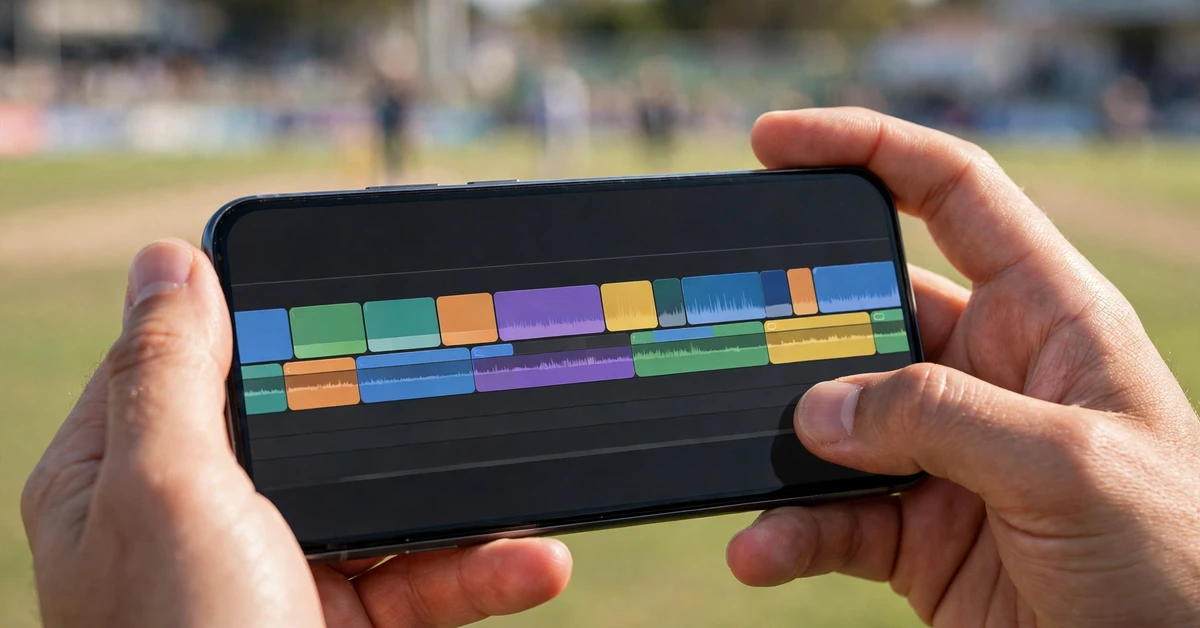
Follow this workflow after choosing your idea. It works for every format above, and it keeps the edit in the right order: audio first, selection second, cuts third, polish last.
Step 1: Collect and review your footage
Before opening CapCut, watch all your clips once and mark the best moments in your head, or note their timestamps. Delete nothing yet, but decide which clips are your strongest 8 to 12. A highlights reel is defined by what you leave out, so be strict: if a clip does not show a clear moment, it does not make the cut.
Step 2: Start a 9:16 project and add music first
Open CapCut, tap New Project, and add your music track before any video. Choose music from CapCut’s own audio library or audio you have the right to use. Tap the audio track, find the beat tool, and add beat markers on the strongest beats. These markers are your cutting guides for the rest of the edit.
Step 3: Add clips and trim to single moments
Add your chosen clips in story order. Tap each clip and drag its handles so it contains one moment only: start just before the action and end just after the reaction. Most clips should end up between one and three seconds long. If a clip needs more than four seconds, it probably contains two moments, so split it and keep only the stronger one.
Step 4: Place cuts on the beats
Drag each clip edge until it lines up with a beat marker. Get the order right first, then fine-tune the edges on a second pass. Play the timeline back and watch for cuts that feel early or late. Small adjustments here make the biggest difference to how professional the reel feels.
Step 5: Slow down the best moment
Pick exactly one moment to slow down, usually the best shot, catch, or delivery. Split the clip around that moment, tap Speed, and choose a slower speed such as 0.5x, or use a speed curve if you want the slowdown to ease in and out. Keep the slow-motion section short, two to four seconds, because slow motion loses its impact when it runs too long.
Step 6: Add one transition style
Choose one simple transition, such as a quick fade, a whip pan, or a simple cut, and use it consistently. Mixing five different transitions in one short reel looks messy and distracts from the cricket. If in doubt, use hard cuts for most joins and save a transition for the shift between sections, such as moving from build-up to the main moment.
Step 7: Add short, bold text
Add text only where it adds information: the opening line, a skill label, or the closing line. Use a large, bold font, place it in the safe area away from the edges, and keep each text clip stay on screen long enough to read comfortably, at least one and a half seconds. Avoid small text, long sentences, and text that sits over the main action.
Step 8: Keep colours consistent
Apply the same filter or the same manual adjustments to every clip: a small brightness or contrast change, and a slight saturation adjustment if the clips look dull. Do not put a heavy filter on one clip and nothing on the next, because the jump in colour is very noticeable. Consistency matters more than any single dramatic filter.
Step 9: Check audio levels and export
Play the full reel twice, once watching the picture and once listening only to the sound. The music should sit clearly without drowning out any natural sound you kept, such as bat on ball. Export at 1080 x 1920, and watch the exported file once before posting, because the export can reveal a cut or a text error you missed in the editor.
Settings and Tips for a Cleaner Sports Reel
Keep the project in 9:16 vertical format, since most viewers watch reels on their phones. Film in the highest quality your phone handles comfortably, keep the frame rate the same across clips so the edit does not stutter, and hold the phone steady with both hands, or rest it on a bag or fence. Steady footage matters more than any effect in CapCut.
Film more than you need. For a 30 second reel, record several minutes across a session, because only a fraction will be strong enough to use. Film reactions as well as action: the celebration after a catch is often more shareable than the catch itself. Leave a few seconds before and after each moment, because trimming needs handles on both sides.
Keep the total length between 20 and 40 seconds. Shorter reels hold attention better, and a tight reel forces you to keep only the best moments. If your first cut runs over a minute, cut the weakest third, watch it again, and cut again.
Use text sparingly and music wisely. One track for the whole reel keeps the mood consistent, and it must fit the pace of your cuts: a slow song over fast cuts feels wrong, and a fast song over slow motion feels rushed. Match the track to the energy of the footage, not just to what is popular.
Common Mistakes to Avoid
The most common mistake is including everything. A reel that shows every ball of a session is not a highlights reel, it is a recording. Choose the best moments and trust that leaving clips out makes the ones you keep look better.
The second mistake is using footage you do not own. Broadcast clips, telecast footage, and other creators’ videos do not belong in your reel, even with credit and even if you edited them. Credit is not permission. Stick to your own footage and you avoid takedowns entirely.
Other frequent mistakes include changing filters between clips, adding a different transition at every cut, putting long sentences on screen, and letting the reel run past a minute. Another is a long, slow intro: viewers decide in the first two seconds whether to keep watching, so open with action, not with a title card that sits for five seconds.
Finally, do not post the first export without watching it. Watch the exported file on your phone, on full screen, with sound on. Check every cut, every text line, and the final frame. A small error at the end, such as a frozen frame or a cut-off word, is the thing viewers remember.
Troubleshooting
The cuts feel off the beat
Zoom into the timeline and nudge each clip edge one frame at a time until the cut lands on the beat marker. If the whole reel feels slightly late, shift the audio track slightly earlier, or re-mark the beats. Often the problem is one or two clips, not the whole edit, so fix the worst cuts first and rewatch.
The slow-motion section looks choppy
Slow motion needs enough frames to look smooth. If the original clip was recorded at a low frame rate, slowing it down will stutter. In that case, slow it less, for example 0.7x instead of 0.5x, or choose a different moment that was filmed more steadily. Keep slow-motion sections short so any minor choppiness is less noticeable.
Clips look different in colour
Clips filmed at different times of day will differ in brightness and warmth. Apply the same filter to all clips, then adjust individual clips only to match the others: slightly raise brightness on darker clips and slightly lower it on brighter ones. Avoid pushing any single adjustment to its extreme.
The exported video looks blurry
Check that you exported at 1080 x 1920 and that your source clips were not low-resolution copies, such as clips forwarded through a messaging app, which compress video heavily. Always edit from the original files on your phone. If a clip is blurry in the source, keep it very short or leave it out.
The audio sounds wrong after export
Play the exported file with headphones and check whether the music starts late or cuts off early. If the track ends before the video, trim the video to the track or choose a longer section of the track. If natural sound and music clash, lower the volume of one of them so the music leads and the natural sound supports it.
Frequently Asked Questions
How long should a cricket highlights reel be?
Between 20 and 40 seconds works best for reels. That length fits around 8 to 12 short clips, which is enough to show a session’s best moments without losing the viewer’s attention. If your reel runs longer than 45 seconds, cut the weakest clips until it tightens up.
Do I need a template link to make a cricket highlights reel in CapCut?
No. This guide provides no template link or download, because the full result can be built manually in CapCut’s free editor: a new project, beat markers, trimmed clips, one speed change, simple transitions, and short text. Building it yourself also gives you full control over timing, which a fixed template does not.
Can I use clips from a televised match in my reel?
No, you should not. Broadcast footage belongs to the broadcaster and the rights holders, and re-uploading it, even edited and even with credit, risks a takedown, a muted reel, or a strike on your account. Use only footage you filmed yourself or have clear permission to use.
How many clips should a highlights reel include?
For a 30 second reel, 8 to 12 clips is a good range. Fewer clips give each moment room to breathe, while more clips create a fast montage feel. Either way, every clip should show one clear moment. If you cannot describe a clip’s moment in a few words, it probably does not belong in the reel.
Why does my slow motion look choppy?
Slow motion stretches the frames of the original clip, so a clip recorded at a low frame rate will stutter when slowed. Use a gentler slowdown, such as 0.7x, keep the section short, and film future sessions at the highest frame rate your phone handles well. Steady filming also helps, because camera shake becomes more visible in slow motion.
What export settings should I use for Instagram reels?
Export in 9:16 vertical at 1080 x 1920. Watch the exported file once on your phone before posting, and check the first two seconds, the text lines, and the final frame. A clean export with no cut-off text and no frozen last frame looks far more professional than a rushed upload.
Conclusion
A strong cricket highlights reel comes from selection, not from effects. Choose your best moments, cut them on the beat, slow down one moment, keep the text short and the colours consistent, and finish cleanly. Build the edit yourself in CapCut, use only your own footage, and keep the reel tight at 20 to 40 seconds. Start with the single big moment format, since it needs only one good clip, then move on to the montage formats once the workflow feels natural.
Related Guides
If you enjoyed this guide, these related tutorials use the same CapCut workflow of beat marking, trimming, and clean text: