CapCut 6 Clip Beat Sync Template: Fast and Clean Editing Guide (TUTORIAL)
A 6 clip beat sync reel does not need a complicated edit or a long shoot. It needs a track with clear beats, exactly 6 varied clips, and 6 clean cuts placed exactly on those beats, all of which you can create with your phone and CapCut’s free editor. When those elements match, even simple photos or everyday clips can feel fast, sharp and polished.
This guide teaches you how to build that reel yourself in CapCut, using your own photos and clips. There is no template link, download link, QR code, or ready-made project file here, and none is needed. You will build the edit from your own material, step by step, with full control over the timing, the cuts and the finish.
Before you start, an important rule. Use only photos and footage you filmed yourself, or material you have clear permission to use, and music from CapCut’s own library or audio you have the right to use. Do not re-upload other creators’ clips or broadcast footage, even with credit, because credit is not permission and re-uploading risks a takedown or a muted reel. Your own material is also more original.
Quick answer: Start a new 9:16 project in CapCut, add your track first, and mark its beats. Choose exactly 6 varied clips, trim each one to 1 to 3 seconds, place the cuts exactly on the beats, save the best clip for the strongest beat, and use plain cuts throughout. Keep the reel between 15 and 25 seconds, and export at 1080 x 1920.
14 Six Clip Beat Sync Reel Ideas You Can Build in CapCut
Each idea below is a complete format. Pick one that fits the material you already have, and follow its steps in order. Every idea works with your own photos and clips, and none of them needs a downloaded template.
1. The Six Photo Beat Reel
Choose 6 photos with similar colours and show each one on a beat, for about 1 second each. Use a plain cut on every beat and a slow zoom on the photos. Six photos on six beats is the simplest beat sync format, and it teaches timing better than any complex edit.
2. The Travel in Six Shots Reel
Film a trip in 6 shots: leaving, transport, a place, food, a detail and a sunset. Cut each shot on a beat and keep the total under 20 seconds. Six shots force you to choose only the best moments, which makes travel reels feel sharp instead of rambling.
3. The Outfit Change Beat Reel
Film 6 outfit shots, changing one item or one full outfit between beats. Cut on the beat so each new look appears exactly with the music. Keep the camera fixed and the background the same, so the changes, not the camera, create the effect.
4. The Workout Beat Reel
Film 6 exercise clips, one per beat, showing different moves in order. Keep each clip to one clear move and cut exactly on the beat. A workout beat reel feels energetic and structured, and it shows variety without a long, tiring edit.
5. The Cooking in Six Steps Reel
Film a recipe in 6 steps: ingredients, chopping, cooking, stirring, plating and tasting. Cut each step on a beat and keep the shots close. Six steps suit most simple recipes, and the beat gives the cooking a lively, satisfying rhythm.
6. The Pet Tricks Beat Reel
Film 6 pet moments, one per beat, such as sitting, jumping, playing and resting. Keep the clips natural and cut on the beat. Pet beat reels work because the animals provide the charm, while the beat provides the structure.
7. The City Walk Beat Reel
Film a city walk in 6 shots: a street, a shop window, a café, a crossing, a detail and a skyline. Cut on the beat and keep the colours consistent. City walks give plenty of variety, so choose shots that look different from each other.
8. The Dance Moves Beat Reel
Film 6 dance moves, one per beat, with the camera fixed and the whole body in frame. Cut on the beat so each move lands with the music. A dance beat reel needs clean timing more than fancy effects, so check each cut on playback.
9. The Before and After Beat Reel
Film 6 stages of a change, such as tidying a room, doing makeup, or setting up a desk, one stage per beat. Cut on the beat so the change builds step by step. The beat structure makes a simple before-and-after feel like a proper transformation.
10. The Nature in Six Shots Reel
Film nature in 6 shots: sky, trees, water, a path, a flower and a wide view. Cut on a gentle beat and keep the colours natural. Nature beat reels suit a slower track, but the cuts should still land exactly on the beat.
11. The Friends Day Beat Reel
Film a day with friends in 6 shots: meeting, laughing, eating, walking, playing and a group photo. Cut on the beat and keep the mood cheerful. Six shots capture a whole day without dragging, and the beat keeps the energy high.
12. The Sports Highlights Beat Reel
Film a sports session in 6 clips, one per beat, showing different skills in rising order. Keep the best skill for the last beat and cut exactly on the music. Sports beat reels feel exciting when the cuts are clean and the best moment lands last.
13. The Study Day Beat Reel
Film a study day in 6 shots: opening a book, writing, reading, a break, revising and a tidy desk. Cut on a calm beat and keep the text minimal. A study beat reel turns an ordinary day into a satisfying, structured short video.
14. The Night Out Beat Reel
Film an evening out in 6 shots: getting ready, lights, food, friends, music and a final group shot. Cut on the beat and keep the flash and colours bright. Night beat reels suit a fast track, but each cut should still feel clean and deliberate.
Full Step-by-Step Workflow in CapCut
Follow this workflow after choosing your idea. The order matters: music first, selection second, cuts third, polish last.
Step 1: Pick a track with clear, steady beats
Choose a track from CapCut’s own audio library or audio you have the right to use, with a clear, steady beat and a length of 15 to 25 seconds for your section. A track with a muddy or changing beat will make beat sync hard. Listen to the track twice and pick the section with the cleanest beats.
Step 2: Start a 9:16 project and add music first
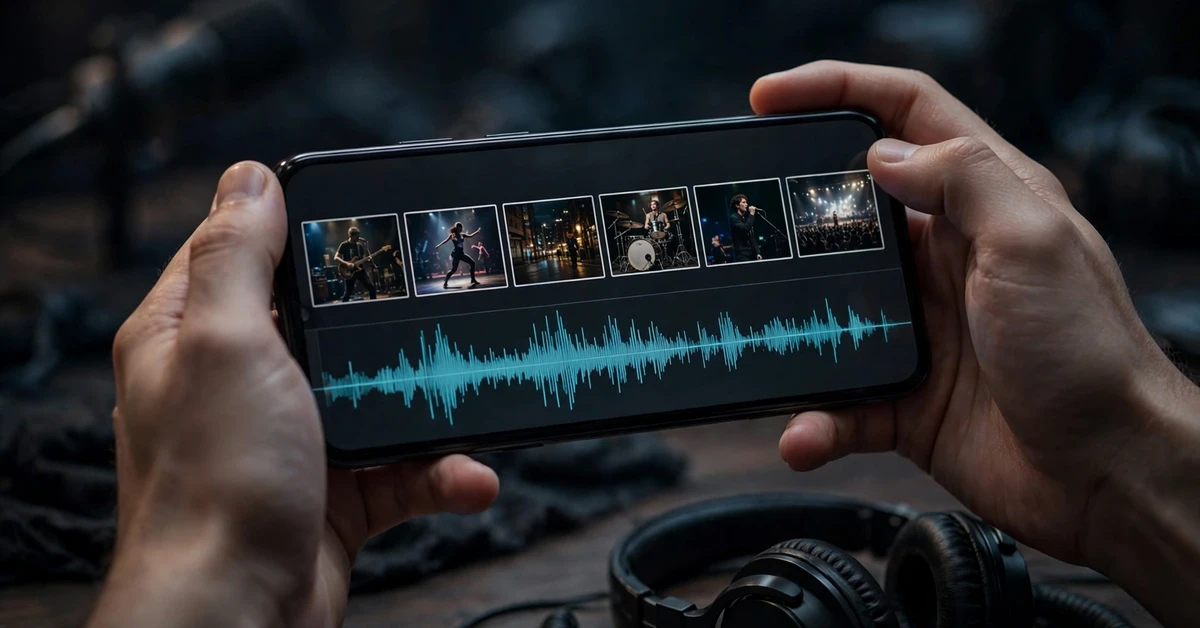
Open CapCut, tap New Project, and add your track before any video. Use the beat tool on the audio track to mark the beats, and add extra markers at the strongest beats where your best clips will land. Music first is the rule for every beat sync edit.
Step 3: Choose exactly 6 clips with variety
Pick 6 clips that look different from each other: different angles, different actions, or different places. Six similar clips will feel repetitive, while six varied clips will feel like a complete story. For a first reel, choose clips you already have and trust.
Step 4: Trim each clip to one clear moment
Cut each clip to a single action or image, usually 1 to 3 seconds. Remove the start and end where nothing happens, and keep only the moment that deserves a beat. A beat sync reel works when each clip is short, clear and confident.
Step 5: Place clips so cuts land on the beats
Place your 6 clips in order on the timeline and drag each cut until it lines up with a beat marker. Play the section back and check every cut, not just the first one. One late cut is enough to break the rhythm, so nudge edges until all six cuts feel on time.
Step 6: Put the best clip on the strongest beat
Save your best clip, such as the best skill, the funniest moment, or the prettiest shot, for the strongest beat, usually near the end. A beat sync reel should build towards that moment, with earlier clips rising in interest towards it.
Step 7: Add one simple speed change, if needed
If one clip needs extra energy, add a gentle speed ramp or a short slow-motion moment to that clip only. Keep other clips at normal speed, so the speed change stands out. Speed changes on every clip will make the reel feel chaotic rather than fast and clean.
Step 8: Keep text and effects minimal
Use plain cuts for all six changes, and add text only if it helps, in one simple font, for at least 2 seconds. Avoid a different transition on every cut, since transitions hide the beat timing. Clean cuts are the whole point of this format.
Step 9: Export and check every beat on your phone
Export at 1080 x 1920 and watch the full reel on your phone with sound. Check all six cuts, the best clip timing, and the final shot. Fix any late cut in the editor and export again. Never post a beat sync reel without checking it with sound.
Settings and Tips
Count the beats before you choose clips. A 6 clip reel needs 6 clear beats in a row, so pick a track section where the beats are steady and easy to hear. If a track changes tempo halfway through, use only the steady section, or choose a different track entirely.
Keep the total length between 15 and 25 seconds. Six clips of 2 to 3 seconds each, plus a short opening and closing moment, usually land in this range. A beat sync reel that runs over 30 seconds will feel long, even with good cuts, so trim the weakest clip first if needed.
Film with beat sync in mind: capture short, clear actions of 3 to 5 seconds each, with a few seconds around them for trimming. Long, wandering clips are hard to cut to a beat, while short, purposeful actions almost place themselves on the timeline.
Check your edit on your phone with sound, and also with the sound off, if you can. With sound, the cuts should feel musical. Without sound, the pictures should still change at a steady, pleasing pace. A reel that works both ways is a clean, well-built beat sync edit.
Common Mistakes to Avoid
The most common mistake is placing cuts near the beat instead of on it. A cut half a beat late feels wrong even if viewers cannot explain why. Zoom into the timeline, line up each cut with its beat marker, and play the section back several times until every cut feels instant with the music.
The second mistake is using 6 clips that all look the same. Six shots from the same angle, of the same action, will feel repetitive no matter how clean the cuts are. Choose clips with different angles, actions or places, and arrange them so the variety builds towards the best clip.
Another frequent mistake is adding a different transition on every cut. Transitions hide the beat and make the timing unclear. Use plain cuts for a beat sync reel, and save transitions for a different format where timing is less important.
Finally, do not add busy text, stickers or loud effects on top of a beat sync edit. The format works because it is fast and clean, and every extra element weakens that clarity. Use one font, plain cuts and one speed change at most, and let the beat do the work.
Troubleshooting
Cuts feel slightly off the beat
Zoom into the timeline and drag each cut until it lines up exactly with its beat marker. If the music’s beat is not exactly on a marked beat, add a manual marker at the true beat. Play the section back three times and adjust by small amounts until every cut feels instant.
One clip is much longer than the others
Trim that clip to its best 2 to 3 seconds, or split it and keep only the strongest part. In a 6 clip reel, a single long clip will break the rhythm, even if the clip itself is good. Balance matters more than keeping a favourite shot whole.
The reel feels fast but messy
Remove the speed changes and transitions, and return to plain cuts at normal speed. Messy beat reels usually suffer from too many effects, not too few. Once the plain-cut version feels clean, add back at most one speed change on a single clip.
The best clip lands on a weak beat
Move the best clip to the strongest beat, usually near the end, and reorder the other clips around it. A beat sync reel should build towards its best moment. If the track has no clear strong beat, choose a different track section with a clearer lift.
The exported video sounds different from the editor
Check that the audio track volume is set correctly and that no second audio track is playing quietly underneath. Export the file and play it on your phone, not only in the editor, because editor previews can sound different from the exported file.
Frequently Asked Questions
How many clips should a 6 clip beat sync reel have?
Exactly 6 clips, each cut on a beat, for a total of about 15 to 25 seconds. Each clip should show one clear moment, usually 1 to 3 seconds long, and the best clip should land on the strongest beat, usually near the end.
Do I need a template link to make a 6 clip beat sync reel in CapCut?
No. This guide provides no template link or download, because the full result can be built manually in CapCut’s free editor: a new project, music first, beat markers, 6 trimmed clips placed on the beats, and plain cuts. Building it yourself gives you full control over the timing.
What makes a good track for beat sync?
A track with clear, steady beats that are easy to hear and count. Avoid tracks that change tempo halfway through, or tracks where the beat is buried under other sounds. Listen to the track twice before choosing, and use the section with the cleanest beats.
Should I use transitions in a beat sync reel?
Use plain cuts for all six changes. Transitions hide the beat timing and make the edit feel less clean. Save transitions for a different format, and let the beat cuts themselves create the energy in this one.
Why do my cuts feel off the beat?
Cuts feel off when they sit near, but not exactly on, a beat marker. Zoom into the timeline, line up each cut with its marker, and play the section back several times. Small adjustments of a few frames can turn a slightly-off cut into a clean one.
What export settings should I use for Instagram reels?
Export in 9:16 vertical at 1080 x 1920. Watch the exported file once on your phone with sound before posting, and check all six cuts, the best clip timing, and the final shot.
Conclusion
A good 6 clip beat sync reel is built from a clear track, exactly 6 varied clips, and 6 clean cuts placed exactly on the beats. Start with the six photo beat reel or the travel in six shots reel, since each needs only a handful of clips, and keep transitions and text minimal. Pick a steady track, mark the beats, save the best clip for the strongest beat, and check every cut with sound. Fast and clean beats fancy, every time, without any downloaded template.
Related Guides
If you enjoyed this guide, these related tutorials use the same CapCut workflow of beat marking, trimming, consistent grading, and clean text: