VN Cinematic Slow Motion Template 2026: 20 Reel Editing Ideas
A good slow motion reel needs one strong moment, shot well, and slowed down at exactly the right second. A walking entry, a hair flip, a coffee pour, or a cricket shot can all look cinematic if the slow part starts on the beat and the rest of the clip stays at normal speed.
VN Video Editor is a good free app for this style because it gives you speed control, Curve speed ramping, keyframes, filters, text, and music in one simple timeline. If you can trim a clip and change a few settings, you can build every idea below.
One honest note before we start. VN does support importing template and project files shared by other creators, but this guide does not give you any VN code, QR code, template link, or downloadable file. No code or link is needed here. Instead, you will learn to build each edit yourself in the free VN app, step by step, so you can reuse the method on any of your own clips.
Quick answer: Record at 60fps or higher if your phone supports it, import the clip into a 9:16 VN project, keep the start at normal speed, use Curve speed to drop the main action to around 0.25x to 0.5x, add a gentle keyframe zoom, place the slow moment on the music beat, and export at 1080 x 1920. That workflow works for all 20 ideas below, with small changes for each scene.
20 Cinematic Slow Motion Reel Ideas in VN (Step by Step)
Use the speed values below as starting points, not fixed rules. Preview every change and adjust in small steps. New to VN? First read our complete VN template editing guide for beginners.
1. Walking Entry Slow-Mo
Clips: One front walking clip with 2 to 3 seconds before you reach the camera. Keep the first steps normal, slow the confident middle to 0.4x to 0.5x with Curve so the ramp is gradual. Add a keyframe zoom from 100% to about 110%, drop the speed exactly on the first strong beat, use a clean cut in, add short text like your name, and finish with a warm filter.
2. Hair-Flip / Beard-Style Moment
Clips: One close portrait clip: a hair flip, a hand through the hair, or a beard adjustment with a look at the camera. Slow only that movement to 0.25x to 0.4x, with Curve dipping down and back up so the rest stays near normal speed. Add a slight keyframe push-in, sync the slowest frame to a beat hit, skip transitions, keep text minimal or none, and use a clean filter with a little sharpness.
3. Bike Night Ride
Clips: A side tracking shot of the bike passing, plus a close shot of the wheel or headlight. Slow the passing moment to 0.4x to 0.5x; let Curve bring the bike in fast and settle it into slow motion at the centre of the frame. Add a keyframe pan following the bike, cut between clips on a beat, use a flash transition only once, add “Night Ride” text, and choose a dark, high-contrast filter.
4. Rain Walk
Clips: One clip walking in light rain, with visible drops, wet reflections, or an umbrella. Slow the middle to 0.4x so the rain itself becomes part of the effect, easing in and out with Curve. Add a gentle keyframe zoom, place the umbrella opening or a puddle step on the beat, use a soft dissolve if you join a second clip, add a short rain quote as text, and use a cool blue-grey filter.
5. Sports Action Replay Feel
Clips: One action clip: a jump, kick, throw, or sprint finish. Keep the build-up normal or slightly fast, then slow the key action to 0.25x to 0.4x like a TV replay. Use Curve for a sharp ramp down before take-off or contact, then back up for the landing. Add a keyframe zoom into the action, sync the slowest point to a drum hit, use a quick zoom transition, add “Replay” text, and pick a bright, punchy filter.
6. Dance Beat Drop
Clips: One single-take dance clip with a clear move landing on the drop. Slow the 1 to 2 seconds before the drop to 0.5x to build tension, then return to normal speed, or slightly faster, exactly on the drop move. Curve is essential for that smooth build and release. Add a keyframe zoom out on the drop, use no transition in the middle, add the song name as text if you like, and keep the filter bright.
7. Outfit Change Walk
Clips: Two walking clips in the same place and camera position, one per outfit. Slow the last step of the first clip to 0.5x, then cut on a step, spin, or hand pass over the lens to the second outfit, starting slow and returning to normal speed. Use keyframes to match your size and position in both clips. Place the cut on the beat, hide the join with a whip or cover transition, add “Look 1 / Look 2” text, and use the same filter on both.
8. Waterfall / Nature B-Roll
Clips: Two or three nature clips: falling water, moving leaves, a river, or clouds. Slow water to 0.4x to 0.5x; continuous motion like this stays smooth, so a steady speed or a very gentle Curve both work. Add slow keyframe pans so the frame never feels frozen, let cuts fall on soft music changes instead of hard beats, use fade transitions, add a small location name as text, and pick a natural green filter without pushing saturation too far.
9. Coffee Pour / Food Steam
Clips: One close clip of coffee, tea, or hot food being poured, with visible steam. Keep the lift of the pot or cup normal, then Curve down to 0.3x to 0.5x as the liquid flows, and ramp back up after the pour. Add a slow keyframe zoom into the cup, sync the first drop with a soft beat, use no transition, add text like “Morning” or the cafe name, and use a warm filter so the steam stands out.
10. Product Showcase Rotation
Clips: One clip of a product, watch, shoe, or bottle slowly rotating, or your hand turning it. Slow the rotation to 0.4x to 0.5x so viewers can read details and the logo. A steady speed works here; use Curve only to ease in and out. Add a keyframe zoom from wide to close detail, place a beat when the front of the product faces the camera, add clean text with the name and one feature, and use a bright, neutral filter.
11. Wedding Couple Entry
Clips: One wide entry clip, plus a closer clip of hands or smiling faces if you have it. Keep the doors opening or first step normal, then slow the main walk to 0.4x to 0.5x with a graceful Curve ramp. Add a slow keyframe push-in, place the slowest moment on the romantic peak of the song, join clips with soft fades, add the couple’s names and date as elegant text, and use a warm, soft filter. Always get the couple’s permission before posting.
12. Gym Workout Power Move
Clips: One clip of a single strong move: a deadlift lockout, box jump landing, rope swing, or punch bag hit. Keep the preparation normal, slow the power moment to 0.3x to 0.4x with Curve, then ramp back up for the finish. Add a keyframe zoom in during the lift and a tiny zoom out at the top, sync the heaviest point with the beat drop, use a hard cut instead of a fancy transition, add short motivational text, and use a desaturated, high-contrast filter.
13. Skateboard / Street Moment
Clips: One street clip: a skateboard trick, cycle jump, ball kick, or a stylish crossing with traffic behind you. Keep the approach and roll-away normal, and slow the trick itself to 0.3x to 0.5x. Curve gives the classic ramped look of skate videos. Add a keyframe pan following the sideways movement, ramp or cut on the beat, use a raw cut transition, add a location tag as text, and try a slightly grainy, film-style filter.
14. Pet Running Towards Camera
Clips: One low-angle clip of your dog or cat running straight at the camera. Slow the happiest middle of the run to 0.4x to 0.5x, especially if ears or fur are bouncing, easing down with Curve as the pet gets bigger in frame. Add a keyframe zoom only if the pet drifts off centre; otherwise keep the frame steady. Place the closest, funniest frame on the beat, add playful text like the pet’s name, and use a bright natural filter.
15. Train Window Journey
Clips: A window view from a train or bus, plus a short clip of you looking out. Slow the window view only slightly, to 0.5x to 0.6x, enough for a dreamy feel without making passing objects look strange, and keep your own clip at normal speed for contrast. Add a slow keyframe pan on the window shot, join the clips with gentle fades, let the music guide the cuts, add route text like “Delhi to Jaipur”, and use a warm travel filter.
16. Sunset Silhouette Walk
Clips: One backlit clip walking or turning against a low sunset sky, so your shape is dark against the colour. Slow the walk or turn to 0.4x to 0.5x with a very smooth Curve ramp, because jerky ramps show clearly against a plain sky. Add a slow keyframe zoom out at the end to reveal more sky, place the turn or a raised hand on the song’s soft peak, use no transition, keep text minimal, and protect the natural orange and pink colours instead of adding a heavy filter.
17. Festival Colour Throw (Holi-Style)
Clips: One clip of colour powder thrown in the air or landing on a group, filmed from a safe distance for your phone. Powder hangs in the air, so it is one of the best slow motion subjects. Start the Curve ramp just before the hands release, slow the throw to 0.25x to 0.4x, then ramp back up as the powder settles. Add a keyframe zoom into the colour cloud, sync the release with the beat drop, add festive greeting text, and use a vivid filter while keeping skin tones natural.
18. Cricket / Football Shot Moment
Clips: One clip of a bat swing connecting with the ball, or a football kick towards goal. Keep the run-up and backlift normal, slow contact to 0.25x to 0.35x, then ramp back up as the ball flies. Curve does the main work here, like a broadcast replay. Add a keyframe zoom following the ball briefly if you can, place contact exactly on a beat, use a quick cut, add match text only for your own local match, and use a bright sports filter. Post only clips you filmed or have permission to use.
19. Portrait Camera Push-In
Clips: One portrait clip where the camera slowly moves towards your face, or you slowly look up into the lens. Slow the look-up or smile to 0.4x to 0.5x, easing in with Curve so the slowdown is invisible. Combine the real camera movement with a small keyframe zoom, about 100% to 108%; more than that looks soft. Sync the eye-contact moment with a lyric or beat, use no transition, add a short quote as text, and pick a clean portrait filter with gentle contrast.
20. City Night Lights Walk
Clips: One or two clips walking through a lit street, market, or mall at night, with signs and shop lights behind you. Slow the main walk to 0.4x to 0.5x, keep any crossing or turn at normal speed to break the rhythm, and connect sections with Curve. Add a slow keyframe pan across the lights in the second clip, cut on beats so the lights seem to change with the music, use a flash transition only once, add the city name as text, and choose a cinematic night filter that keeps blacks clean.
Some ideas may remind you of shared code-based templates. Our overview of VN code template ideas and how creators share them explains that side honestly, but every edit above can be built manually, with full control over timing and quality.
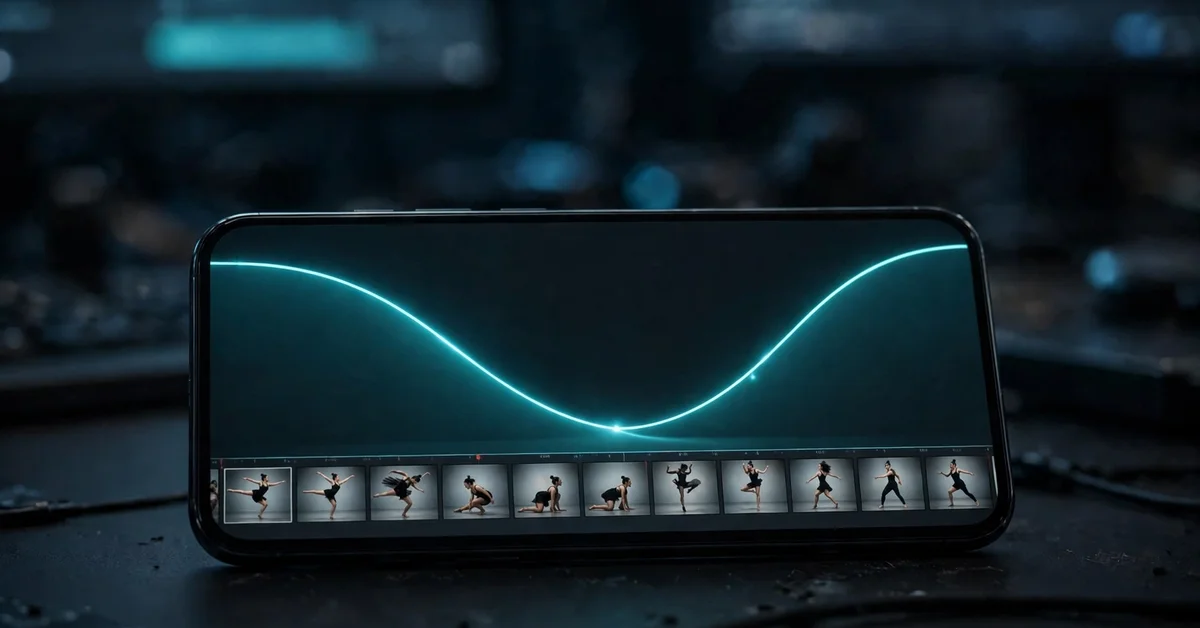
How to Make Cinematic Slow Motion in VN: Full Step-by-Step Workflow
Step 1: New project, 9:16. Open VN, tap New Project, select your clip, and set the canvas to 9:16 for Reels from the start, so text and keyframes sit correctly.
Step 2: Import in order. Add your clips as build-up, main slow moment, then a short ending. Remove failed takes now so the timeline stays clean.
Step 3: Trim tightly. Cut dead seconds from both ends. Slow motion makes long clips feel longer, so most slow sections should run only 2 to 5 seconds on screen.
Step 4: Apply basic speed. Select the clip, open Speed, and try 0.5x for the whole slow section. If only part should be slow, split the clip there or use Curve next.
Step 5: Use Curve for ramping. In Speed, open Curve, pick a preset or adjust the points yourself. Lower the line where you want slow motion, keep it higher for normal speed, and make it slope gently between them. That slope is the ramp; a sudden vertical drop looks jerky.
Step 6: Add keyframes. At the start of the slow section, add a keyframe. At the end, add another and slightly zoom or move the frame. VN animates smoothly between them. Small movements look premium; big ones look shaky.
Step 7: Music and beat. Add your song, find the strongest beat near your main action, and drag the clip or adjust your Curve points so the slowest moment lands on that beat. This one alignment makes a simple edit feel professional.
Step 8: Text, filter, transitions last. Add a short text overlay, apply one filter to all clips for a consistent look, and add transitions only where different clips join. Watch the full reel twice before exporting.
Shooting Tips for Smooth Slow Motion
Slow motion stretches the frames you recorded. More frames per second means VN has more real frames to stretch, so movement stays smooth. Fewer frames means the app must repeat frames, and movement looks choppy.
Record at 60fps or higher where your phone supports it. Choose 60fps in your camera settings, or 120fps if offered and the light is good. A 60fps clip slowed to 0.5x still plays with the smoothness of a normal 30fps video. A 120fps clip can go to 0.25x and still look smooth.
If your phone only shoots 30fps, do not slow below 0.5x. At 0.25x, each frame must cover four times its normal duration, so steps, hands, and hair look steppy. For 30fps clips, choose continuous motion like water, rain, steam, and window views, which hide choppiness better.
Use good light, because high frame rates need more of it and dark 60fps or 120fps clips can look noisy and soft. Keep your hand steady, or rest the phone on a wall, table, or tripod, since slow motion also makes shake easier to see. Record 2 extra seconds before and after the action so you have room to trim and ramp.
Best VN Export Settings for Slow Motion Reels
Options vary slightly by VN version and device, so treat these as general guidance and check your own export screen. Choose 1080 x 1920 for a standard 9:16 Reel; it keeps quality high without the large file and slow upload of 4K. For frame rate, use the rate VN suggests for your project, commonly 30fps for a finished reel, because the slow effect is already built into the slowed sections. If a higher rate is offered and your clips support it, test it and compare file size and playback first.
For bitrate, if VN shows a slider or quality option, pick a medium-high or recommended value, not the maximum. Very low bitrate makes night lights, rain, and colour powder look blocky, while very high bitrate mainly makes the file bigger, and social apps compress the video again anyway.
Common Slow Motion Mistakes to Avoid
Slowing the whole clip. If everything is slow, nothing feels special. Keep the build-up and ending normal.
Slowing 30fps clips too much. The biggest cause of choppy results. Respect the 0.5x limit for 30fps footage.
Missing the beat. A beautiful slow moment placed randomly in the song feels weak. Align the slowest point with a beat, drop, or lyric peak.
Too much digital zoom. Heavy keyframe zoom looks soft and shaky. Stay roughly within 100% to 115%.
Different filters on every clip. One consistent filter looks planned. Five different filters look accidental.
No story. Even a 7-second reel needs a start, a main moment, and an end. Decide those parts before touching speed.
Troubleshooting: Choppy, Blurry and Audio Problems
Choppy slow motion: The clip was probably shot at 30fps and slowed too far, or the Curve line drops too suddenly. Re-shoot at 60fps if you can, raise the speed towards 0.5x, and make the Curve slope gentler. Also note that a struggling phone can make the preview stutter while the export is fine, so always judge the exported file.
Blurry or soft export: Check that you exported at 1080 x 1920, that your keyframe zoom is not too strong, and that bitrate or quality is not on the lowest setting. A clip shot in low light at a high frame rate can also be soft at the source, and no export setting fully fixes that.
Audio pitch problems: Slowing a clip also slows its sound, so voices can turn deep and strange. For most reels, mute or lower the original audio and let the music track carry the video. If you need a real sound, like water splashing or bat contact, keep it in the normal-speed parts, lower it during the slow section, or use it as a short effect at the action moment.
Beat shifted after export: If the exported file feels out of sync, nudge the music track slightly in the timeline and export again. Fix this before posting, not after.
Frequently Asked Questions
Do I need a VN code to make these slow motion edits?
No. Every idea here is built manually with VN’s speed, Curve, keyframe, text, and filter tools. Codes and shared project files exist in the VN community, but you do not need one for this tutorial, and none is provided here.
What is the best speed for cinematic slow motion in VN?
For most clips, 0.4x to 0.5x is the safest cinematic range. Use 0.25x to 0.35x only for very fast action, like a colour throw or ball contact, and only if the clip was shot at a high frame rate. Treat these as starting points and preview.
Why does my slow motion look choppy?
Usually because the clip was recorded at 30fps and slowed below 0.5x, so there are not enough real frames to stretch. Record at 60fps or higher when your phone supports it, or keep 30fps clips at 0.5x or above.
What is Curve speed in VN, and should beginners use it?
Curve is VN’s speed ramping option. Instead of one fixed speed, the speed changes gradually, from normal down to slow motion and back up. Beginners should use it, starting with the presets, because ramping is what makes slow motion look cinematic instead of sudden.
Which is better for Reels, shooting at 60fps or 120fps?
Both beat 30fps for slow motion. 60fps is enough for smooth 0.5x edits and works in normal light. 120fps allows smoother 0.25x edits but usually needs brighter light and creates larger files. Choose based on your scene and phone.
Will Instagram reduce my slow motion quality?
Instagram compresses every upload, so some loss is normal. Reduce the damage by exporting a clean 1080 x 1920 file at a medium-high bitrate, avoiding very dark or noisy clips, and uploading on a stable connection. If your exported file looks clean, you have done your part.
Conclusion
Cinematic slow motion in VN is not about a secret template. It is about three habits: shoot at a high frame rate when you can, slow down only the moment that deserves attention using Curve ramping, and place that moment on the music beat. Start with three easy ideas, walking entry, coffee pour, and pet running, then try the harder colour throw and cricket shot. Soon you will be building your own slow motion styles instead of copying anyone else’s.
Related Guides
Keep learning with these guides from Rajan Template:
- RSP editing template guide for reel editors – another editing style guide to compare workflows and effects.
- Healing CapCut template guide with calm reel ideas – a softer editing style that pairs well with slow B-roll and nature clips.