CapCut White Flash Transition Template: Music Sync Tutorial (TUTORIAL)
A white flash transition is one of the simplest ways to make a CapCut edit feel fast, clean and intentional. Instead of a slow dissolve that blurs the moment, a short burst of white hides the cut for a fraction of a second, so the viewer’s eye jumps straight to the next clip. Used on a beat, it feels like a camera flash going off in rhythm with the music, and that is why it works so well for travel reels, birthday edits, product clips and photo montages.
This guide explains the CapCut white flash transition template in practical terms: how the effect works, how to time it to your song, and how to build the same look from scratch when a ready-made template does not fit your clips. You will learn which clips suit a flash, how long the flash should last, and how to avoid the washed-out, flickery result that happens when the effect is overused. No special footage is needed, and every step uses tools already inside CapCut.
What Is a White Flash Transition in CapCut?
In CapCut, a white flash transition is a brief white overlay, or a built-in flash transition, placed exactly on a cut between two clips. The screen goes white for only a few frames and then reveals the next scene. Because the change happens during the brightest moment, the brain registers a new scene without noticing a hard jump, which makes even very different clips feel connected. It is different from a fade, which gradually blends two images, and from a glitch, which deliberately distorts the picture.
The effect works best when it has a reason to appear. A drum hit, a bass drop, a camera shutter sound or a change of location all give the flash a purpose. When flashes land randomly, or on every single cut, the video starts to feel restless and hard to watch. A good rule is to reserve the strongest flashes for the biggest moments in your song, and to use softer or shorter flashes for smaller scene changes. That contrast is what keeps a fast edit watchable from start to finish.
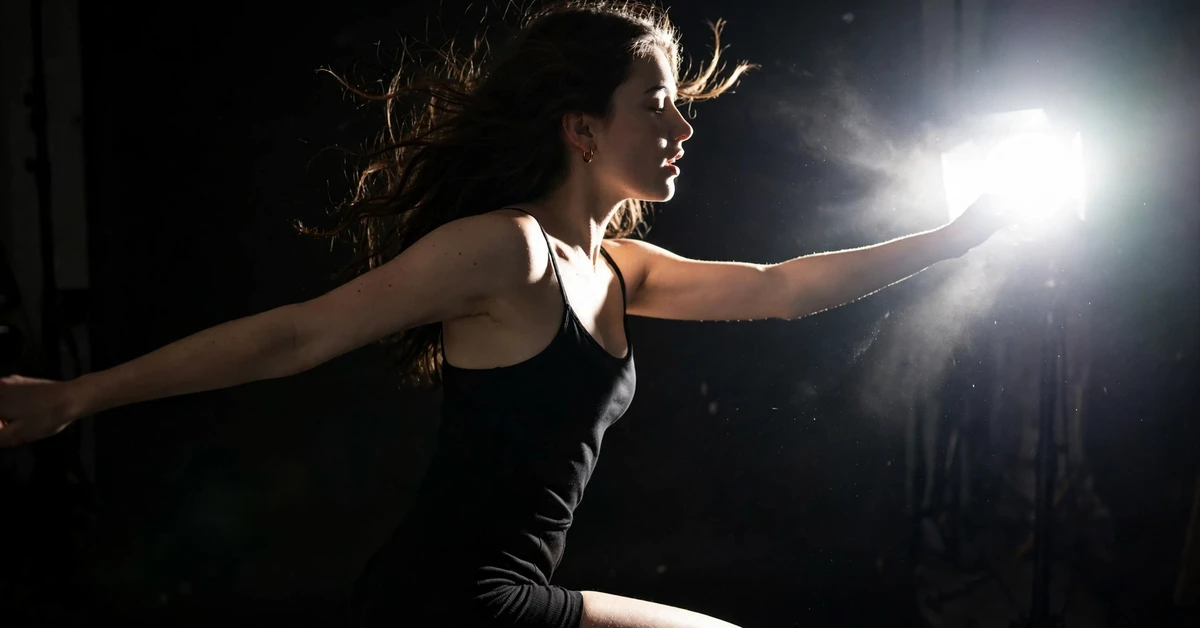
12 White Flash Transition Ideas for Reels and Photo Edits
Use these ideas as starting points, not as rigid rules. Pick the ones that match your footage, then change the timing, the number of flashes and the clip order until the edit matches your song. Each idea below notes the kind of clips it suits and where the flash should land.
1. Beat-Drop Photo Reveal
Choose six to eight photos from one event and place a white flash on every beat just before the drop, then one longer flash exactly on the drop itself. Keep the early photos short, around half a second each, so the pace builds, and let the photo after the drop stay on screen for two full seconds. This contrast between fast flashes and one calm reveal makes the drop feel bigger, and it works especially well for birthday, wedding and travel recaps where the final photo is the strongest one.
2. Before-and-After Flash Cleanse
Show a plain or messy scene, flash to white, then reveal the cleaned, styled or finished version of the same scene. Because the white frame wipes the viewer’s memory of the first shot for a moment, the after shot feels more dramatic than a straight cut would. Keep both clips the same angle if you can, hold the after clip longer, and add a soft click or shutter sound under the flash so the change feels deliberate rather than accidental.
3. Travel Location Hopper
Cut between four or five locations, with a quick flash on each change of city, beach, street or viewpoint. Match each flash to a beat and keep every location clip between one and two seconds, so the reel feels like a fast trip diary. If one location matters more than the rest, give it a longer final clip with no flash at the end, so the viewer has time to enjoy it. This idea suits holiday reels where no single clip is long enough to carry the video alone.
4. Outfit Change Flash
Film the same person in the same spot wearing different outfits, then flash between each look on the beat. Standing in the same place makes the flash feel like a camera flash in a photo shoot, and the outfit becomes the only thing that changes. Keep the framing identical, avoid moving the camera, and flash for only a few frames so the clothes, not the effect, stay the focus. Three to five outfits is plenty for a short reel.
5. Product Showcase Flash
For a small product, show a close-up, flash, show the product in use, flash again, then show the finished result or packaging. Short flashes keep the pace lively without hiding the product, which is the point of the clip. Use a clean background, steady light and the same colour grade across clips, because a flash will draw attention to any sudden change in brightness or colour. End on the clearest product shot and hold it for at least two seconds.
6. Dance Move Accent
Place a white flash on the sharpest move in a dance clip, such as a spin, a jump or a hand clap, rather than on every step. One well-placed flash makes that move pop, while flashes on every beat can make fast dance footage hard to follow. Watch the clip without music first, mark the exact frame where the move peaks, then nudge the flash a few frames earlier or later until it feels like the flash is part of the movement, not pasted on top of it.
7. Day-to-Night Flash
Cut from a daytime clip to a night clip of the same place with a slightly longer white flash in between. The white frame acts like a blink, which makes the change of light feel natural instead of jarring. This works well for city skylines, cafes, campsites and festival grounds. Keep the camera angle similar, match the framing, and let the night clip run longer so the viewer can take in the lights after the bright flash.
8. Memory Montage Flash
Build a montage of old and new photos of the same people or place, flashing gently between years or seasons. Use softer, shorter flashes here than you would for a dance reel, because the mood is warm rather than energetic. Pair the flashes with a slower song, hold childhood or milestone photos a little longer, and finish with the most recent photo. The flash becomes a quiet marker of time passing, not a loud effect.
9. Fitness Progress Flash
Alternate short workout clips with a white flash on each exercise change, then finish with a longer hold on a completed set or a finished routine. Flashes keep a training reel moving quickly, which suits the energy of gym content, but the final hold gives the viewer a moment to rest. Avoid flashing during a lift or a fast movement itself, because the white frame can hide good form. Place flashes in the natural pause between exercises instead.
10. Food Preparation Flash
Show each stage of a recipe, from raw ingredients to chopping, cooking and plating, with a quick flash between stages. The flash hides small jumps in the cooking process and keeps the reel short enough for viewers who want the idea, not a full tutorial. Keep the camera angle steady, use the same board or pan where possible, and finish on a clear shot of the finished dish without a flash, so the food is the last thing the viewer remembers.
11. Pet Personality Flash
Cut between funny or cute moments of a pet, flashing on a head tilt, a jump or a change of expression. Pets move unpredictably, so place the flash just after the funny moment, not during it, so the joke is not hidden by white. Keep clips short, around one second each, and end on the calmest, clearest shot of the pet. This idea works best with bright, natural light, because a flash over dark footage can look harsh.
12. Event Countdown Flash
Count down to a moment, such as a cake cutting, a goal or a surprise, with a flash on each number or beat, then a final flash as the moment happens. The repeated flashes build expectation, and the last one releases it. Keep the countdown clips very short, use the same framing for each number if you can, and make the reveal clip noticeably longer and steadier than the countdown. If the reveal is shaky, the whole build-up loses its payoff.
How to Create a White Flash Transition in CapCut
You can build a white flash transition in CapCut without any extra app. The steps below use a built-in transition or a simple white overlay, depending on which look you prefer. Try the built-in option first, because it is faster, then try the overlay version when you want exact control over length and brightness.
- Open CapCut, start a new project and import the clips or photos you want to use, in the order they will appear in the final video.
- Trim each clip on the timeline, leaving the most important clip longer and the build-up clips shorter, so the pace matches your song.
- Add your music track, listen through once, and mark the beats where a flash should land, especially the drop or the biggest change in the song.
- Tap the small transition icon between two clips, search for a flash or light transition, and apply it to the cut you marked.
- Shorten the transition duration to a few frames, usually the shortest setting that still reads as a flash, and preview it with the sound on.
- If you prefer manual control, add a white solid or a white photo over the cut instead, then fade it in and out over three to six frames.
- Play the whole edit from the start, checking that each flash lands on a beat and that no flash hides an important face, action or word.
- Adjust brightness, add a soft shutter or click sound under the strongest flashes if you wish, then export in the highest quality your phone handles well.
Settings and Tips for a Clean Flash
Small settings make the difference between a flash that looks professional and one that looks like a mistake. Keep the flash short, keep the light consistent, and let the music decide the timing.
- Keep most flashes between three and eight frames long; longer flashes start to feel like blank screens rather than transitions.
- Use the strongest flash only once or twice per short reel, on the drop or the reveal, and keep the rest shorter and softer.
- Match the brightness of neighbouring clips before adding flashes, because a flash will expose any sudden change in exposure.
- Turn on beat markers or tap along to the song while editing, so flashes land on real beats instead of near them.
- Preview on your phone at full brightness, not only in the small editor preview, because flashes look stronger on a bright screen.
- If a flash feels harsh, lower the white overlay opacity slightly or shorten it by one or two frames rather than removing it completely.
Common Mistakes to Avoid
Most white flash problems come from timing or overuse, not from the effect itself. Avoiding these mistakes will make even a simple edit look polished.
- Flashing on every cut: when every change flashes, nothing stands out and the video becomes tiring to watch within seconds.
- Hiding the best moment: a flash placed during a jump, a smile or a reveal covers exactly the frame the viewer wants to see.
- Mixing flash lengths randomly: inconsistent flash durations feel accidental, so keep a clear pattern of short flashes and one strong flash.
- Ignoring the music: flashes that fall between beats feel out of sync, even if the clips themselves are well chosen.
- Using flashes over dark, grainy footage: the contrast between black and white can look harsh, so brighten dark clips first or use a shorter flash.
Troubleshooting White Flash Edits
If your flash edit does not look right, the fix is usually a small timing or brightness change. Work through these checks in order.
The flash looks like a flicker
Your flash is probably too short, or two flashes are too close together. Lengthen the flash by two or three frames, or remove the second flash, and preview again with the sound on. A single clear flash reads better than two rapid blinks.
The video feels too bright overall
You may have used too many strong flashes, or your clips are already overexposed. Reduce the number of flashes, shorten the strongest ones, and lower the exposure of the brightest clips slightly before exporting.
The flash is out of sync with the music
Move the flash a few frames in either direction until it lands exactly on the beat. Songs often have a slight delay in preview, so trust the exported preview or the beat markers more than the first live playback.
The transition option is missing
Some flash transitions appear under different names, such as light, flash or glitch, depending on the CapCut version. Search those terms, or build the flash manually with a white overlay, which works in every version.
The export looks different from the preview
Export at the highest available quality and check the finished file on your phone before sharing. Heavy compression can shorten or soften a flash, so a slightly longer flash sometimes survives export better.

Frequently Asked Questions
How long should a white flash transition last?
Most white flashes work best at three to eight frames, which is a fraction of a second. Shorter flashes feel snappy, while longer ones feel like a deliberate blink. Test both on your own footage, because the right length depends on the pace of your song and the brightness of your clips.
Can I use a white flash transition with photos?
Yes, white flashes work very well with photos, because they hide the jump between still images and add movement to a montage. Keep each photo on screen long enough to be seen, flash on the beat, and hold the final photo longer than the rest.
Do I need a template to make a white flash?
No, you can make the effect with a built-in transition or a simple white overlay in CapCut. Templates are useful for speed, but building it yourself gives you exact control over timing, length and brightness for your own clips.
Why does my flash edit look harsh?
Harsh flashes usually come from too many flashes, flashes that are too long, or very dark footage next to bright white. Use fewer flashes, shorten them, brighten dark clips slightly, and reserve the strongest flash for one key moment.
Is a white flash good for every kind of video?
It suits fast, energetic edits such as travel, dance, product and montage reels, but it is less suited to calm interviews, tutorials or emotional stories, where a soft dissolve or a straight cut feels more natural. Match the transition to the mood of the video.
How do I sync flashes to music in CapCut?
Add the song first, listen for the beats and the drop, and place flashes on those beats. Use beat markers if your version shows them, nudge each flash a few frames until it feels locked to the sound, and always preview with the audio on before exporting.
Conclusion
A white flash transition earns its place when it has a reason: a beat, a reveal, a change of place or a change of mood. Keep flashes short, place them on the music, and save the strongest flash for the moment that matters most. With those habits, a simple white burst can turn a loose collection of clips into a reel that feels fast, bright and deliberately edited, without hiding the footage itself.