CapCut Velocity Edit Template: Speed Ramp Effects Explained
A velocity edit is the moment a reel suddenly feels alive: a dancer hangs in the air a little longer, a bike rushes past in a blur, and then everything settles back to normal speed exactly on the beat. The effect looks advanced, but the idea behind it is simple. You change the speed of a clip at chosen moments, smoothly, so the motion itself becomes part of the music.
CapCut’s free editor gives you everything you need for this style: speed controls, curve-style speed changes, splitting, transitions, text, and filters in one timeline. If you can split a clip and change its speed, you can build every idea in this guide.
One honest note before we start. This guide does not give you any template link, download file, or ready-made project. No link is needed. You will build a CapCut Velocity Edit Template style edit yourself in the free CapCut app, step by step, using only your own clips and audio that your platform allows. The steps below keep to tools and techniques that exist in CapCut’s free editor, described in a generic-safe way, so you can follow them without hunting for a feature that is not there.
Quick answer: Start a 9:16 CapCut project, split your clip at the moments where speed should change, slow the highlight moment to around 0.3x to 0.5x and speed the surrounding motion to around 1.2x to 1.5x, smooth the change between speeds, and land the return to normal speed exactly on a beat. That workflow covers every idea below.
16 CapCut Velocity Edit Ideas (Step by Step)
Use the speeds below as starting points, not fixed rules. Preview every change on a phone screen, and adjust in small steps. The golden rule of velocity editing is smooth change: speed should glide from one value to another, never jump, or the edit will feel like a glitch instead of a style.
1. Classic Slow-to-Fast Speed Ramp
Clips: One continuous clip with a clear action, such as running, dancing, or riding. Split the clip into two parts: a build-up section and a payoff section. Keep the build-up at normal speed or slightly slow, around 0.8x, so viewers feel anticipation, then set the payoff section to around 1.3x for one to two seconds as the action peaks. Smooth the change between the two speeds so there is no sudden jump, and return to normal speed after the payoff so the reel settles. This is the foundation of velocity editing, and it works for almost any energetic clip.
2. Fast-to-Slow Freeze Moment
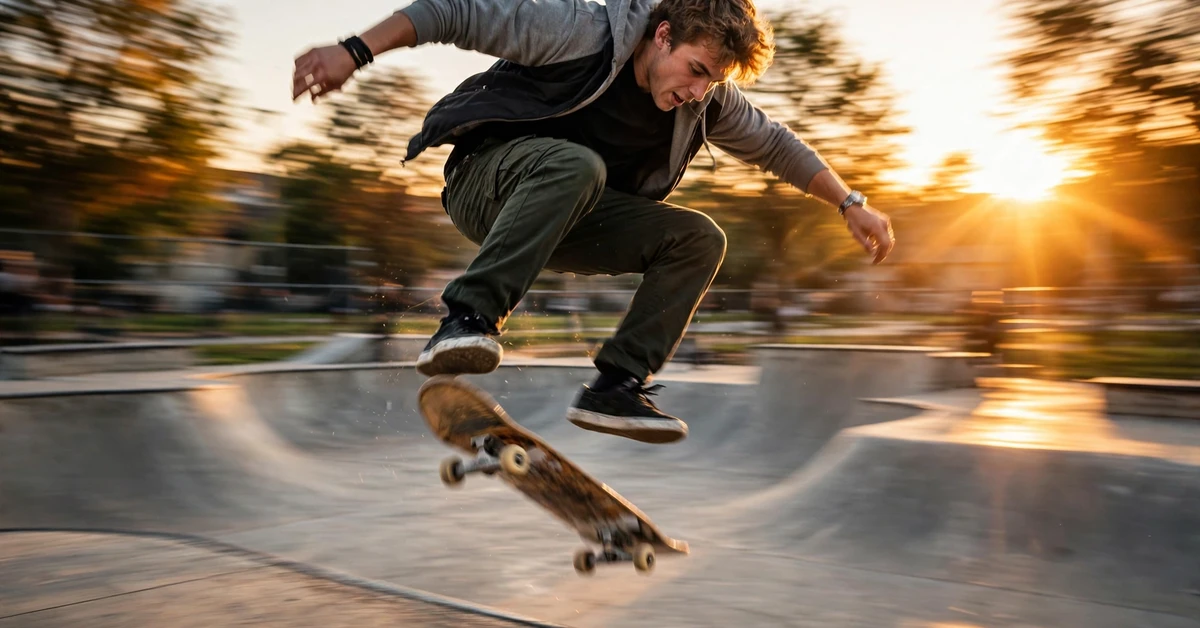
Clips: One clip with a single peak moment, such as a jump landing, a ball being caught, or a spin finishing. Keep the approach at normal or slightly fast speed, around 1.2x, then split at the peak moment and slow that moment to around 0.3x to 0.5x for one to two seconds. The sudden slow-down makes the peak feel bigger, because time itself seems to pause for it. End the slow section cleanly on a beat, then return to normal speed. Keep the slow section short; a long slow section loses its drama and starts to feel like the video has stalled.
3. Beat-Synced Speed Ramp
Clips: One clip of a dance or movement sequence with a song that has clear beats. Split the clip on the beats, and assign a different speed to each section: normal speed on the build, fast on the rise, slow on the highlight, and normal again on the landing. The speed changes themselves become the rhythm of the edit, so the video dances with the music instead of just playing alongside it. Mark the beats first, split precisely on them, and preview with sound, because a speed change even slightly off the beat will feel wrong. This idea needs patience, but it produces the most musical velocity edits.
4. Jump Cut Speed Ramp
Clips: One clip of a repetitive action, such as dribbling, skipping, or chopping. Split the clip into short sections of one to two seconds each, and alternate their speeds: one section at normal speed, the next at 1.5x, the next back to normal. The alternating pace creates a punchy, rhythmic feel without any transition effect. Keep the cuts on the beat, keep each section long enough to recognise the action, and do not alternate for the whole reel; use this idea for one energetic stretch of a few seconds, then let a longer clip breathe.
5. Zoom and Speed Ramp Combination
Clips: One clip with a clear subject moving towards the camera, such as a walk-in or a vehicle approach. Combine a slow zoom-in with a speed increase: as the subject gets closer, the speed rises gently from 1.0x to about 1.4x. The zoom and the speed work together, so the approach feels twice as powerful as either effect alone. Keep both changes smooth and gradual, and land the peak of the zoom and the peak of the speed at the same moment, on a beat. Avoid adding a transition on top; the combined zoom and ramp already carry the moment.
6. Smooth Ramp Without Spins or Shakes
Clips: One steady clip of walking, cycling, or a calm landscape pan. Build a gentle ramp from 0.8x up to 1.2x and back to normal speed, with no spin, shake, or flash effect at any point. This idea proves that velocity editing does not need aggressive effects: the changing pace alone creates interest. It suits travel, daily vlogs, and scenic reels, where a calm, flowing feel matters more than impact. Keep the footage steady, because speed changes make camera shake more noticeable, and preview on a phone screen to confirm the ramp feels smooth.
7. Slow Motion Highlight Reel
Clips: Three to four short clips of highlights: a goal, a dance move, a splash, or a celebration. Keep the lead-in to each highlight at normal speed, then slow each highlight itself to around 0.4x for one to two seconds. The contrast between normal lead-ins and slow highlights makes each moment feel special. Keep the slow sections consistent in speed, use the same filter across all clips, and cut between highlights on the beat. This structure suits sports, dance, and event reels, and it is easy to reuse with new footage.
8. Hyperlapse-Style Fast Ramp
Clips: One long, steady clip of a journey, a walk through a market, or clouds moving. Speed the whole clip up gradually, from normal speed to around 2x or higher, so a long journey compresses into a few exciting seconds. The gradual increase matters: starting fast feels abrupt, while ramping up feels like the journey is gathering pace. Keep the camera as steady as possible, since fast playback exaggerates every shake, and end the fast section by easing back to normal speed on arrival, so the destination lands calmly. This idea is ideal for travel montages and day-in-the-life openings.
9. Dance Move Speed Ramp
Clips: One dance clip with a clear signature move, such as a spin, a drop, or a jump. Split the clip into three parts: the preparation, the move itself, and the landing. Keep the preparation at normal speed, slow the signature move to around 0.5x so viewers can admire it, and speed the landing slightly to around 1.2x for a snappy finish. The three speeds tell a tiny story: set-up, showcase, payoff. Match the slow section to the strongest beat of the move, keep the dancer centred in the frame, and avoid adding a transition during the move, because the speed change already marks it.
10. Vehicle Motion Speed Ramp
Clips: Vehicle clips: an approach, a pass-by, and a detail shot of a wheel or headlight. Keep the approach at normal speed, speed the pass-by to around 1.5x for one second to sell the sense of motion, then slow the detail shot to around 0.5x so viewers can enjoy it. The fast-slow contrast makes the vehicle feel both powerful and beautiful. Film vehicle shots safely, from a safe position, and never film while driving. Keep the fast section short, because a long fast section looks rushed, and check that the detail shot is sharp before slowing it down.
11. Ramp Into a Cut
Clips: Two clips where the first ends with motion, such as a door opening, a hand reaching, or a step forward. Speed up the last second of the first clip to around 1.4x, then cut directly to the second clip on the beat at normal speed. The ramp acts like a run-up to the cut, so the cut itself feels more powerful without any transition effect. This is one of the most useful velocity techniques because it improves almost any edit: a ramped lead-in makes even a simple cut feel intentional. Keep the ramp smooth, and make sure the second clip starts on a strong, clear image.
12. Reverse and Ramp Combination
Clips: One clip of an action that looks interesting in reverse, such as jumping into water, throwing confetti, or a scarf blowing. Play the first half normally, then split and reverse the second half while slowing it to around 0.5x, so the action appears to rewind gracefully. The reversed slow section feels surprising and dreamy, and it works well as a closing moment for a reel. Keep the reversed section short, one to two seconds, and end on a clear final frame rather than mid-motion, so the reel finishes cleanly.
13. Multi-Point Curve Ramp
Clips: One longer clip with several moments of interest, such as a full dance routine or a skate run. Instead of one speed change, set several speed points along the clip: slow on each highlight, fast between highlights, and normal at the start and end. The result is a rolling rhythm where the pace rises and falls with the action. Plan the points before you start: mark each highlight on the timeline, assign its speed, and smooth every change between points. This is the most advanced idea in the guide, so build it last, after the simpler ramps feel comfortable.
14. Speed Ramp With Steady Text Overlay
Clips: One clip with a speed ramp and space for a short caption. Add your text before changing the speed, and keep the text steady and readable throughout the ramp, fading it in slowly and holding it for at least two seconds. Text that moves with a speed ramp can look chaotic, so the trick is contrast: the footage changes speed while the text stays calm and still. Keep the text short, use a clean font, and place it where the action will not cover it. This idea suits tutorial, travel, and product reels where a caption adds context.
15. Sports Action Speed Ramp
Clips: Sports clips: a run-up, a kick or swing, and a celebration. Keep the run-up at normal speed, slow the moment of contact to around 0.4x, then speed the celebration slightly to around 1.2x. The slow contact moment is the star of the edit, so give it a clean, steady frame and at least one full second of slow playback. Cut the celebration on the beat, keep the filter bright and consistent, and post only clips you filmed or have permission to use. This structure works for football, cricket, running, and gym clips alike.
16. Travel Montage Speed Ramp
Clips: Five to six travel clips: a road, a market, a viewpoint, food, and a sunset. Give each clip its own gentle ramp: slow on the most beautiful moment of each clip, and slightly fast on the transitions between places. The montage then feels like a journey with breathing space, not a rush through locations. Keep the ramps gentle, around 0.8x to 1.2x, rather than extreme, and use one consistent filter so the different places feel like one trip. End on the sunset or viewpoint clip at normal speed, held for at least two seconds, so the montage closes calmly.
How to Build a Velocity Edit in CapCut: Full Step-by-Step Workflow
Step 1: Start a 9:16 project and arrange your clips. Open CapCut, tap New Project, select your clips in story order, and set the canvas to 9:16 for Reels from the start, so framing, text, and speed effects sit correctly. Trim each clip to its best moment before changing any speed.
Step 2: Add music and mark the beats and highlights. Add your song, listen through it once, and mark two things: the beats where cuts should land, and the highlight moments that deserve slow motion. These marks are the skeleton of a velocity edit; every speed change hangs from one of them.
Step 3: Split the clip at every speed change point. Split your clip at the start and end of each highlight and each fast section. Precise splits matter more than precise speeds: a speed change placed a fraction of a second late will feel off even if the speed value is perfect.
Step 4: Set the speeds, slowest on highlights. Set highlight sections to around 0.3x to 0.5x, fast sections to around 1.2x to 1.5x, and everything else to normal speed. Change one section at a time and preview after each change, so you always know which change caused a problem.
Step 5: Smooth every speed change. Wherever speed changes, make the change gradual rather than sudden. A smooth ramp feels like skilled editing; a sudden jump feels like a glitch. If your editor offers curve controls, use a gentle curve; if not, add a short intermediate section at a middle speed to bridge the gap.
Step 6: Add text, filter, preview, and export. Add short text only over steady sections, apply one consistent filter to all clips, and watch the full reel three times: once with sound, once on mute, and once on a phone screen. Fix any ramp that feels sudden or shaky, then export at 1080 x 1920 and watch the exported file once more before posting.
Speed, Curve and Export Settings for Velocity Edits
For speed values, start with a simple range and expand only when needed. Highlights usually sit between 0.3x and 0.5x, normal footage stays at 1.0x, and fast sections sit between 1.2x and 1.5x. Going slower than 0.3x can make footage look choppy unless it was filmed at a high frame rate, and going faster than 2x usually looks rushed unless the clip is a long journey compressed into a hyperlapse.
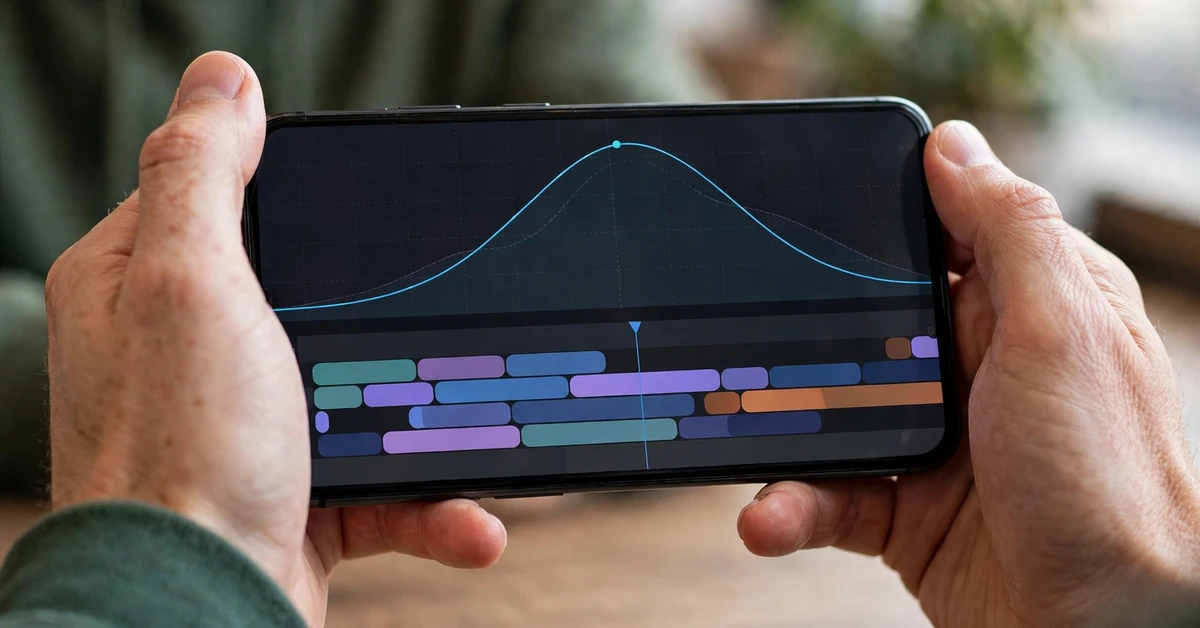
For curves, think of speed as a hill, not a staircase. Each change should rise or fall gradually over at least half a second, with the peak of the change landing on the highlight or the beat. If your editor offers curve presets, try a gentle ease-in and ease-out first, and only use sharper curves for high-impact moments such as a sports contact or a dance drop.
For export, keep the canvas at 9:16 and 1080 x 1920 for Reels, and watch the exported file before posting. Speed changes can expose problems that the editor preview hides, such as choppy slow motion or shaky fast sections. If a slow section looks choppy, shorten it or raise its speed slightly; if a fast section looks shaky, stabilise the clip or reduce the speed. A final phone-screen check is the most reliable quality gate in velocity editing.
Common Velocity Editing Mistakes to Avoid
The most common mistake is changing speed too often. A reel where every second has a different speed feels restless, not stylish. Choose two or three speed moments per reel, and let the rest of the footage play at normal speed. The contrast between normal and changed speed is what makes the changed moments stand out; without normal sections, there is no contrast.
The second mistake is sudden speed jumps. A clip that goes straight from 0.3x to 1.5x with no transition feels like a glitch, even if both speeds are well chosen. Always smooth the change, either with a curve or with a short middle section, and preview the change point specifically, not just the whole reel.
The third mistake is slowing down weak footage. Slow motion magnifies every flaw: blur, shake, and poor light all become more obvious at 0.4x. Slow down only your sharpest, steadiest clips, and keep slow sections short.
Troubleshooting: Fixing Velocity Edits That Feel Wrong
Problem: The speed change feels like a glitch, not a style. The change is probably too sudden. Smooth it with a gentler curve or a short middle-speed section, and check that the split points sit exactly on the action change, not before or after it.
Problem: Slow motion looks choppy. The clip may not have enough frames for very slow playback. Raise the slow section to around 0.5x, shorten it, or choose a different clip filmed in better light. Avoid slowing the same clip below 0.3x unless the source footage is very smooth.
Problem: The fast section looks rushed or shaky. Reduce the fast speed to around 1.2x, shorten the fast section to one second, or stabilise the clip. Fast playback exaggerates shake, so only speed up steady footage.
Problem: The ramp does not land on the beat. Nudge the split points frame by frame until the speed change and the beat coincide, and preview with sound. A ramp that is slightly early feels worse than one that is slightly late, so err towards landing exactly on the beat.
Problem: The exported reel looks different from the preview. Watch the exported file on a phone screen before posting.
Frequently Asked Questions About CapCut Velocity Edits
What is a velocity edit in CapCut?
A velocity edit is a video edit where the playback speed changes at chosen moments: slow motion on highlights, faster motion on transitions or build-ups, and normal speed elsewhere. The speed changes follow the music and the action, so the motion itself becomes part of the edit’s rhythm.
What speeds should I start with for a velocity edit?
Start with highlights at around 0.3x to 0.5x, normal footage at 1.0x, and fast sections at around 1.2x to 1.5x. These values work for most dance, sports, travel, and daily-life clips. Adjust in small steps after previewing, and avoid going below 0.3x or above 2x unless the footage is very smooth and steady.
Do I need a paid CapCut feature for speed ramps?
No. Splitting clips and changing their speed are core tools in the free CapCut editor, and every idea in this guide uses only those kinds of techniques. You do not need any template, download, or paid effect to build a velocity edit; you build it yourself from your own clips.
Why does my speed ramp feel jerky instead of smooth?
Jerky ramps usually come from sudden changes between speeds, or from splits placed slightly off the action. Smooth the change with a gentler curve or a middle-speed section, and nudge the split points until the change lands exactly where the action changes. Also check the footage itself: shaky or blurry clips look worse when their speed changes.
Can I use a velocity edit for calm or aesthetic reels?
Yes. Velocity editing is not only for high-energy clips. Gentle ramps between 0.8x and 1.2x add a flowing, dreamy feel to travel, cooking, and aesthetic reels, without any aggressive effect. The same techniques apply; only the speed range is calmer.
How do I check a velocity edit before posting it?
Watch the exported file on a phone screen, once with sound and once on mute. Look for sudden speed jumps, choppy slow motion, and shaky fast sections. Fix any problem by smoothing the curve, adjusting the speed, or shortening the section, and re-check the export before posting.
Conclusion
A good velocity edit is not about extreme speeds. It is about choosing the right moments, changing speed smoothly, and landing every change on the beat. Start with one simple ramp, a slow highlight and a normal-speed return, and practise until the change feels invisible. Then add a second idea, such as a ramp into a cut or a beat-synced section, and keep the same rule throughout: if a speed change feels sudden, smooth it; if it feels pointless, remove it.
Related Guides
If you enjoyed this guide, these related CapCut guides use the same step-by-step approach: