CapCut Motion Blur Transition Template: Smooth Cinematic Edits
Motion blur is the difference between a cut that feels like a jump and a cut that feels like a glide. In real life, fast movement blurs slightly, and our eyes expect that blur. When an edit adds a short blur across a transition, the viewer’s eye follows the movement instead of noticing the cut, and the whole reel feels smoother and more cinematic.
CapCut gives you the tools to build this look in the free editor: speed controls and speed curves, blur-style effects and transitions, keyframe movement, and trimming on the beat. You do not need a paid app or a downloaded project file. If you can trim a clip, add a short transition, and control speed across a cut, you can make every idea in this guide.
One honest note before we start. This guide does not provide any template link, download, or ready-made project file, and no template link or download is provided anywhere in this article. You build each edit yourself in CapCut, using your own clips. That is also why the ideas below focus on movement you already filmed: motion blur works best when the camera or the subject is genuinely moving.
Quick answer: Start a 9:16 CapCut project, trim your clips so each cut lands on movement or a beat, add a short blur-style transition of about 0.3 to 0.5 seconds between clips, use a gentle speed ramp into and out of the cut, keep the blur brief, and export at 1080 x 1920 and 30fps. That workflow runs through all the ideas below.
18 CapCut Motion Blur Transition Ideas
Use the timings and settings below as starting points, and preview each idea on your own clips. The same blur length can feel smooth on a fast pan and dizzy on a slow walk, so match the blur to the speed of the movement. Keep the movement, not the effect, as the star.
1. Walking Forward Blur Cut
Clips: Two walking clips filmed moving forward. Trim each clip so the cut lands mid-stride, add a blur transition of about 0.3 to 0.5 seconds, and keep both clips at normal speed. The forward movement carries the viewer through the blur, so the location change feels like one continuous walk instead of two separate shots.
2. Pan Across the Room Blur
Clips: One clip panning across a room, cut into two parts at the middle of the pan. Add a short blur transition at the cut, keep the pan speed steady, and avoid adding a zoom on top of the blur. The pan already supplies the motion, so the blur only needs to smooth the join, not create extra movement.
3. Spin Into the Next Scene
Clips: Two clips joined by a turn or spin of the camera or subject. Slow the last half-second before the cut slightly, add a blur transition during the fastest part of the spin, and return to normal speed right after the cut. Place the cut on a beat so the spin feels musical as well as smooth.
4. Running Shot Speed Ramp Blur
Clips: One running or fast-walking clip. Use a speed curve to ramp up to about 1.5x just before the cut, add a blur transition at the peak speed, then settle back to normal speed in the next clip. The ramp makes the blur feel earned, because the footage is genuinely moving faster when the blur appears.
5. Doorway Pass-Through Blur
Clips: Two clips: one approaching a doorway and one on the other side. Cut as the camera passes through the doorway, add a short blur transition, and keep the walking speed steady on both sides. The doorway gives the blur a natural hiding place, so the location change feels invisible.
6. Car Window Travel Blur
Clips: Two clips filmed from a moving vehicle or of passing scenery. Cut on a beat during steady forward motion, add a blur transition of about 0.4 seconds, and keep both clips at normal speed. The passing scenery already blurs naturally, so a short transition blur blends in rather than standing out.
7. Dance Move Blur Transition
Clips: Two dance clips with a clear arm movement or turn. Cut during the fastest part of the movement, add a blur transition of about 0.3 seconds, and keep the rest of the dance at normal speed. Blur only the transition moment, not the whole move, so viewers still see the dancer’s skill clearly.
8. Jump Cut Smoothed by Blur
Clips: Two clips of the same subject in the same place, filmed moments apart. Add a very short blur transition of about 0.2 to 0.3 seconds instead of a hard jump cut, and keep the framing similar on both sides. The blur softens the jump without hiding the change, which suits outfit changes, reactions, and comedy timing.
9. Staircase Climb Blur Rise
Clips: Two clips climbing stairs, one lower and one higher. Cut mid-step during upward movement, add a blur transition of about 0.4 seconds, and keep the climbing pace steady. The upward motion gives the blur direction, so the viewer feels lifted into the next shot rather than dropped into it.
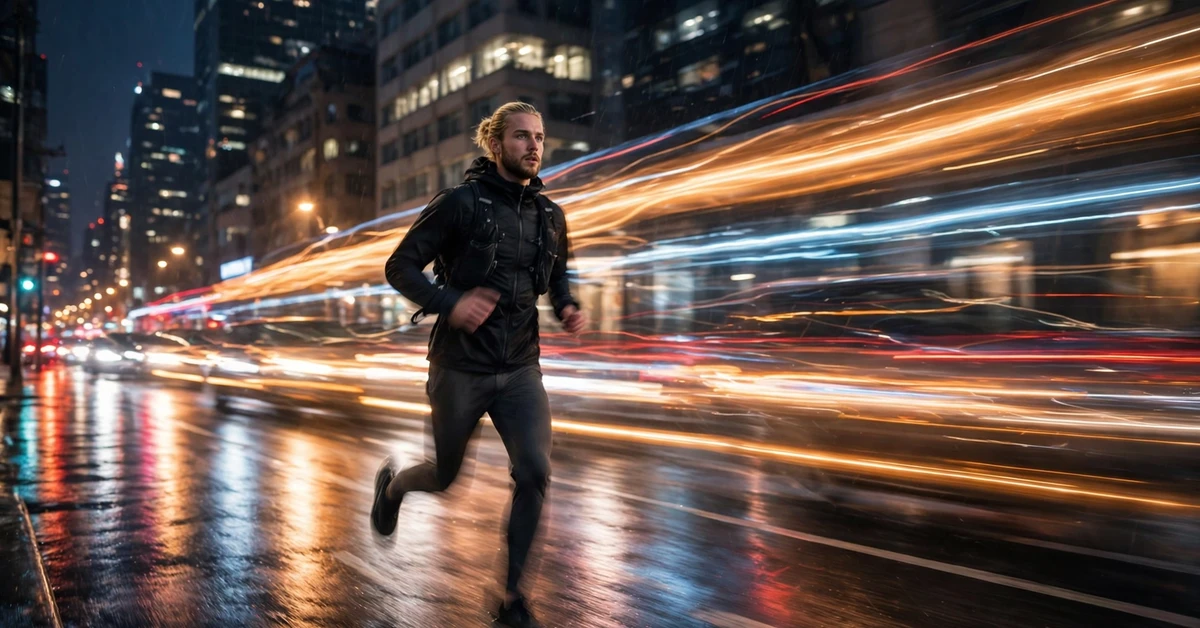
10. City Lights Night Blur
Clips: Two night clips with moving lights, such as traffic or street signs. Cut during camera movement, add a blur transition of about 0.4 seconds, and keep the blur short, because night footage already carries noise. Use a moderate filter only, and avoid stacking blur with heavy colour effects on the same cut.
11. Sports Action Blur Cut
Clips: Two sports clips with fast action, such as a kick, a throw, or a sprint. Cut just before the peak action moment, add a blur transition of about 0.3 seconds, and return to normal speed for the payoff moment itself. Blurring the action itself would hide the skill, so blur only the join between clips.
12. Beach Wave Wash Blur
Clips: Two beach or water clips with waves moving toward the camera. Cut as a wave reaches its highest point, add a blur transition of about 0.4 seconds, and let the next clip settle at normal speed. The wave gives the blur a natural rhythm, and the water movement hides the cut beautifully.
13. Cooking Pour Blur Transition
Clips: Two cooking clips joined by a pouring or stirring movement. Cut during the pour, add a short blur transition, and keep the pour at normal speed on both sides so the liquid movement looks continuous. Place the cut on a beat only if the music suits it; cooking edits often feel better with gentle, unhurried timing.
14. Outfit Change Spin Blur
Clips: Two clips in different outfits, filmed in the same place and camera position. Turn or spin at the end of the first clip, add a blur transition during the fastest part of the spin, and start the second clip as the spin settles. Match your position in both clips so the swap reads clearly once the blur clears.
15. Timelapse Into Real-Time Blur
Clips: One sped-up clip, such as clouds or a street scene, followed by a normal-speed clip of the same place. Slow the end of the timelapse with a speed curve, add a blur transition as the speed settles, and hold the real-time clip for several seconds. The blur marks the change of pace without a jarring stop.
16. Pet Play Blur Chase
Clips: Two clips of a pet running or playing. Cut during the pet’s fastest movement, add a blur transition of about 0.3 seconds, and keep the rest of each clip at normal speed so the pet stays recognisable. Short blurs suit animals best, because long blurs turn a lively pet into an unrecognisable smear.
17. Market Walk Crowd Blur
Clips: Two market or street clips filmed while walking forward. Cut during steady forward motion through the crowd, add a blur transition of about 0.4 seconds, and avoid extra zooms. The crowd movement already fills the frame with motion, so the blur only needs to smooth the join between the two walks.
18. Slow Closing Blur Ending
Clips: Two final clips for the end of any reel. Slow the last clip slightly with a speed curve, add a gentle blur transition between the two, and let the final clip settle at normal speed on a calm, clear frame. A soft blur ending feels finished and cinematic, unlike a hard cut that stops the reel abruptly.
How to Build a Motion Blur Transition in CapCut: Step by Step
Step 1: Start a 9:16 project. Open CapCut, tap New Project, and select your clips in story order. Set the canvas to 9:16 for Reels from the start, so transitions, keyframes, and text sit correctly and no subject is cropped awkwardly later.
Step 2: Trim on movement and beats. Trim each clip so its cut lands during movement, such as a step, a pan, or a turn, and near a beat where the music suits it. Remove dead seconds from the start and end of each clip, and keep most clips to two to four seconds.
Step 3: Add the blur transition. Tap the transition point between two clips, choose a blur-style transition, and set its duration to about 0.3 to 0.5 seconds. Preview the cut at full speed, and shorten the blur if it feels dizzy or lengthen it slightly if the cut still feels like a jump.
Step 4: Add a gentle speed ramp. Select the clip before the cut, open Speed, and use a curve to rise gently toward the cut and settle after it. Keep the ramp subtle, around 1.2x to 1.5x at the peak, because a wild ramp plus blur together can feel chaotic.
Step 5: Check framing on both sides. Make sure the subject is not cut off or jumping position across the blur. If the framing jumps, trim one clip slightly or adjust the cut point, rather than adding a longer blur to hide the problem.
Step 6: Text, preview, export. Add short text only where it adds meaning, using one font throughout. Watch the full reel twice at full speed, fix any blur that feels too long or any cut that still jumps, then export at 1080 x 1920 and 30fps, and watch the exported file on your phone before posting.
Settings and Timing Tips for Smooth Blur Transitions
Blur duration is the setting that matters most. For most mobile reels, 0.3 to 0.5 seconds is the sweet spot: shorter than 0.2 seconds often fails to smooth the cut, while longer than 0.6 seconds usually feels dizzy, especially on a phone screen. Match the duration to the movement speed: fast pans and runs can take the longer end, while slow walks and gentle turns need the shorter end.
Speed ramps should stay gentle. A rise to about 1.2x to 1.5x before the cut, settling back to normal speed after it, is enough to make the blur feel natural. Avoid combining a strong ramp, a long blur, and a zoom on the same cut, because three movements at once confuse the eye. Pick the blur as the star of the cut, and let speed and framing play supporting roles.
For export, choose 1080 x 1920 for a standard 9:16 Reel at 30fps, which suits most phone footage and keeps motion smooth. A medium-high quality setting is enough, because social apps compress the video again anyway. Export once, watch it fully on your phone, and only then post it.
Common Motion Blur Mistakes to Avoid
Blur on every single cut. When every cut blurs, the reel feels seasick and nothing stands out. Use blur transitions for movement-based cuts, and plain cuts for the rest.
Blur lasting too long. A blur longer than about 0.6 seconds usually feels dizzy on a phone. Keep most blur transitions between 0.3 and 0.5 seconds, and shorter for slow movement.
Blurring the action itself. If the blur covers the kick, the spin, or the payoff moment, viewers miss the skill. Blur only the join between clips, and keep payoff moments sharp.
Blurring a still scene. Motion blur needs motion. On a still interview or a static photo, a blur transition looks like a mistake rather than a style choice, so use a dissolve or a plain cut there instead.
Stacking ramp, blur, and zoom together. Three movements on one cut confuse the eye. Choose the blur as the main effect, keep the speed ramp gentle, and skip the zoom on blur cuts.
Hiding bad framing with blur. A longer blur cannot fix a subject jumping position across a cut. Fix the trim and framing first, then add a short blur to smooth the join.
Troubleshooting: Dizzy, Jumpy, and Washed-Out Blur Edits
Edits feel dizzy: Shorten every blur transition to 0.3 seconds, remove blur from at least half the cuts, and soften any speed ramps. Dizziness usually comes from too much blur, not too little.
Cuts still feel like jumps: Check that the cut lands during movement, not during a still moment. Move the cut point a few frames earlier or later so it sits mid-step, mid-pan, or mid-turn, then preview again.
Blur looks washed out or grey: Shorten the blur, and avoid stacking it with a heavy filter on the same cut. If the footage was shot in low light, the blur will soften it further, so prefer brighter clips for blur transitions.
Video looks soft after posting: Social apps compress every upload, so some softness is normal. Export a clean 1080 x 1920 file at 30fps, avoid very dark or noisy clips, and upload on a stable connection. If the exported file looks smooth and clear on your phone, you have done your part.
Frequently Asked Questions
Do I need a template link to make motion blur transitions in CapCut?
No. Every idea here is built manually with CapCut’s trimming, transitions, speed curves, and keyframes. No template link, download, or ready-made project file is provided in this guide, and none is needed to follow it.
How long should a motion blur transition last?
For most mobile reels, about 0.3 to 0.5 seconds works best. Shorter blurs may not smooth the cut, while blurs longer than about 0.6 seconds often feel dizzy on a phone screen. Match the length to the speed of the movement.
Should I blur every cut in my reel?
No. Use blur transitions only for movement-based cuts, and plain cuts for the rest. When every cut blurs, the reel feels seasick and the blur stops feeling special. Two to four blur transitions per short reel is usually plenty.
Does motion blur work on still photos?
Not really. Motion blur needs genuine movement, such as a pan, a walk, or a turn. For still photos, a dissolve, a slow zoom, or a plain cut usually looks better than a blur transition.
Why does my blur transition look dizzy?
The blur is probably too long, the speed ramp too strong, or the blur combined with a zoom on the same cut. Shorten the blur to 0.3 seconds, soften the ramp, remove the zoom, and preview at full speed before posting.
What export settings suit motion blur reels best?
Export at 1080 x 1920 and 30fps with a medium-high quality setting. That matches most phone footage, keeps motion smooth, and avoids huge files, since social apps compress the video again anyway.
Conclusion
Smooth motion blur is not about a secret template. It is about three habits: cutting during real movement, keeping each blur short at 0.3 to 0.5 seconds, and using a gentle speed ramp instead of a wild one. Start with three easy ideas, the walking forward blur cut, the doorway pass-through, and the slow closing blur ending, then try the running speed ramp and the outfit change spin. Your own movement will make the result yours.
Related Guides
Keep learning with these guides from Rajan Template:
- CapCut 5 Photo Beat Sync Template – timed photo edits that help with beat cutting in motion reels.
- CapCut Punjabi Beat Drop Template – beat-drop timing ideas for high-energy transitions.
- CapCut Hindi Song Slow Motion Template – slow motion ideas for emotional movement moments.
- VN Cinematic Slow Motion Template – speed-curve ideas for smoother slow motion in any app.
- Thailand CapCut Template Guide – travel editing ideas with movement-based transitions.