CapCut One Photo to Video Template: Cinematic Zoom Tutorial
One strong photo can carry a whole reel. You do not need a gallery of clips, a second camera angle, or a complicated project file. With one well-chosen photo, a slow cinematic zoom, and the right music, you can turn a still image into a living video — the kind of short video people watch to the end because the frame keeps gently changing while the story stays clear.
This guide teaches the CapCut One Photo to Video Template workflow as a manual build inside the free CapCut app. To be honest right at the start: no template link, download link, QR code, or ready-made project file is provided here, and none is needed. You will build the edit yourself, step by step, using one photo and tools already inside CapCut. A manual build gives full control over photo, zoom, timing, and music, and reuses for any photo, from a mountain sunrise to a birthday portrait.
The idea is simple, but the details decide whether the result looks cinematic or amateur. A cinematic zoom is slow, steady, and purposeful: it starts wide enough to show the scene, then moves closer to the subject, or it starts close on a detail and pulls back to reveal the whole scene. The movement should be so smooth that viewers notice the feeling, not the technique. If the zoom is too fast, too jerky, or too large, the photo starts to look soft and the illusion breaks.
Quick answer: Open CapCut, create a new 9:16 project, and add your single photo. Set the photo duration to match your chosen music, usually 8 to 15 seconds. Add keyframes at the start and end of the photo clip to create a slow zoom in or zoom out, keeping the total zoom small. Add music, a short text overlay, and a gentle filter if the photo needs it, then export at 1080 x 1920. No template file is required — the keyframed zoom is the whole template.
15 One-Photo Video Ideas You Can Build in CapCut
One photo does not mean one boring result. The same keyframe method produces very different videos depending on the photo, the zoom direction, the music, and the text. Use the ideas below as a menu: pick the one that fits your photo, follow its steps, and change only one or two details to make it yours.
1. Classic Slow Zoom In on a Portrait
Choose a sharp portrait with a well-lit face and clear separation from the background. Set the duration to about 10 seconds, place a keyframe at the start at normal size, then pinch about 10 to 15 percent larger at the end. Check that the face is never cropped at the chin or forehead, then add soft music and one short text line, such as a name, placed away from the face.
2. Slow Zoom Out to Reveal a Landscape
Start zoomed slightly in on the subject — a mountain, lake, or building — and end at the normal wide view, so the video pulls back to reveal the scene. Keep the zoom change near 10 percent and the clip 10 to 12 seconds long, with calm instrumental music and no text for the first two seconds, letting viewers absorb the scene before reading anything.
3. Sideways Pan Across a Wide Scene
For wide photos, scale up just enough to fill the vertical frame with room to move, then keyframe from the left side of the scene to the right. Let the journey take the whole clip, check both ends so nothing important slides out of frame, and use it for beaches, skylines, markets, and group photos, where new details appear as the frame travels.
4. Zoom In on a Detail, Then Hold
Pick a photo with a small detail worth noticing — a ring, a note, a flower — and zoom toward it for the first two-thirds of the clip. Place the final keyframe where the zoom should finish, not at the clip’s end, so the last third holds still on the detail. That stillness lets viewers really look, and keep text away from the detail.
5. Birthday Portrait with Gentle Zoom and Text
Use a bright portrait, a 10-second duration, and a zoom in of about 10 percent. Fade in one short text line — a name or birthday wish — and keep it readable for at least five seconds, since viewers read while watching the movement. Choose cheerful, not frantic, music, and in a group shot, zoom toward the birthday person.
6. Cinematic Black Bar Look for a Movie Feel
For a film-like look, add dark bars at the top and bottom using CapCut’s canvas or overlay options, if your version offers them. Keep the bars off the subject’s face and any text, and keep the zoom slow. It suits foggy mornings, old streets, silhouettes, and moody portraits, with slow music and one plain text line.
7. Golden Hour Photo with Warm Filter and Slow Zoom
Protect golden hour light instead of overpowering it. Apply a gentle warm filter at low strength only if the photo looks flat, and reduce it until skin tones and sky still look natural. Then zoom in about 10 percent over 12 seconds. Never push saturation hard — over-edited golden hour photos look orange — and skip the filter if the photo is already warm.
8. Pet Photo with Playful Zoom and Bouncy Music
Pet photos suit a slightly faster, playful movement: an 8 to 10 second clip zooming about 15 percent toward the pet’s face, with upbeat, light music. Keep text to one fun line, such as the pet’s name, placed away from the eyes. Keep the zoom smooth, and smaller if the photo is slightly soft, since zooming magnifies softness.
9. Food Photo with Slow Zoom and Simple Text
Zoom slowly toward the dish, like a viewer leaning in: about 9 seconds, zooming roughly 10 percent toward the centre of the plate. Add one short dish-name line at the top or bottom edge, away from the food. Keep colours natural, skip heavy filters, and adjust brightness only slightly if the photo is dark.
10. Wedding or Couple Photo with Romantic Slow Zoom
Use a slow zoom out over 12 to 15 seconds, starting slightly closer on the couple and pulling back to show the setting, matching slow romantic music. Fade in one elegant line — a date or initials — in a simple font. The emotion is already in the image; the edit should frame it, not compete with it.
11. City Night Photo with Zoom and Light Music
Zoom about 10 percent over 10 seconds toward the brightest part of a night scene, keeping brightness adjustments minimal so lights stay crisp and dark areas stay dark. Over-brightening washes out lights and adds noise. Use calm evening music and one city-name line low in the frame, away from any neon signs in the photo.
12. Baby or Family Photo with Gentle Zoom Out
Use a gentle zoom out over 10 to 12 seconds, changing size by about 10 percent, so everyone and the setting come into view. Check both end frames, since group photos have faces near the edges. Add soft music and one occasion or year line at the bottom, and keep the edit simple and slow — family videos are rewatched, and calm edits age best.
13. Nature Close-Up with Micro Zoom
A flower, leaf, or raindrop needs only a micro zoom of 5 to 8 percent over 12 seconds — barely noticeable at first, but enough to feel alive. A large zoom on a close-up reveals softness and looks aggressive. Use quiet instrumental music and no text, or one small word. It also suits crafts, jewellery, and textures.
14. Product Photo with Zoom Toward the Product
Zoom slowly toward the product itself, not the centre of the frame: first keyframe showing the full scene, second slightly larger and centred on the product, over 8 to 10 seconds. Add one short product-name line away from the product. Keep the background clean and colours honest, since buyers notice when the real item looks different.
15. Festival Photo with Zoom and Festive Music
Festival photos are colourful and busy, so keep the edit calm and let the music carry the energy. Zoom out over 10 to 12 seconds from a central detail — a lamp, a decoration, a smiling face — to reveal the scene. Add one short greeting or festival-name line away from the main decoration, and skip strong filters; a gentle brightness lift is plenty.
Full Step-by-Step Workflow: From Photo to Finished Video
Once you have chosen an idea, follow this workflow in order. It takes about fifteen minutes the first time. Set the format first, add photo and music next, build the movement, then add text and finishing touches.
Step 1: Pick a Sharp, Well-Lit Photo
View candidates at full screen, not as thumbnails, and reject anything blurry, very dark, or heavily compressed. A one-photo video magnifies whatever the photo contains, including softness, so start from the sharpest version you have — ideally the original file, not a screenshot or a heavily compressed copy forwarded through a chat app. Also check the composition: a photo with breathing space around the subject gives the zoom room to move without cropping anything important.
Step 2: Create a 9:16 Project in CapCut
Open CapCut and tap New Project. Before adding anything, set the project format to 9:16, the vertical format used by Instagram Reels and similar short-video feeds. The ratio setting sits on the editing screen or in project settings, varying slightly by version. Setting it first prevents later shifts to your crops, zooms, and text.
Step 3: Add the Photo and Set Its Duration
Add your chosen photo to the timeline. By default, CapCut gives a photo a short duration, so drag the end of the clip to extend it to your planned length — usually 8 to 15 seconds. Slow, romantic, or scenic ideas suit 12 to 15 seconds; playful or product ideas suit 8 to 10. Never stretch one photo past about 20 seconds.
Step 4: Add Music Before Fine-Tuning the Movement
Add your music track next, before you perfect the keyframes. Tap Audio, choose a track from CapCut’s library or audio you already have, and trim it to cover your photo clip. Listening while you adjust helps judge pace: slow zooms suit slow music, not frantic music. Trim longer tracks to your section and fade out in the final second.
Step 5: Build the Zoom with Two Keyframes
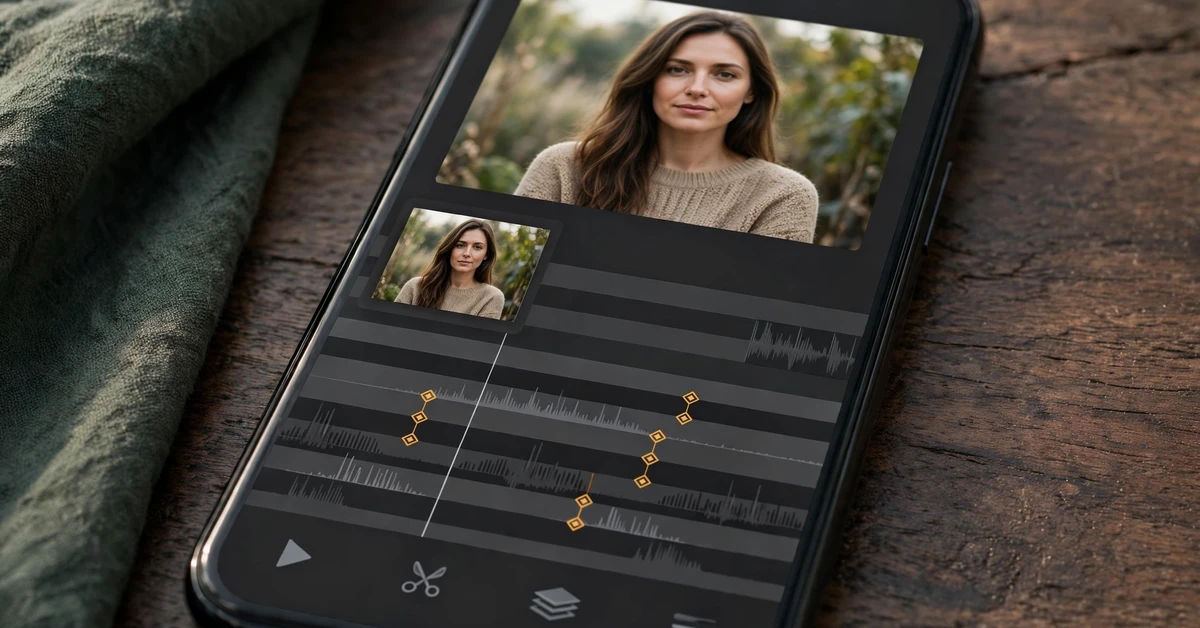
Select the photo clip and move the playhead to the very start of the clip. Tap the keyframe button — a small diamond-shaped icon whose exact position varies by version — to set the starting position. Move the playhead to the very end of the clip, then pinch the photo slightly larger for a zoom in, or slightly smaller for a zoom out, or drag it sideways for a pan. CapCut adds a second keyframe automatically, and the photo now moves smoothly between the two positions. Play it back full-screen, check both end frames, and delete any accidental mid-clip keyframe causing a jump.
Step 6: Add Text, Carefully and Sparingly
Add text only after the movement looks right. Tap Text, type a short line, and choose a plain, readable font in a colour that contrasts with the photo. Place the text where it does not cover faces, the main subject, or any important detail, and keep it on screen long enough to read — at least three seconds for a short line. A simple fade-in looks cleaner than a bouncy animation, and one or two lines are the limit.
Step 7: Adjust Colour Gently, If Needed
If the photo looks flat, apply a filter or adjust brightness and contrast slightly, then reduce the effect strength until the change looks natural. The goal is a photo that looks like itself on a good day, not a different photo. If faces turn orange or grey, the filter is too strong. If the photo already looks good, skip this step.
Step 8: Preview, Export, and Check on Your Phone
Watch the full video twice: once with sound, once without, checking music fit, movement smoothness, and text readability. Then export at 1080 x 1920, the standard full HD vertical size, and watch the exported file on your phone before posting. The exported file is the real result — if the zoom looks jerky or the text is cut off there, fix it in CapCut and export again.
Settings and Tips for a Cinematic Result
A cinematic look comes from a handful of small decisions, not one dramatic effect. Keep the zoom slow: the full movement should take the whole clip, never finish in the first two seconds. Keep the zoom small: 10 to 15 percent for most photos, less for close-ups and old photos. Keep the frame steady with only two keyframes, start and end, for one smooth journey. Match music to movement: fast, punchy music fights a slow zoom.
Protect your photo quality at every step. Start from the original photo file, not a compressed copy, and avoid zooming more than about 20 percent even on a sharp photo, because enlargement always softens detail. When exporting, choose 1080 x 1920 if that option is available in your version, and check the exported file on your phone — the preview inside the editor and the exported file can differ slightly, and the exported file is what viewers will see. Use text like a caption: one short line, plain font, away from the subject, readable for seconds.
Common Mistakes to Avoid
The most common mistake is zooming too far. A 40 or 50 percent zoom turns a sharp photo soft, makes the movement feel dizzy, and often crops the subject badly at the end. If your zoom looks dramatic, it is too large — reduce it until it feels almost too subtle; subtle reads as cinematic on a phone. The second mistake is adding too many effects at once: a zoom plus a pan plus a filter change plus animated text plus stickers. Each effect alone is fine, but together they fight for attention and the video looks busy, so pick one movement and one finishing touch.
A related mistake is changing direction mid-clip, for example zooming in and then back out, which feels restless in a short video. One direction, one journey. Another is ignoring the edges: beginners check the middle of the frame and forget that a zoom or pan moves the edges too, cropping faces, hands, or decorations that were visible in the original photo. Always check the start frame and the end frame at full screen before exporting. Finally, do not stretch one photo past about 20 seconds: the movement runs out of interest, viewers leave, and the video suffers. If you need a longer video, use more photos or clips instead.
Troubleshooting: Fixing the Usual Problems
If the zoom looks jerky or jumps, you probably have an extra keyframe in the middle of the clip. Scrub the timeline slowly and look for diamond markers between the start and end, then delete any that you did not intend. With only two keyframes, the movement should be perfectly smooth. If it still stutters, check whether the photo file is very large or the device is low on storage, and try closing other apps before previewing again.
If the photo looks blurry in the video but sharp in your gallery, the zoom is too large or the source file is a compressed copy. Reduce the zoom to 10 percent or less, and replace the photo with the original file from your camera roll or cloud backup. A horizontal image in a vertical frame crops heavily — scale it so the subject fills the frame, or choose a vertical photo. If the text is hard to read, the cause is usually low contrast, small size, or short display time: move it to a plainer part of the photo, increase the font size, and keep it on screen for at least three seconds.
If the music ends suddenly, trim the audio to a natural break point or add a short fade-out at the end of the clip. If the export differs from the preview, trust the exported file and adjust until it looks right. If CapCut runs slowly with a large photo, try a smaller copy of the photo for editing, then replace it with the full-quality original before the final export, so the finished video keeps its sharpness.
Frequently Asked Questions
Can I really make a good video from just one photo?
Yes, if the photo is sharp and the movement is slow and purposeful. A single strong photo with a gentle cinematic zoom, fitting music, and one line of text can hold attention for 10 to 15 seconds, which is a natural length for a short video. Choose a photo with a clear subject and enough detail to reward a slow look; a blurry photo will not improve with movement.
Do I need a template link or a paid file for this?
No. This guide provides no template link, download, QR code, or project file, deliberately, because the entire effect is two keyframes on one photo — something you can build yourself in a few minutes in the free CapCut app. Manual building also lets you change the photo, zoom, music, and text freely.
How long should a one-photo video be?
Most one-photo videos work best at 8 to 15 seconds. Shorter than 8 seconds feels rushed, because viewers barely register the movement. Longer than about 20 seconds usually feels repetitive, since the same image keeps moving without new information. Let a natural musical phrase decide the exact duration, fading the audio out gently.
Should I zoom in or zoom out?
Both work, and the photo should decide. Zoom in when the photo has a detail worth approaching, such as a face, a dish, or a flower. Zoom out when the surroundings matter, such as a landscape, a celebration, or a group scene, because the reveal adds context. If unsure, try both — the right direction usually feels obvious.
Why does my zoomed photo look blurry?
Zooming enlarges the photo, so any softness in the original becomes more visible. Use the original file, keep the zoom to 10 to 15 percent, and avoid compressed copies such as screenshots. Close-up and old photos need even smaller zooms, around 5 to 8 percent, to stay sharp.
Can I use this method for business or product photos?
Yes. A slow zoom toward a product, with one short text line and honest, natural colours, is a clean and effective product showcase. Keep the product clearly visible from the start, do not oversaturate its colours, and keep the text factual — a product name or a simple message, without exaggerated claims. The same method works for handmade goods, food, and craft photos.
Conclusion
A one-photo video is proof that editing skill matters more than editing assets. You do not need a library of clips or a downloaded template to make something people enjoy watching. You need one sharp photo, a slow and steady zoom built from two keyframes, music that matches the mood, and the discipline to stop before the edit becomes busy. Once built, you can rebuild it for any photo in minutes.
Start with your strongest photo, not your most recent one. Choose the zoom direction that serves the subject, keep the movement small, check the start and end frames, add one readable line of text if the video needs it, and export at 1080 x 1920. Watch the export on your phone, fix distractions, and post it with a caption explaining the photo.
Related Guides
Keep building your CapCut skills with these guides from Rajan Template:
- CapCut 5 Photo Beat Sync Template — build a five-photo reel where every photo change lands on the beat.
- CapCut Hindi Song Slow Motion Template — slow-motion ideas for Hindi song reels.
- VN Cinematic Slow Motion Template — cinematic slow-motion techniques in VN.
- Thailand CapCut Template Guide — travel reel ideas built around Thailand clips and photos.