CapCut Gujarati Garba Template: Dance Reels Editing Ideas
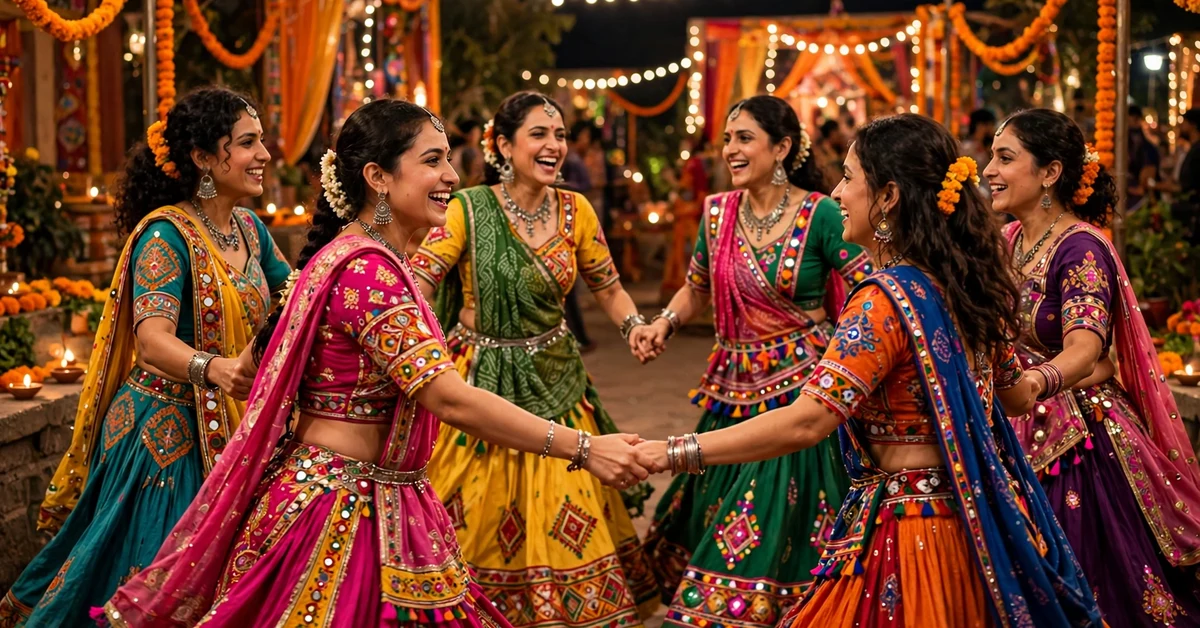
Garba is made for reels. The circle, the claps, the spins, and the colourful chaniya cholis all move to a beat that the camera can follow, and a good edit simply helps the viewer feel that beat. The best Garba reels are not the ones with the most effects. They are the ones where every cut lands on a clap or a drum hit, and the dancing itself stays in focus.
CapCut is a good app for this style because it gives you beat-friendly trimming, speed control, transitions, text, and music in one free timeline. You do not need a paid app or a downloaded template file to build a festive Garba reel. If you can trim a clip on a beat, add a simple transition, and keep your colours bright, you can make every idea in this guide.
One honest note before we start. This guide does not provide any template link, download, or ready-made project file, and it does not promise views or followers. It also never uses clips of other people without permission. Use only your own dance clips, or clips everyone in them has agreed to share, and film Garba only where photography is welcome, especially at religious or community events.
Quick answer: Import your dance clips into a 9:16 CapCut project, cut between angles on the song’s beats, slow one spin or clap moment to around 0.5x, use bright transitions such as zoom or flash sparingly, apply one vibrant filter at moderate strength, and export at 1080 x 1920. That workflow runs through all the ideas below.
16 Gujarati Garba Dance Reel Ideas
Use the timings and transitions below as starting points. Preview each idea on your own clips, because the same setting can feel different in bright daylight and in colourful night-event lighting. Keep the beat, not the effect, as the star of the edit.
1. Circle Entry Beat Cut
Clips: Two clips: one wide shot of the Garba circle forming, and one closer shot of dancers stepping in. Cut from the wide shot to the close shot exactly on a strong drum beat, then keep the close shot running for three to four seconds. Add a short text line such as a song name or a greeting, use a bright festive filter, and avoid a transition here; a clean beat cut feels more energetic than a dissolve for Garba.
2. Clap Sync Close-Up
Clips: One close clip of hands clapping in rhythm, filmed steadily. Cut the clip so the first clap lands on the first strong beat, then let three or four claps play at normal speed without any effect. Add a very small zoom-in with keyframes, place the text low on the screen so hands stay visible, and use a warm, bright filter. Clapping is Garba’s heartbeat, so this simple idea often performs better than a busy edit.
3. Chaniya Choli Twirl Slowmo
Clips: One clip of a twirl, with the skirt flaring out fully. Keep the steps before the twirl at normal speed, then slow the twirl itself to 0.5x so the fabric and colours become the focus. Add a gentle zoom-out during the twirl to keep the whole skirt in frame, sync the widest point of the flare with a musical peak, and use a vibrant filter. Film twirls in good light so colours stay rich when slowed.
4. Group Circle Spin Timelapse Feel
Clips: One steady wide clip of the whole circle moving for 15 to 20 seconds. Speed up the middle section to 1.5x to 2x so the circle seems to spin faster, then return to normal speed for the final two seconds on a strong beat. Add no transition in the middle, keep the camera still or on a stable surface, and add a short greeting as text. The speed change alone creates the festive energy here.
5. Dandiya Sticks Rhythm Cut
Clips: Two clips: one of dandiya sticks striking together, and one of dancers’ feet moving. Cut between the sticks and the feet on alternate beats, keeping each shot to about one second, for a fast, rhythmic sequence of four to six cuts. Then settle into one longer shot for the next phrase of the song, so the viewer can rest. Use hard cuts, not dissolves, and keep the filter bright and colourful.
6. Night Lights Garba Glow
Clips: One or two clips from a night Garba event, with decorative lights and colourful outfits. Slow the main dance movement slightly to 0.7x, because night clips can look shaky when cut too fast, and use a flash transition only once, if at all. Add a slow pan across the lights in the second clip, cut on beats so the lights seem to change with the music, and choose a night filter that keeps blacks clean rather than grey and noisy.
7. Kids Garba Cute Moment
Clips: One clip of children dancing, filmed with the permission of their parents or guardians. Keep the clip at normal speed so the natural, unpractised steps feel real, and slow only a happy smile or a small spin to 0.5x for two seconds. Add minimal text, keep the filter bright and natural, and never post children’s clips without clear permission from a parent or guardian. The charm here is innocence, not effects.
8. Traditional to Modern Outfit Swap
Photos or clips: Two shots in different outfits, one traditional and one modern, filmed in the same place and camera position. Slow the last step of the first shot to 0.5x, then cut on a spin or a hand pass over the lens to the second outfit, starting slow and returning to normal speed. Match your size and position in both shots with keyframes if needed, place the cut on the beat, and use the same filter on both so the swap feels planned.
9. Festival Ground Wide to Close Journey
Clips: Three clips in order: the decorated venue entrance, the crowd and stalls, and the dance circle itself. Give the first two clips about two seconds each, then let the dance clip run for five to six seconds as the payoff. Join the first two clips with quick zoom transitions, then use a clean beat cut into the dance, and add a short location or event greeting as text. This journey structure works well as an opening reel for a festival day.
10. Dandiya Night Slow Intro
Clips: One clip of dandiya sticks at rest or being picked up, then one clip of the first dance steps. Slow the opening clip to 0.5x for two seconds to build anticipation, then return to normal speed on the first strong beat and let the dancing carry the next four seconds. Use a simple fade from the opening into the dance, add only one line of text, and keep the filter warm and festive.
11. Spin and Freeze Moment
Clips: One clip of a full spin. Slow the spin to 0.5x, then freeze the final pose for one second with a freeze frame, and return to normal speed for the next step. Add a small zoom into the freeze, keep the text short and low on the screen, and avoid adding a sticker during the freeze so the pose stays clean. This idea works best when the dancer holds the final pose confidently for a beat.
12. Two-Angle Garba Duet
Clips: Two clips of the same dance moment from different angles, one wide and one close. Cut between the angles every two beats so the viewer sees the whole circle and then the dancers’ expressions in turn, keeping the total sequence to about eight seconds. Use only hard cuts, match the filter on both clips, and sync the first cut to a strong beat. Filming the same moment twice is fine if the dancers repeat the steps for the second angle.
13. Jewellery and Outfit Detail Reel
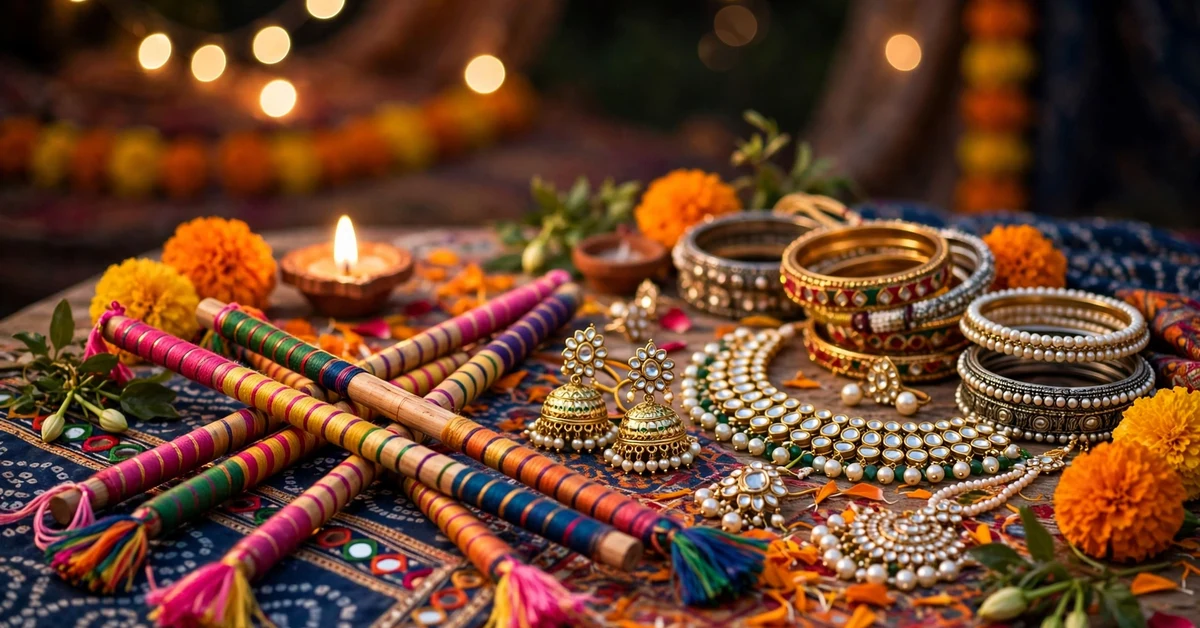
Photos: Four to six photos of outfit and jewellery details: bangles, mirror work, embroidery, and footwear. Show each photo for about one second, cutting on beats, and use a very gentle zoom-in on each photo so the details feel alive. Add one short text line at the start naming the look, keep the photos in a consistent bright filter, and end on a full-outfit photo so the details make sense as a whole look.
14. Garba Steps Tutorial Cut
Clips: One clip of a simple Garba step repeated three times. Cut the clip so each repetition starts on a beat, slow the second repetition slightly to 0.7x so viewers can follow the feet, and return to normal speed for the third repetition. Add short numbered text such as step one, step two, and step three, keep the camera still and low enough to show feet clearly, and use a bright filter. Teaching one step well beats showing five steps badly.
15. Rainy Garba Mood Edit
Clips: One clip of Garba in rain or wet ground, if the event and the dancers are happy to be filmed in it. Keep the clip mostly at normal speed, slow only one joyful spin to 0.5x, and use a cool, clean filter rather than a heavy colour grade so the rain stays visible. Add minimal text, protect your phone from water, and never film in unsafe weather. The mood here comes from the rain itself, so effects should stay light.
16. Festival Finale Fireworks Cut
Clips: Two clips: one of the final dance sequence, and one of fireworks or sparklers at the end of the night. Cut from the dance to the fireworks exactly on the final strong beat, let the fireworks play for three to four seconds, and end with a short text line such as a festival greeting. Use a flash transition only at this final cut if you want extra impact, keep the filter bright, and finish the reel on the brightest firework moment rather than fading to black.
How to Edit a Garba Reel in CapCut: Step by Step
Use this workflow for every idea above. It works for both short reels and longer edits, and it keeps your timing consistent even when you change songs.
Step 1: Create a 9:16 project. Open CapCut, start a new project, and add your chosen clips in story order. Set the ratio to 9:16 so the video fills a phone screen, trim any dull starts and ends, and keep the total length at 30 seconds or less for a reel. Shorter edits usually hold attention better than long ones.
Step 2: Add the song and find the beats. Import the song you have the right to use, listen to it once through, and note where the strong beats fall. Use CapCut’s beat tools or simply watch the waveform while you listen, then place markers or split points on the beats. Good beat notes make every later step easier.
Step 3: Cut on beats, then add speed changes. Split your clips at the beat markers, delete any weak middle sections, and arrange the shots so each new angle starts on a beat. Then add slow motion only to one or two special moments, such as a twirl or a clap, at 0.5x, and return to normal speed right after. One slow moment feels special; five slow moments feel slow.
Step 4: Add transitions sparingly. Use a zoom or flash transition only where the song changes energy, such as a new verse or a dance section, and keep transitions at their shortest setting. For most cuts, a clean beat cut is better, because the dancing itself provides the movement. If a transition distracts from the dancers, remove it.
Step 5: Add text and colour. Add one short text line at the start, such as a greeting or a song name, in a clear font and a size that does not cover faces. Apply one vibrant or warm filter at moderate strength to all clips so the colours match, then adjust brightness slightly if night clips look dark. Keep captions short and readable in the first two seconds.
Step 6: Check audio and export. Watch the full edit once with sound, checking that cuts land on beats, that no clip ends mid-step, and that the song does not cut off suddenly. Export at 1080 x 1920 with a frame rate of 30 fps, or 60 fps if your clips were filmed at 60 fps, and keep the file under your platform’s upload limit. Export a second time if the first export shows flicker or colour shifts.
Settings and Colour Tips for Festive Garba Reels
Garba colours are the star, so your colour choices matter more than fancy effects. A warm or vibrant filter at 50 to 70 percent strength usually keeps reds, yellows, and greens rich without making skin tones look orange. If you filmed at night, raise brightness slightly and reduce noise if CapCut offers that option, rather than pushing saturation too high, which makes night clips look muddy.
For speed, use 0.5x for twirls and clap highlights, 0.7x for gentle slow moments, and 1.5x to 2x for wide circle shots you want to feel faster. Avoid slowing night clips below 0.5x, because low light already makes movement less sharp. For transitions, keep zoom and flash effects under half a second, and use no more than two transitions in a 30-second reel.
For text, choose a bold, simple font in white or gold with a soft shadow, placed low or at the top, never over faces. Keep each text line to five words or fewer, show it for at least two seconds, and avoid animated text that bounces during dance steps. Clear, still text lets viewers read the greeting and then watch the dancing.
Common Garba Editing Mistakes to Avoid
Too many effects. Stacking flash, zoom, shake, and stickers in one reel hides the dancing. Use one effect per idea, and let the beat do the rest. If you cannot name why an effect is there, delete it.
Cutting off beats. If a cut lands half a beat early or late, the whole reel feels off, even if viewers cannot say why. Listen with headphones, watch the waveform, and nudge each split until it sits on a drum hit or a clap.
Slowing everything down. Slow motion is a highlight tool, not a default. When every spin and step is slow, the reel loses energy and feels long. Keep most of the edit at normal speed and slow only one or two moments.
Covering faces with text. Text over a dancer’s face or over the hands during a clap shot blocks the best part of the clip. Place text low or high, keep it short, and preview on a phone before you export.
Over-saturating night clips. Night Garba already has strong colours from lights and outfits. Pushing saturation further makes skin tones orange and lights blow out. Use a moderate filter, raise brightness a little, and accept some natural darkness.
Using clips without permission. Posting other people’s dance clips, or children’s clips without a guardian’s clear permission, is a fast way to lose trust and risk removal. Film your own group, or get clear agreement from everyone in the clip before you post.
Troubleshooting: Shaky, Blurry, and Off-Beat Edits
Shaky footage: Use CapCut’s stabilise option at a low setting, cut out the worst shakes, and keep shaky clips short. For future filming, hold the phone with both hands, lean against a stable surface, or use a small tripod. Long, shaky wide shots are hard to fix in editing.
Blurry night clips: Night clips blur when the phone cannot find enough light or when the dancer moves fast. Keep night clips at normal speed, avoid slowing them, and use a short clip rather than a long one. A clean two-second night clip beats a blurry six-second one.
Audio out of sync: If the song drifts from the video, check that no clip was slowed without adjusting its audio, and that the project frame rate matches your clips. Re-import the song, re-mark the beats, and re-split at the new markers. Small drifts are easier to fix early than after effects are added.
Export looks dull: If the export looks flatter than the preview, check that the filter was applied to every clip, not just the first one, and that brightness was not reset by a template setting. Export again at 1080 x 1920, watch the file on a phone, and adjust the filter strength before a final export.
Frequently Asked Questions
Can I make a Garba reel in CapCut without a paid template?
Yes. Every idea in this guide uses only free CapCut tools: trimming, beat cuts, speed control, simple transitions, text, and filters. You do not need a downloaded project file or a paid template to build a festive Garba reel. The beat, not the template, makes the reel work.
What is the best length for a Garba reel?
For most platforms, 15 to 30 seconds works well. Shorter reels hold attention better, and they let you use only your strongest clips. If you have a longer dance sequence, cut it into two reels rather than posting one long, uneven edit.
How do I sync cuts to Garba beats in CapCut?
Import the song, listen through once, and watch the waveform for strong beats. Split your clips at those beats, delete weak sections, and arrange shots so each new angle starts on a beat. Headphones help, because phone speakers can hide quieter drum hits.
Why does my Garba reel look shaky?
Shakiness usually comes from filming while walking or dancing. Use CapCut’s stabilise option at a low setting, cut out the worst shakes, and keep shaky clips short. For future filming, hold the phone with both hands or use a small tripod, and film wide shots from a stable position.
Can I use a popular Garba song in my reel?
Only if you have the right to use it on that platform, such as through the platform’s own music library. Avoid downloading songs from unofficial sources or using audio you do not have permission for, because the platform may mute or remove the reel. When in doubt, use the platform’s licensed music.
What export settings should I use for a Garba reel?
Export at 1080 x 1920 in 9:16, at 30 fps, or 60 fps if your clips were filmed at 60 fps. Keep the file under your platform’s upload limit, watch the exported file on a phone before posting, and export again if colours or sharpness changed from the preview.
Conclusion
Garba reels work when the beat leads the edit. Cut on claps and drum hits, slow only one or two special moments, keep transitions short, and let the colours and the dancing stay in focus. Start with one idea from this guide, film your own clips with permission, and build the edit step by step in CapCut. With a clean beat cut and a bright, simple finish, your Garba reel will feel festive, clear, and ready to share.
Related Guides
Keep learning with these guides from Rajan Template:
- CapCut 5 photo beat sync template guide – Learn beat-synced photo reels with five photos.
- VN cinematic slow motion template guide – Try cinematic slow motion edits in VN.
- Diwali CapCut template guide – Build festive Diwali reels with lights and diyas.
- CapCut template guide – Explore more CapCut template ideas and editing tips.