CapCut Dark Aesthetic Template: Moody Reels and Photo Effects (TUTORIAL)
A dark aesthetic reel does not need expensive equipment or a complicated edit. It needs low light, soft shadows, muted colours and calm pacing, all of which you can create with your phone and CapCut’s free editor. When those elements match, even a simple evening walk or a window portrait can look cinematic and intentional.
This guide teaches you how to build that look yourself in CapCut, using your own photos and clips. There is no template link, download link, QR code, or ready-made project file here, and none is needed. You will build the edit from your own material, step by step, with full control over the tones, the cuts and the finish.
Before you start, an important rule. Use only photos and footage you filmed yourself, or material you have clear permission to use. Do not re-upload other creators’ clips or broadcast footage, even with credit, because credit is not permission and re-uploading risks a takedown or a muted reel. Your own material is also more original, because nobody else has the same shots.
Quick answer: Start a new 9:16 project in CapCut, gather 4 to 6 clips or 5 to 7 photos in the same dark tone, and apply one consistent dark grade to all of them. Trim each clip to 2 to 4 seconds, use gentle fades or plain cuts, add very little text, and finish with a light grain or soft vignette. Keep the reel between 15 and 30 seconds, and export at 1080 x 1920.
14 Dark Aesthetic Reel and Photo Ideas You Can Build in CapCut
Each idea below is a complete format. Pick one that fits the material you already have, and follow its steps in order. Every idea works with your own photos and clips, and none of them needs a downloaded template.
1. The Quiet Evening Walk
Film a short walk at dusk, when street lights are on but the sky is still blue. Keep the camera steady, cut slowly, and let shadows stay dark instead of brightening them. One calm clip of 3 to 4 seconds can set the whole mood better than five rushed shots.
2. The Window Light Portrait
Place your subject beside a window in a dim room and film the half-lit face. Keep the bright side soft and let the other side fall into shadow. Add slow, gentle cuts and no busy text, so the light itself becomes the main effect in the reel.
3. The Rainy Night Street Reel
Film wet streets, reflections and umbrellas at night, keeping the exposure low so neon signs glow without blowing out. Cut on a slow beat, use short clips, and keep the colour cool. Rain and reflections already look cinematic, so the edit only needs to stay restrained.
4. The Moody Photo Slideshow
Choose 5 to 7 photos with similar dark tones and let each one stay on screen for 2 seconds. Use a slow zoom-in on each photo and the same fade between them. Matching tones matter more than fancy transitions, so check the photos side by side before you start.
5. The Coffee and Book Moment
Film a quiet morning scene: a cup, a book and soft window light, all in darker tones. Keep the shots close, the movement slow and the music gentle. Small, calm details suit the dark aesthetic far better than loud action or fast cuts.
6. The Silhouette at Sunset
Film your subject against the last light of the day so only the outline shows. Keep the foreground dark and the sky warm but not overexposed. A silhouette needs almost no editing, and it hides uneven skin tones, busy backgrounds and shaky camera work.
7. The City Lights Bokeh Reel
Film city lights slightly out of focus at night so they turn into soft round shapes. Walk slowly, keep the camera low, and cut between two or three bokeh shots. The soft glow gives an instant moody look without any filter pushed to an extreme.
8. The Black and White Moody Edit
Convert a set of clips to black and white, then lower the brightness slightly and raise the contrast a little. Black and white suits portraits, architecture and rainy streets, and it removes colour clashes between clips filmed at different times.
9. The Slow Motion Detail Reel
Pick one detail, such as hair moving, fabric, or steam rising, and slow it down gently. Slow motion makes a dark clip feel deliberate and calm, but only if the source footage is steady. Use it for one or two moments, not for the whole reel.
10. The Night Drive Sequence
Film from inside a car at night, catching passing lights, dashboard glow and quiet streets. Keep the clips short, the cuts on a slow beat, and the text minimal. Night drive footage looks moody by itself, so avoid adding heavy filters on top of it.
11. The Old Building and Shadows Reel
Film old walls, staircases and archways where light and shadow meet. Let the shadows stay dark and frame the light as a shape in the picture. Architecture gives the dark aesthetic structure, and it films well even on a cloudy day.
12. The Moody Self Portrait Series
Film yourself in a dim room with one lamp, changing pose slowly between clips. Keep the camera fixed on a tripod or a stack of books, and use the same light for every shot. A fixed camera and one light source make the series look planned and consistent.
13. The Foggy Morning Walk
Film on a foggy morning when colours are already muted and soft. Keep the exposure slightly low, walk slowly, and let the fog simplify the background. Fog is a natural version of the dark aesthetic, and it needs very little editing to look finished.
14. The Candlelight Dinner Scene
Film a table with candles, plates and quiet conversation in warm, low light. Keep the camera close, the movement gentle and the clips short. Candlelight is flattering and moody, but it flickers, so check the exposure on your phone screen before filming.
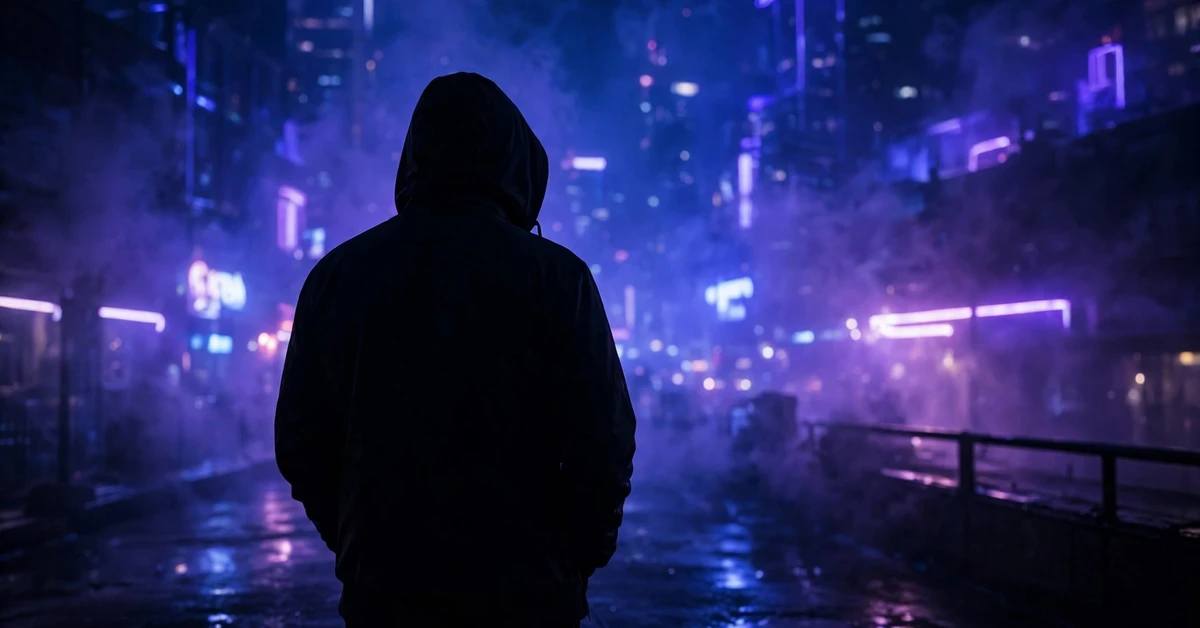
Full Step-by-Step Workflow in CapCut
Follow this workflow after choosing your idea. The order matters: music first, selection second, cuts third, polish last.
Step 1: Collect clips and photos in one mood
Gather clips and photos that already share dark tones, low light or muted colours. Watch each one and remove anything bright, harsh or unrelated, because one bright clip can break the whole mood. For a first reel, 4 to 6 clips or 5 to 7 photos are enough.
Step 2: Start a 9:16 project and add music first
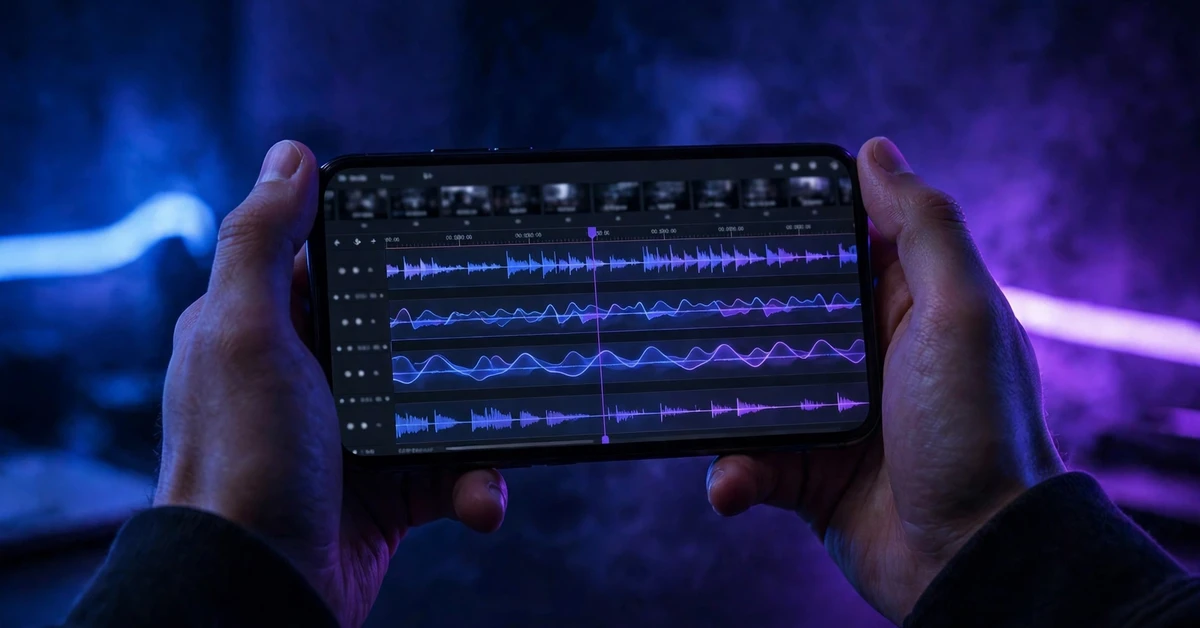
Open CapCut, tap New Project, and add a calm, slow track before any video. Choose music from CapCut’s own audio library or audio you have the right to use. Mark the gentle beats so your cuts land softly instead of snapping hard on a fast rhythm.
Step 3: Order clips from dark to darker, or light to dark
Place your clips so the mood builds in one direction, for example from a dim evening shot to a full night shot. A clear direction makes the reel feel intentional, while a random order makes even good clips feel disconnected.
Step 4: Trim each clip to its best 2 to 4 seconds
Cut away the start and end of every clip where nothing happens. Dark reels work best when each shot is short and calm, not when the viewer waits through long, empty footage. Play the trimmed sequence once and remove any clip that feels slow rather than calm.
Step 5: Apply one consistent dark grade
Use one filter, or the same manual adjustments, on every clip: slightly lower brightness, slightly higher contrast, and slightly lower saturation. Apply it to all clips first, then adjust single clips only to match the others. Consistency is what makes the reel look designed.
Step 6: Add gentle transitions and slow zooms
Use simple fades or a slow zoom on photos, and avoid flashy transitions that fight the calm mood. A fade of half a second, or a zoom that barely moves, is enough. If a transition draws attention to itself, replace it with a plain cut.
Step 7: Add text sparingly, if at all
If you add text, use one short line in a simple font, in white or soft grey, and keep it on screen long enough to read. Dark reels suit very little text, so one line at the start or end is usually better than captions on every clip.
Step 8: Add grain or vignette lightly
A light grain or a soft dark vignette can finish the moody look, but both are easy to overdo. Keep grain subtle so faces stay clear, and keep the vignette soft so the corners darken gently rather than forming a hard frame. Check the effect on your phone screen, not only in the editor.
Step 9: Export and watch on your phone
Export at 1080 x 1920 and watch the full reel on your phone with sound. Check that no clip is too dark to see, that the text is readable, and that the mood stays consistent from start to finish. Fix any problem in the editor and export again.
Settings and Tips
Film in the best available low light rather than fixing darkness later. Dusk, window light, street lights and candles all give soft, directional light that looks moody on camera, while a fully dark room filmed on auto mode usually turns noisy and grey. If a scene is too dark to see on your phone screen, move closer to the light source instead of raising the brightness in editing.
Keep the total length between 15 and 30 seconds for a reel, or 20 to 40 seconds for a photo slideshow. Dark, calm edits feel longer than fast edits, so a short reel often feels complete while a long one feels heavy. If your first cut runs over 40 seconds, remove the weakest clip first and shorten the opening shot.
Match your music to the mood before you lock the cuts. A slow, gentle track suits soft cuts and fades, while a fast track will make the same footage feel rushed and tense. Listen to the track with your clips once before committing, and change the track early if the pace fights the pictures.
Check your edit on a second screen if you can, such as another phone or a tablet, because dark tones look different on different screens. A clip that looks perfectly moody on one phone can look almost black on another. Aim for dark but readable, with clear shapes and faces, rather than the darkest version possible.
Common Mistakes to Avoid
The most common mistake is making the video too dark to see. Mood comes from shadows and soft light, not from hiding the subject completely. If a viewer cannot tell what is happening in a clip, brighten that clip slightly or replace it with a clearer shot. Dark should mean calm and cinematic, not invisible.
The second mistake is mixing bright and dark clips in the same reel. A sunny daytime clip placed between two night clips breaks the mood instantly, even if the clip itself is good. Keep every clip in the same tonal family, and save bright clips for a different reel with its own style.
Another frequent mistake is overusing grain, vignette and filters at the same time. One finishing effect, applied lightly, is enough. When grain, vignette, a strong filter and a dark overlay are stacked together, the picture turns muddy and faces lose detail. Remove effects one by one until the picture looks clean again.
Finally, do not add busy text, stickers or loud transitions to a dark reel. The style works because it is restrained, and every extra element weakens that restraint. Use one font, one text colour and simple cuts, and let the light, shadows and music carry the mood.
Troubleshooting
The video looks too dark after export
Raise the brightness of the darkest clips slightly, one at a time, and check the result on your phone. Export settings and phone screens can darken a video, so aim for a version that looks slightly brighter in the editor than your ideal, then check the exported file before posting.
Clips look different in colour and brightness
Apply the same filter to all clips first, then adjust individual clips only to match the others. Clips filmed at different times will differ, so match them by brightness first, then by warmth, and avoid pushing any single adjustment to its extreme.
The video looks noisy or grainy
Noise appears when a phone brightens a very dark scene automatically. Film with a little more light next time, keep the clip short, and avoid raising brightness heavily in editing. A light grain effect can hide mild noise, but it cannot fix a clip that was filmed in near darkness.
The mood feels dull instead of moody
A moody reel still needs a clear subject, a simple story and a gentle rhythm. Add one strong opening shot, shorten the slowest clips, and check that the music has a soft pulse. If every clip is equally slow and dark, the reel feels flat rather than calm.
Text is hard to read on dark clips
Use white or light grey text in a bold, simple font, and keep it away from the brightest parts of the picture. Let the text stay on screen for at least two seconds, and test it on your phone at normal viewing distance, not zoomed in inside the editor.
Frequently Asked Questions
What is a dark aesthetic reel?
A dark aesthetic reel uses low light, shadows, muted colours and calm pacing to create a moody, cinematic feeling. It suits evening walks, portraits, rainy streets and quiet moments, and it works best when every clip shares the same dark, soft tone.
Do I need a template link to make a dark aesthetic reel in CapCut?
No. This guide provides no template link or download, because the full result can be built manually in CapCut’s free editor: a new project, trimmed clips, one consistent dark grade, gentle transitions and a light finishing effect. Building it yourself gives you full control over the mood.
How dark should a dark aesthetic video be?
Dark enough to feel moody, but bright enough that the subject, shapes and faces stay clear. If a viewer cannot tell what is happening in a clip, that clip is too dark. Check the exported video on your phone and brighten any clip that disappears into black.
Can I use photos instead of video clips?
Yes. Choose 5 to 7 photos with similar dark tones, show each one for about 2 seconds, and use a slow zoom and the same fade between them. Matching tones matter more than the number of photos, so check the set together before you start.
Why does my dark video look noisy?
Noise comes from filming in very low light, when the phone raises its sensitivity automatically. Film near a window, a street light or a lamp, keep clips short, and avoid raising brightness heavily in editing. A little extra light while filming helps far more than any filter afterwards.
What export settings should I use for Instagram reels?
Export in 9:16 vertical at 1080 x 1920. Watch the exported file once on your phone before posting, and check that no clip is too dark, that any text is readable, and that the mood stays consistent from the first shot to the last.
Conclusion
A good dark aesthetic reel is built from restraint: a few well-chosen clips in the same dark tone, one consistent grade, gentle transitions and very little text. Start with the quiet evening walk or the window light portrait, since each needs only a handful of shots, and keep the picture dark but readable. Film near soft light, cut calmly, and let shadows do the work. The mood will follow, without any downloaded template.
Related Guides
If you enjoyed this guide, these related tutorials use the same CapCut workflow of beat marking, trimming, consistent grading, and clean text: