CapCut 15 Second Story Template: Mini Vlog Editing Ideas (TUTORIAL)
A 15 second story does not need a full day of filming or a complicated edit. It needs one clear moment, 3 to 5 short clips, a recognisable start and a calm finish, all of which you can create with your phone and CapCut’s free editor. When those elements match, even a morning routine or a single meal can feel like a complete mini vlog.
This guide teaches you how to build that story yourself in CapCut, using your own clips. There is no template link, download link, QR code, or ready-made project file here, and none is needed. You will build the story from your own material, step by step, with full control over the clips, the text and the length.
Before you start, an important rule. Use only footage you filmed yourself, or material you have clear permission to use. Do not re-upload other creators’ clips or broadcast footage, even with credit, because credit is not permission and re-uploading risks a takedown or a muted story. Your own material is also more original, because nobody else has the same morning or meal.
Quick answer: Start a new 9:16 project in CapCut, pick one moment, and choose 3 to 5 clips that show its start, middle and finish. Trim each clip to 3 to 4 seconds so the total stays at 13 to 15 seconds, apply one consistent look, add at most one short text line, and export at 1080 x 1920. Check the exact length on your phone before posting.
14 Fifteen Second Story and Mini Vlog Ideas You Can Build in CapCut
Each idea below is a complete format. Pick one that fits the material you already have, and follow its steps in order. Every idea works with your own photos and clips, and none of them needs a downloaded template.
1. The Morning in 15 Seconds
Film your morning in 4 short clips: waking up, making a drink, stepping outside and one smiling shot. Keep each clip under 4 seconds and cut quickly. A morning story works because viewers recognise the routine instantly, and the short format keeps it fresh.
2. The One Meal Mini Vlog
Film one meal from start to finish in 15 seconds: ingredients, cooking, plating and the first bite. Use close shots and quick cuts, and keep the text to one short line. Food stories suit the short format well, because each step is visual and easy to follow.
3. The Walk to Work Story
Film your walk in 3 to 4 clips: the street, a detail such as a shop window, and your arrival. Keep the camera handheld and the cuts on a gentle beat. A walk story feels personal and real, and it needs no special location to work.
4. The Study With Me Snapshot
Film a study session in short clips: opening a book, writing notes, and a tidy desk shot. Keep the colours calm and the text minimal. Study stories suit 15 seconds perfectly, because the format rewards one focused moment rather than a long session.
5. The Quick Outfit Check
Film an outfit in 2 to 3 clips: a full view, a close detail, and a walking shot. Keep the camera steady and the background clean. An outfit story should show the clothes clearly, so avoid busy effects that hide the details.
6. The Pet Moment Story
Film your pet in 3 short clips: a close face shot, a playful moment, and a calm final shot. Keep the clips natural and unposed, and cut on a cheerful beat. Pet stories work in 15 seconds because one funny or sweet moment is enough.
7. The Evening Wind Down
Film an evening routine in 4 clips: changing into comfortable clothes, making tea, reading, and a calm final shot. Keep the light warm and the pace gentle. Evening stories suit slower cuts, but each clip should still stay under 4 seconds.
8. The Market Visit Mini Vlog
Film a market visit in short clips: colourful stalls, fresh produce, and a purchase. Use quick cuts and bright colours, and keep the text to one line. Markets give plenty of visual detail, so film more than you need and choose the best clips.
9. The Workout in 15 Seconds
Film a workout in 4 clips: warming up, one exercise, a second exercise, and a finishing stretch. Keep each clip short and the camera steady for safety. A workout story should show effort and form clearly, not a long, unedited session.
10. The City Evening Story
Film a city evening in 3 to 4 clips: street lights, a café, and a skyline or street view. Keep the colours natural and the cuts gentle. Evening city footage looks good in short stories, because the lights add interest without any extra effects.
11. The Book and Coffee Break
Film a break in 3 clips: a book, a coffee cup, and a quiet window view. Keep the shots close and the pace calm. A break story works because it shows a small, relatable pause, and 15 seconds is exactly the right length for it.
12. The Rainy Day Mini Vlog
Film a rainy day in short clips: rain on a window, an umbrella, and a warm drink indoors. Keep the sound natural if you can, and the cuts soft. Rain gives a story instant atmosphere, and the short format keeps it from feeling slow.
13. The Birthday Wish Story
Film a birthday wish in 15 seconds: a cake, a smiling shot, and a short message in text. Keep the message to one line and the clips bright. A birthday story should feel warm and quick, so avoid long speeches that do not fit the time limit.
14. The Travel Day Snapshot
Film one travel day in 4 clips: leaving, a transport shot, a place, and a food or sunset shot. Keep each clip under 4 seconds and cut quickly. A travel snapshot works when it shows variety, so choose clips that look different from each other.
Full Step-by-Step Workflow in CapCut
Follow this workflow after choosing your idea. The order matters: music first, selection second, cuts third, polish last.
Step 1: Pick one moment, not a whole day
Choose a single moment for your 15 second story: one meal, one walk, one workout, or one evening routine. A story that tries to cover a whole day will feel rushed, while one clear moment feels complete. Write the moment in one sentence before you start editing.
Step 2: Start a 9:16 project and set a 15 second limit
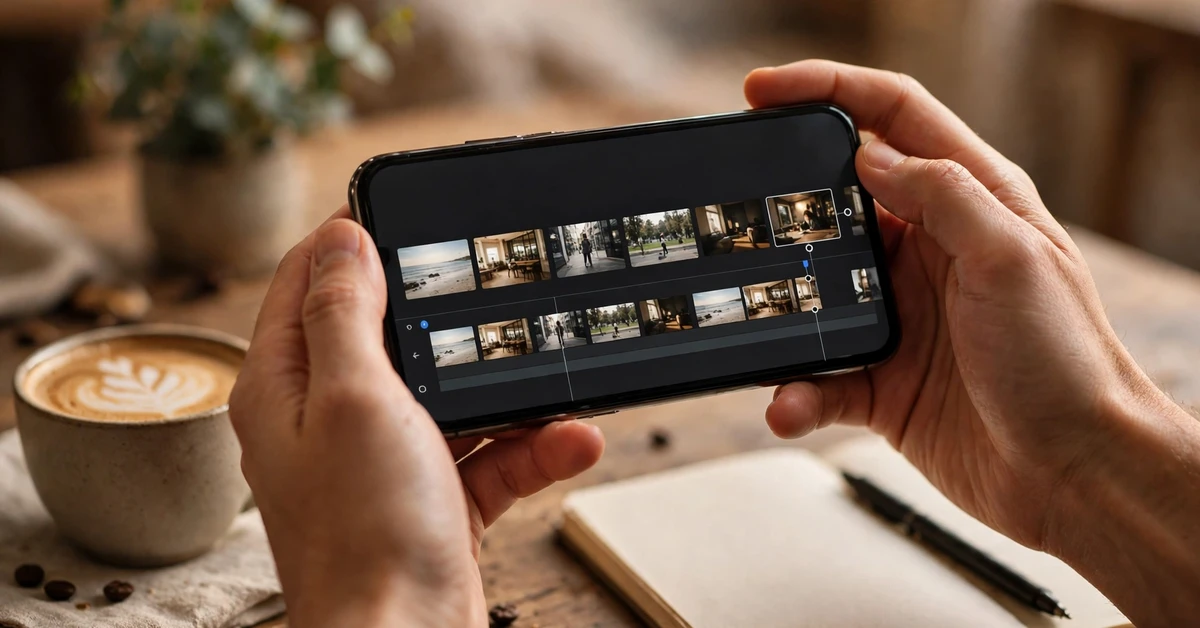
Open CapCut, tap New Project, and keep the timeline at 15 seconds or under. Add your clips and trim them until the total sits at 13 to 15 seconds, leaving a small margin. A story that runs even 2 seconds over the limit will be cut off or split.
Step 3: Choose 3 to 5 clips only
Pick 3 to 5 clips that show different parts of the moment: a start, a middle detail, and a finish. More clips mean shorter, rushed shots, while fewer clips mean longer, calmer shots. For most stories, 4 clips of about 3 to 4 seconds each work best.
Step 4: Trim each clip to its best moment
Cut away the start and end of every clip where nothing happens, and keep only the liveliest 3 to 4 seconds. Play the trimmed sequence once and remove any clip that feels slow. In a 15 second story, every second must earn its place.
Step 5: Order clips with a clear start and finish
Place a recognisable opening clip first, such as stepping outside or opening a book, and a calm, clear closing clip last, such as a smile or a finished dish. A clear start and finish make a short story feel complete instead of randomly cut.
Step 6: Add music or natural sound, not both loudly
Choose either a short music track from CapCut’s own audio library or the natural sound of your clips, and keep the other one low or off. Two loud sounds at once will muddy a short story. If you use music, pick a track that fits the whole 15 seconds without a sudden change.
Step 7: Add one short text line, if needed
If you add text, use one short line in a simple, readable font, and keep it on screen for at least 2 seconds. One line can name the moment, such as a morning routine or a market visit. Avoid captions on every clip, since viewers cannot read them in 15 seconds.
Step 8: Apply one consistent look to all clips
Use one filter, or the same manual adjustments, on every clip so the story looks like one piece. Apply it to all clips first, then adjust single clips only to match the others. Consistency matters even more in a short story, where differences stand out quickly.
Step 9: Export and check the exact length
Export at 1080 x 1920 and check that the file is 15 seconds or under. Watch it once on your phone with sound, and check the opening, the text and the final shot. If it runs over, trim the longest clip first and export again.
Settings and Tips
Film with the 15 second limit in mind, not after the fact. When you film, capture short, clear moments of 4 to 6 seconds each, with a few seconds around them for trimming. Long, unedited clips are hard to squeeze into a story, while short, purposeful clips almost edit themselves.
Keep one message per story. A story that shows a morning, a workout and a meal in 15 seconds will confuse viewers, while a story that shows only one meal, well, will be remembered. If you filmed several moments, save the others for separate stories on other days.
Use vertical video filmed on your phone, and keep the subject in the centre of the frame. Stories are viewed on phones, often with one hand, so a subject placed at the edge or a sideways clip will look awkward. Check the framing on your phone screen before you film, not only in the editor.
Post stories at a time when your viewers are likely to watch, such as morning, lunch or evening, but do not let timing replace quality. A clear, well-trimmed 15 second story posted at an ordinary time will perform better than a rushed story posted at a perfect time.
Common Mistakes to Avoid
The most common mistake is trying to fit too much into 15 seconds. Six or seven clips, each under 2 seconds, will feel rushed and hard to follow. Use 3 to 5 clips, give each one enough time to be seen, and save extra moments for another story.
The second mistake is starting slowly. If the first 3 seconds show nothing interesting, many viewers will skip the story. Open with a clear, recognisable shot, such as a finished dish, a smiling face, or a bright street view, and let the slower details come later.
Another frequent mistake is adding too much text. Viewers cannot read several captions in 15 seconds, and text covering the picture hides the very moments they came to see. Use one short line, or no text at all, and let the pictures tell the story.
Finally, do not post a story without checking its length and sound. A story that runs over 15 seconds, has no sound, or ends mid-sentence will feel unfinished. Watch the exported file once on your phone, with sound, before you post it.
Troubleshooting
The story runs longer than 15 seconds
Trim the longest clip first, then remove the weakest clip entirely. Check the timeline total after each change, and aim for 13 to 15 seconds so the story fits comfortably. Do not speed up the whole story to force it to fit, since that will look rushed.
Clips feel rushed and hard to follow
Reduce the clip count to 3 or 4 and give each clip at least 3 seconds. A story needs time for the viewer to recognise each shot. If a clip still feels rushed, replace it with a simpler, clearer shot from the same moment.
Text disappears too quickly
Keep text on screen for at least 2 seconds, use a larger font, and place it away from busy parts of the picture. If a line still cannot be read in time, shorten the line to 3 or 4 words or remove it and let the pictures speak.
The story has no sound or the sound is too quiet
Check that the audio track is not muted and that the volume is set high enough in CapCut. Export the file and play it on your phone, not only in the editor, because editor previews can sound louder than the exported file.
The final shot feels abrupt
Add a calm closing clip of 2 to 3 seconds, such as a smile, a finished dish, or a quiet view. Let the music or natural sound fade gently over the last second, rather than cutting off mid-note. A calm ending makes the whole story feel finished.
Frequently Asked Questions
How many clips should a 15 second story have?
Usually 3 to 5 clips, each about 3 to 4 seconds long. Fewer clips feel calm and clear, while more clips feel rushed. For most mini vlogs, 4 clips give the best balance of variety and clarity.
Do I need a template link to make a 15 second story in CapCut?
No. This guide provides no template link or download, because the full result can be built manually in CapCut’s free editor: a new project, 3 to 5 trimmed clips, one consistent look, one short text line and a clean export. Building it yourself gives you full control over the timing.
What if my story is 16 or 17 seconds long?
Trim the longest clip first, then remove the weakest clip. Aim for 13 to 15 seconds so the story fits the limit comfortably. Do not speed up the whole story to force it to fit, since that will look rushed and unnatural.
Should I use music or natural sound?
Either works, but not both loudly at once. Music suits cheerful, edited stories, while natural sound suits cooking, walking and rainy day stories. Choose one as the main sound, keep the other low or off, and check the result on your phone.
Can I make a mini vlog from photos instead of video?
Yes. Use 4 to 5 photos, show each one for about 3 seconds, and use a slow zoom and plain cuts between them. Keep the photos in a clear order with a recognisable start and finish, and add one short text line if needed.
What export settings should I use for stories?
Export in 9:16 vertical at 1080 x 1920, and check that the file is 15 seconds or under. Watch the exported file once on your phone before posting, and check the opening, the text, the sound and the final shot.
Conclusion
A good 15 second story is built from one clear moment, 3 to 5 well-chosen clips, and a clean start and finish. Start with the morning in 15 seconds or the one meal mini vlog, since each needs only a handful of shots, and keep the text to one short line. Film short, trim firmly, and check the exact length before posting. Fifteen seconds is short, but it is more than enough for a moment worth sharing.
Related Guides
If you enjoyed this guide, these related tutorials use the same CapCut workflow of beat marking, trimming, consistent grading, and clean text: