Diwali CapCut Template 2026: 25 Festival Reel Editing Ideas
Diwali is the best time to post a reel people watch till the end. Warm diya light, bright rangoli colours, new outfits and family moments look good on camera, so even simple cuts feel festive. Diwali 2026 falls on 8 November 2026, so you can shoot in advance and edit calmly instead of rushing on the night.
One honest note before you start: this is a tutorial and inspiration guide, not a downloadable template link. There is no file, QR code or one-tap template here. Every idea below is a step-by-step edit you build yourself in the free CapCut app with your own clips. Our separate guide on Diwali AI photo editing prompts for festive portraits covers photos only; this page is only about video and reels.
Quick answer: Open CapCut, start a 9:16 project, add your clips, mark the music beats, and cut each clip exactly on a beat. Pick an idea below, follow its clip order, lengths, transition and text, then export at 1080 x 1920. Most ideas need 4 to 8 short clips and take 10 to 20 minutes once footage is ready.
25 Diwali Reel Editing Ideas in CapCut (Step by Step)
1. Diya Lighting Reveal
Clips: Two clips from one fixed position: an unlit diya in a dark room, then the same diya lit. Use a tripod or books. Lengths: 1.2 seconds dark, 3 seconds lit. Beat sync: Cut exactly on the first strong beat. Transition: None; a clean hard cut sells the reveal. Effects: Raise warmth and exposure on the lit clip only. Text: “Let the light begin” at the bottom. Speed/keyframes: Normal speed, with a slow zoom keyframe on the lit clip.
2. Rangoli Colour-Pop Beat Drop
Clips: Film your rangoli from above in three stages: outline, half filled, finished. Lengths: 0.8 seconds each for the first two, 2.5 seconds for the finished design. Beat sync: Add beat markers and cut each stage on its own beat. Transition: Hard cuts only. Effects: Raise saturation slightly on the final clip so colours pop. Text: “From lines to colours” in the centre. Speed/keyframes: Normal speed; end with a scale keyframe, 100 to 110 percent.
3. Fireworks Countdown Opener
Clips: A dark sky clip first, then your best fireworks clip, filmed steadily from a safe distance. Lengths: 3 seconds countdown, 4 seconds fireworks. Beat sync: Start the fireworks clip on the drop of the song. Transition: Flash or white fade. Effects: A subtle sparkle overlay at low opacity. Text: Big text template: “3, 2, 1… Happy Diwali”. Speed/keyframes: Normal speed; slow the final second for a soft ending.
4. Outfit Transition: Casual to Festive
Clips: Film yourself in daily clothes doing a hand swipe, spin or jump, then repeat the same move in festive outfit, same spot. Lengths: 1.5 seconds before, 3 seconds after. Beat sync: Cut mid-move, on a clear beat. Transition: Whip pan or spin, matched to your movement. Effects: Keep the first clip plain; add a warm filter to the festive clip. Text: “Diwali ready” after the change. Speed/keyframes: Auto velocity can slow the pre-cut moment; availability varies by version.
5. Thali Rotation Shot
Clips: One close clip of a decorated puja thali with diya, flowers and sweets, rotated slowly by hand. Lengths: Use the best 4 to 5 seconds. Beat sync: Start on a soft beat; this is a calm idea. Transition: Gentle fade in and out. Effects: Warm filter plus a very light vignette. Text: “Shubh Diwali” in a simple gold-style font. Speed/keyframes: Slow to 0.7x; add keyframes to keep the flame near the centre.
6. Mithai Close-Up Montage
Clips: Film four or five sweets separately: ladoo, jalebi, kaju katli, barfi, a homemade special, plus a hand picking one up. Lengths: 0.7 to 1 second per sweet. Beat sync: Cut every sweet on consecutive beats for a fast, tasty rhythm. Transition: Hard cuts or quick zoom cuts. Effects: Slight sharpness and warm colour; avoid heavy filters on food. Text: Name each sweet as it appears. Speed/keyframes: Normal speed; add a small punch-in keyframe on the last sweet.
7. Fairy-Lights Bokeh Walk
Clips: Walk slowly towards the camera along a fairy-light wall or balcony at dusk. A second person filming works best. Lengths: 5 to 6 seconds. Beat sync: Start on a soft beat and let it play; this is a mood shot. Transition: Fade in from black. Effects: Lower sharpness slightly; add warm glow so lights blur into bokeh. Text: “Lights, love and Diwali” in a corner. Speed/keyframes: Slow to 0.8x with a slow zoom keyframe.
8. Before and After Home Decoration
Clips: Film your room from one fixed corner before decoration, then from the same corner after decorating. Lengths: 1.5 seconds before, 3.5 seconds after. Beat sync: Place the change on the strongest beat. Transition: Hand covering the lens, or a clean hard cut. Effects: Keep the before clip slightly dull; brighten the after clip. Text: “Before” and “After” labels, then “Home is ready”. Speed/keyframes: Normal speed; a tiny zoom keyframe on the after clip adds life.
9. Family Group Beat Sync
Clips: Record each family member separately in festive clothes, same background: a wave, smile, namaste or small dance step. Lengths: About 1 second per person, ending with a 2-second group shot. Beat sync: One person per beat, without fail. Transition: Hard cuts keep the energy high. Effects: Same warm filter on every clip, so it looks like one set. Text: Each person’s name or relation as they appear. Speed/keyframes: Normal throughout; do not mix speeds in this one.
10. Couple Festive Portrait Motion
Clips: One festive photo of the couple, or a short clip of both holding a diya plate. Lengths: 4 to 5 seconds for a photo, 3 seconds for a clip. Beat sync: Start on a soft, romantic beat. Transition: Gentle fade. Effects: Floating light-particle overlay at low opacity, plus a warm filter. Text: “Our first Diwali” or “Diwali together” in an elegant text template. Speed/keyframes: For a photo, zoom slowly from 100 to 115 percent with keyframes; for a clip, try 0.8x.
11. Sparkler Writing
Clips: In a safe open area, an adult writes a letter or draws a heart with a sparkler while another films. Keep water nearby. Lengths: 3 to 4 seconds. Beat sync: Start the writing as the beat drops. Transition: Fade in from black so the trail stands out. Effects: Darken background slightly; raise contrast. Text: Add “Happy Diwali” after the writing finishes. Speed/keyframes: Try 1.2x if the writing looks too slow.
12. Lantern Look with Safe Alternatives
Clips: Skip sky lantern releases, banned in many places and risky near homes. Film paper lanterns, LED lanterns or hanging lamps at home instead. Lengths: Three clips of 1.5 seconds each, or one 4-second upward pan. Beat sync: Cut each lantern on a gentle beat. Transition: Smooth dissolve. Effects: Warm filter with soft glow. Text: “Light that stays home” or “Shubh Deepavali”. Speed/keyframes: Normal speed; keyframe a slow upward pan on a static clip.
13. Gift Unboxing Reveal
Clips: Film in order: wrapped box, hands removing ribbon, lid opening, gift revealed with a smile. Lengths: 1 second, 1 second, 1 second and 2 seconds. Beat sync: Match the lid opening to the main beat. Transition: Hard cuts, plus a quick zoom on the reveal. Effects: Bright, clean colour; a light sparkle overlay on the final clip only. Text: “Wait for it…” first, then the gift name at the end. Speed/keyframes: Auto velocity can slow the reveal moment if your version supports it.
14. Puja Aarti Slow Zoom
Clips: One respectful clip of the aarti thali circling, or hands folded before the home temple. Take family permission first. Lengths: 5 to 6 seconds. Beat sync: Choose a soft devotional track and start on a calm beat. Transition: Slow fade in and out. Effects: Warm tones only; no flashy stickers. Text: “Lakshmi Puja, Diwali 2026” in a clean font. Speed/keyframes: Slow to 0.7x with a steady zoom keyframe towards the diya flame.
15. Market Shopping Reel
Clips: Short market clips: diya stalls, flower garlands, sweets counters, lantern shops, and your shopping bag at the end. Lengths: 0.8 to 1 second each, five or six clips. Beat sync: One stall per beat. Transition: Hard cuts or quick slides. Effects: Bright, slightly saturated colour to match the market mood. Text: “Diwali shopping done” on the final clip. Speed/keyframes: Normal speed; stabilise shaky clips first if your device offers it.
16. Kids Sparklers Safety Reel
Clips: Show the safe way: an adult lights the sparkler, the child holds it at arm’s length outdoors, and the used sparkler goes into a water bucket. Supervision is a must. Lengths: About 1.5 seconds per step. Beat sync: Use a cheerful track; cut each step on a beat. Transition: Simple cuts with numbered steps. Effects: Keep colours natural so steps stay clear. Text: Big readable text: “1. Adult lights it 2. Arm’s length 3. Water bucket”. Speed/keyframes: Normal speed only; clarity matters more than style.
17. Pet-Safe Celebration
Clips: Film your pet indoors in a calm corner with soft fairy lights and family nearby; a bandana only if the pet is comfortable. Keep pets away from crackers, smoke and noise. Lengths: Three clips of 1.5 to 2 seconds. Beat sync: Soft track, gentle cuts. Transition: Dissolve. Effects: Warm, soft light; no flashing effects at all. Text: “A calm Diwali for everyone”. Speed/keyframes: Normal or 0.9x; add a mild zoom keyframe on the cutest moment.
18. Office or Team Diwali Wishes
Clips: Each teammate records one word of the greeting: “Happy”, “Diwali”, “from”, “our team”. End with a group wave near the decoration. Lengths: 0.7 to 1 second per person, 2 seconds for the group. Beat sync: One word per beat. Transition: Hard cuts. Effects: One shared filter; keep lighting consistent. Text: Subtitle every word in large text; add the team name at the end. Speed/keyframes: Normal speed; trim silences tightly so the greeting feels snappy.
19. Shop or Store Promo Reel
Clips: For shop owners: decorated storefront, best-selling products, hands packing an order, and the offer board. Lengths: 1.5 seconds, three product clips of 1 second, and 2 seconds for the offer. Beat sync: Put the offer clip exactly on the drop. Transition: Quick zoom cuts between products. Effects: Bright and clean; add your shop logo as a corner overlay. Text: Offer details in bold, readable text, held long enough to read. Speed/keyframes: Normal speed; freeze the offer frame half a second longer if needed.
20. Quick Recipe Cuts
Clips: Film one sweet recipe in stages: ingredients, mixing, frying or baking, garnish, final plate, from above in good light. Lengths: 0.8 seconds per stage, 2 seconds for the final dish. Beat sync: One stage per beat gives a satisfying rhythm. Transition: Hard cuts only, like most cooking reels. Effects: Natural warm colour; slight sharpness on the final shot. Text: Short step labels; dish name at the end. Speed/keyframes: Speed up long stirring or frying to 1.5x or 2x; keep garnish at normal speed.
21. Gold Jewellery Shine Edit
Clips: Place jewellery on dark cloth near a diya so light moves across it; film one slow close-up, then a clip of wearing it. Lengths: 3 seconds close-up, 2 seconds worn look. Beat sync: Start the worn look on a clear beat. Transition: Soft flash or glow. Effects: Raise highlights carefully; add a tiny sparkle overlay at the shine moment. Text: “Dhanteras to Diwali shine”. Speed/keyframes: Slow the close-up to 0.7x with a tracking zoom keyframe on the main piece.
22. Ethnic Fashion Walk
Clips: Walk towards the camera in your festive outfit along a decorated corridor or entrance lights. Add a twirl or dupatta clip if possible. Lengths: 3 seconds walk, 2 seconds twirl. Beat sync: Time your first step to the beat. Transition: None for one outfit; spin transition if showing two outfits. Effects: Warm cinematic filter with soft contrast. Text: Small outfit details: kurta, saree or lehenga style. Speed/keyframes: Auto velocity for a slow ramp as you come closer, then normal speed.
23. Photo Slideshow with Light Leaks
Clips: This idea uses photos, not video: pick 6 to 8 Diwali photos in order, from decoration to the family group shot. Our 3 photos edit CapCut template guide shows the three-photo style. Lengths: 0.8 to 1 second per photo. Beat sync: One photo per beat. Transition: Soft zoom or slide. Effects: A light leak overlay across the whole slideshow at low opacity. Text: One short caption per photo. Speed/keyframes: Set keyframes so every photo zooms slowly in or out.
24. Festival Memory Recap
Clips: Collect moments from the whole day in order: morning rangoli, market visit, outfit ready, puja, sweets, family dinner, night lights. Lengths: 1 to 1.5 seconds each for seven to nine clips, ending with a 2-second family shot. Beat sync: Use an emotional track and cut on its main beats. Transition: Hard cuts for day clips, fades for evening clips. Effects: One warm filter across everything for a single memory feel. Text: “8 November 2026” at the start, “Diwali 2026” at the end. Speed/keyframes: Keep most clips normal; slow only the final family moment.
25. Happy Diwali Text Outro Card
Clips: You only need a dark background clip, a blurred fairy-lights video, or a plain black screen. This card also ends any reel above. Lengths: 3 to 4 seconds. Beat sync: Let the text appear exactly on the final beat. Transition: Fade in. Effects: A gentle sparkle or diya sticker overlay, kept subtle. Text: Animated text template: “Happy Diwali” big, with “From our family to yours” below. Speed/keyframes: Static is fine; a very slow zoom keyframe stops it feeling frozen.
Full Step-by-Step CapCut Workflow
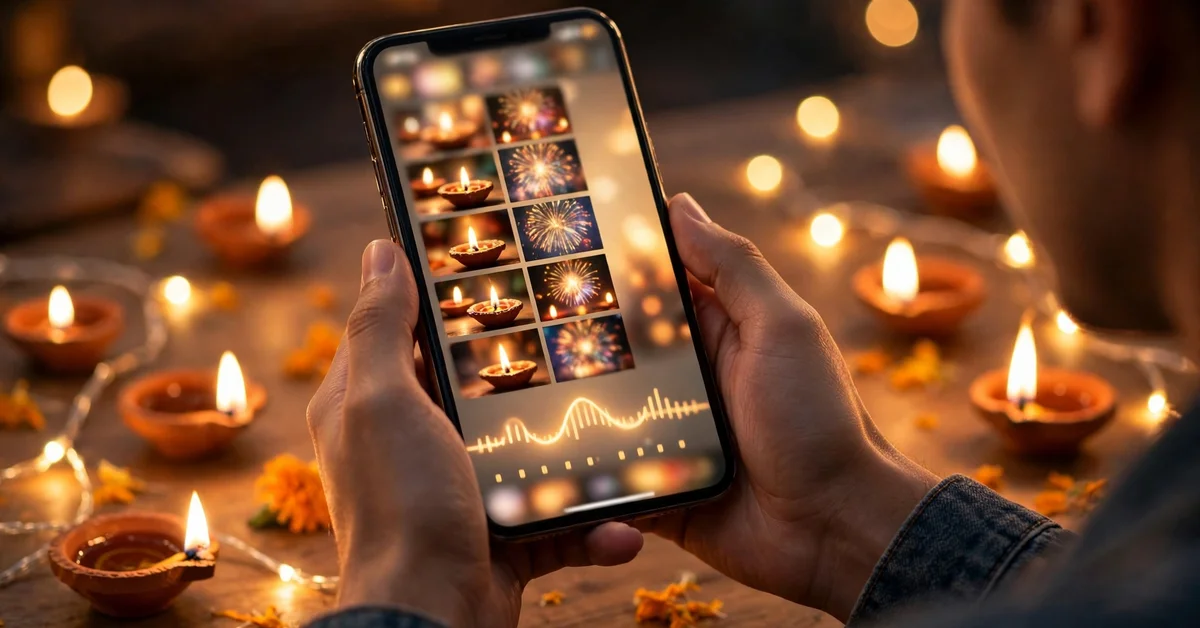
The same workflow works for every idea above.
- Create the project: Open CapCut, tap New Project, select your clips, and set the ratio to 9:16 (Reels and Shorts are vertical). Do this first.
- Import in story order: Add clips in viewing order; trimming an ordered timeline is easier than dragging clips later. Photos work the same way.
- Add music and mark beats: Add your audio, then look for beat marking in the audio tools. Many versions generate markers automatically; menu names vary by version and device. If unavailable, note strong beats manually.
- Arrange and trim: Drag clip edges so cuts land on beat markers, and trim weak first and last moments; most clips improve after removing the first half second.
- Add transitions, effects and text: Add transitions only where the idea suggests them, apply one main filter, add overlays at low opacity, and place text in the safe middle area.
- Preview fully: Watch the full reel twice: once for timing, once for spelling and readability.
Best Export Settings for Diwali Reels
Export at 1080 x 1920, which matches the 9:16 canvas. 30 fps is a safe general choice; use 60 fps only if clips were shot at 60 fps and the edit uses slow motion, since files get bigger. For bitrate, CapCut’s recommended or higher setting suits most users; very low bitrate makes lights and fireworks look blocky. Export as MP4 where shown. Screens differ by phone and app version, so confirm values on your screen, and watch the saved file before posting.
Music and Beat-Sync Tips
Beat sync is the heart of this list, and it is simpler than it looks. Choose music before trimming, because the song decides your cut points. Prefer clear, regular beats; very soft songs are harder for beginners. Use the beat marker tool if your version has it, and zoom in to place cuts accurately. If a cut feels off, nudge that clip by a frame or two. Mute original clip sound when music is the focus, except natural sounds like aarti bells. Use only music you have the right to use.
Common Mistakes to Avoid
- Editing in 16:9 and cropping later: This cuts off heads, diyas and text. Set 9:16 first.
- Too many transitions: A new transition on every cut looks messy. Two styles per reel suffice.
- Text at the very top or bottom: Platform buttons and captions cover it. Keep text in the middle safe zone.
- Heavy filters on food and skin: Sweets should look natural; lower the filter strength.
- Long clips with no cut: Most festive reels need cuts every 1 to 3 seconds, except calm puja or bokeh shots.
- Posting without a full preview: Name and greeting spelling errors are common; catch them in one careful watch.
Troubleshooting Common CapCut Problems
- Beats do not match after trimming: A clip moved after marking. Re-check the first cut; one early shift pushes later cuts off-beat.
- Export looks blurry: Confirm 1080 x 1920 and a reasonable bitrate, and check originals were not compressed by a messaging app.
- Text goes outside the frame: Reduce font size, split long lines in two, and preview full screen.
- App feels slow with many clips: Close other apps, free some storage, and export before adding more effects. Performance varies by device.
- A feature in this guide is missing: CapCut updates move menu items; check Audio, Effects, Overlay and Animation, since features are usually moved, not removed.
Festival Filming Tips for Better Raw Clips
Good editing cannot fully save weak footage, so film with these tips.
Diyas: Film at dusk, not in full darkness or bright light. Wipe the lens, tap to focus on the flame, and lower exposure slightly so it does not become a white blob. Rest the phone on a stable surface.
Rangoli: Shoot from directly above, phone parallel to the floor; daylight shows true colours best. Film each stage if you can.
Fireworks: Stay at a safe distance, keep the phone steady, and record longer clips to pick the best burst later. Never risk safety for a closer shot.
Family clips: Record each person in the same spot and background, with the move agreed in advance: wave, smile or namaste. Short planned clips sync far better than long random videos.
Outfit shots: Use the decorated entrance, balcony or fairy-light wall as background; film casual and festive versions in the same place and frame.
Sweets and food: Come close, use daylight or warm indoor light, and avoid flash. A hand entering frame to pick up a sweet adds life.
Home decoration: Film before and after from the same corner and phone height, so the change looks dramatic.
Frequently Asked Questions
Is this a downloadable Diwali CapCut template?
No. This is a tutorial: 25 ideas you build yourself in the free CapCut app with your own clips and photos. There is no template link, file or QR code.
When is Diwali 2026?
Diwali 2026 falls on 8 November 2026. Edit a few days early, so you can post your best reel on the day instead of rushing.
Which ratio and export size should I use?
Use 9:16 and export at 1080 x 1920 for Reels and Shorts. 30 fps works well for most clips, and CapCut’s recommended bitrate is a sensible general choice.
How do I sync cuts to the music beat in CapCut?
Add music first, then use beat marking in the audio tools if your version offers it. Zoom in and trim each clip so its end sits on a beat marker. If auto markers are unavailable, mark beats manually by listening.
Can beginners make these reels without paid features?
Yes. Every idea uses basic tools: trimming, splitting, transitions, filters, overlays, text and keyframes. Some extra CapCut effects may be paid in certain versions, but none of the 25 ideas need them.
Why does my exported reel look less sharp after posting?
Platforms compress uploads. Export at 1080 x 1920 with a reasonable bitrate, avoid re-editing an exported file repeatedly, and upload the original export, not a messaging-app copy.
Conclusion
You do not need a ready-made file to make a strong Diwali reel: just well-shot clips, one clear idea, honest beat sync and a clean export. Start with the simplest ideas, like the diya reveal, rangoli colour-pop or family beat sync, and finish one reel before trying harder ones. Shoot in advance, edit before 8 November 2026, and post your best version on the day. Happy Diwali, and happy editing.
Related Guides
More CapCut styles to practise after your festival reel: