CapCut 2027 Countdown Template: Best New Year Video Ideas
A New Year countdown reel works because it gives viewers a clear reason to keep watching: the numbers are falling, the music is building, and everyone knows the payoff is coming at zero. The best countdown edits do not rely on fancy effects. They rely on clean timing, readable numbers, and a final moment that feels like a celebration rather than just another clip ending.
CapCut is a good free app for this style because it gives you text animation, beat markers, speed control, transitions, filters, and music in one simple timeline. If you can trim a clip, add animated text, and cut on a beat, you can build every idea in this guide.
One honest note before we start. This guide does not give you any template link, download file, or ready-made project. No link is needed. Instead, you will learn to build a CapCut 2027 Countdown Template style edit yourself in the free CapCut app, step by step, so you can reuse the method with your own photos, videos, and memories from the year.
Quick answer: Start a 9:16 CapCut project, place your best clips in story order, add large animated countdown numbers from 10 down to 1, sync each number change to a music beat, speed up the last three seconds slightly for energy, add a flash or zoom transition at zero, and export at 1080 x 1920. That workflow works for all the ideas below, with small changes for each theme.
12 CapCut 2027 Countdown Reel Ideas (Step by Step)
Use the timings below as starting points, not fixed rules. Preview every change and adjust in small steps. Keep your numbers large, centred, and easy to read on a phone screen, because a countdown that viewers cannot read in the first second will lose them before the payoff.
1. Classic 10 to 1 Photo Countdown
Clips: Ten short photos or video clips, one for each number, arranged from your oldest memory of the year to your newest. Start by placing the clips in order on the timeline, each lasting about one second, so the full countdown runs for roughly ten seconds before the celebration clip. Add a large number over each clip, using the same font, size, and position for every number so the countdown feels steady rather than jumpy. Choose a simple pop or scale animation for each number change, and place each change exactly on a music beat if your song has a steady rhythm. Keep the background music building gradually, finish with a bright celebration clip of at least two seconds after zero, and add the text “Happy New Year” only after the countdown ends, so the payoff is not spoiled early.
2. Year in Review Flashback Countdown
Clips: Twelve clips, one for each month, trimmed to under a second each, plus a final New Year clip. Begin with January and move forward through the year in order, so viewers feel a real story unfolding instead of a random slideshow. Add a small month label in the corner of each clip, and keep the large countdown number in the centre, so both pieces of information are readable without fighting each other. Use a gentle fade or slide transition between months. End with your strongest clip, not your most recent one, and let the music peak at zero.
3. Beat Sync Countdown Drop
Clips: One energetic video clip, such as dancing, jumping, or a group celebration, cut into beat-sized pieces. First, add your music and use CapCut’s beat markers or manual listening to find the strongest beats in the build-up section. Place each countdown number on a beat, and shorten the gaps between numbers slightly as you approach zero, so the pace feels like it is accelerating even though the music tempo stays the same. Add a quick zoom-in effect on the last three numbers, and cut to full speed, full brightness, and a wider shot exactly at zero. This idea works best with a song that has a clear build and drop, so choose the music before you finalise the timing, and do not force a drop where the song does not have one.
4. Balloons and Confetti Celebration Countdown
Clips: Short clips of balloons, decorations, party lights, or a table being set for the celebration, plus a final confetti or cheering clip. Start with calm, well-lit decoration clips while the numbers run from 10 to 6, then switch to faster, closer clips for 5 to 1, so the energy rises naturally. Add animated countdown numbers in a bold, rounded font, and keep them in a bright colour that stands out against both dark party lights and light-coloured balloons. Use a flash transition at zero, add a short confetti-style sticker or overlay only at the celebration moment, and avoid covering faces with stickers during the countdown itself. Finish with two seconds of the celebration clip at normal speed, so viewers can enjoy the payoff instead of watching it flash past.
5. Family Moments Countdown
Clips: Family photos and short video moments from gatherings, meals, trips, and everyday laughs through the year. Arrange them in an order that feels warm rather than strictly chronological, starting with a group photo and ending with the people closest to you. Keep each clip to about one second, add the countdown number in a clean, friendly font, and add a small caption such as a place name or a short memory on only two or three clips, not every clip, so the screen never feels crowded. Use soft transitions, warm colour adjustments, and a gentle song, and let the final zero land on a smiling group photo held for two full seconds. Always check that everyone in the photos is comfortable being posted before you publish.
6. Travel Memories Countdown
Clips: Short travel clips: a road, a beach, a mountain view, a city street, a train window, and a favourite meal from a trip. Order them so the scenery changes clearly with each number, because a countdown that shows the same kind of shot five times in a row feels slow even if the timing is correct. Add the countdown number large in the centre, and a small location label in a corner for the clips where the place matters. Use a slow zoom-in on landscape clips and a steady, unzoomed frame on clips with people, so the movement feels varied without becoming dizzy. End on your most beautiful or most meaningful travel shot, hold it for two seconds after zero, and add a simple “Happy New Year” text only at the end.
7. Fitness and Goals Countdown
Clips: Short workout, running, morning routine, or healthy meal clips that show progress through the year. Start with an early, honest clip, such as a first run or a first gym session, and move towards stronger, more confident clips as the numbers fall, so the countdown itself tells a progress story. Keep the countdown numbers bold and athletic in style, use a driving beat, and cut each clip exactly on the beat to give the edit a training-montage feel. Add short text only on the final clip, such as a goal for the new year, rather than labelling every clip, because too much text competes with the numbers. End with a confident final clip held for two seconds, and avoid any claim that a workout or routine guarantees a result; keep the message about effort, habit, and personal progress.
8. Couple Moments Countdown
Clips: Couple photos and short clips from dates, trips, festivals, and quiet everyday moments. Choose clips where both people look natural and relaxed, and arrange them so the story moves from early memories to recent ones. Use a soft, romantic song with a clear beat, keep the countdown numbers elegant and not too heavy, and use gentle fade transitions between clips so the mood stays calm. Add a short caption on only the final clip, such as the two names or a simple new year wish, and hold that final clip for two seconds after zero. Keep the edit focused on shared moments rather than a long list of selfies, because variety in places and activities makes a short countdown feel rich.
9. City Lights Night Countdown
Clips: Night clips of streets, markets, decorated buildings, fireworks in the distance, or a skyline at dusk. Night footage looks best when the countdown numbers are bright white or warm gold, large enough to read against dark backgrounds, and given a slight shadow or outline so they do not disappear into bright lights. Start with wider, calmer night shots for the higher numbers, then move to closer, busier shots as the countdown falls, and add a flash transition at zero to mimic a firework burst. Use a song with a strong beat, cut on the beat, and keep each clip steady, because shaky night footage combined with fast cuts can look messy. Export at high quality and check the night clips on a phone screen before posting, since dark footage that looks fine on a computer can look muddy on a phone.
10. Food and Celebration Table Countdown
Clips: Close clips of cooking, serving, sweets, snacks, drinks, and a decorated table, plus a final clip of everyone enjoying the food together. Begin with preparation clips while the numbers are high, move to finished dishes in the middle, and finish with the shared meal at zero, so the countdown follows the natural order of a celebration. Keep the numbers in a warm, readable font, and avoid placing numbers directly over the most appetising part of a dish; shift the number slightly up or down if it hides the food. Use a cheerful song, soft transitions, and warm colour adjustments, and hold the final shared-meal clip for two seconds. Do not add text claiming any food is healthy or special unless that is genuinely true; keep captions simple and honest.
11. Pet Countdown
Clips: Short, funny, or sweet pet clips: running, sleeping, playing, wearing a party accessory, or looking at the camera. Pets make excellent countdown subjects because viewers forgive a simple edit when the subject is charming, but the timing still matters. Keep each clip to about one second, place the countdown number in a corner rather than the centre if the pet’s face would be covered, and choose a playful song with a clear beat. Use quick cuts rather than slow transitions, because pet energy suits fast editing, and end on the pet’s funniest or cutest moment, held for two seconds after zero. Make sure any accessory is comfortable and safe for the pet, and never force a pet to pose for a long shoot just for a reel.
12. Resolution and New Beginnings Countdown
Clips: Clips that represent starting fresh: a sunrise, a clean desk, a new notebook, a morning walk, a plant, or a first step on a journey. This idea works best with a calm build-up rather than a loud party song, so choose music that grows gently and peaks softly at zero. Add the countdown numbers in a minimal, modern font, keep the background clips steady and uncluttered, and use slow fade transitions so the whole edit feels hopeful rather than frantic. Add a short resolution text only on the final clip, such as “New year, same me, better habits” or your own honest goal, and hold that clip for two to three seconds so viewers can read it. Avoid promising dramatic life changes; a small, believable resolution is more relatable and more shareable than a grand claim.
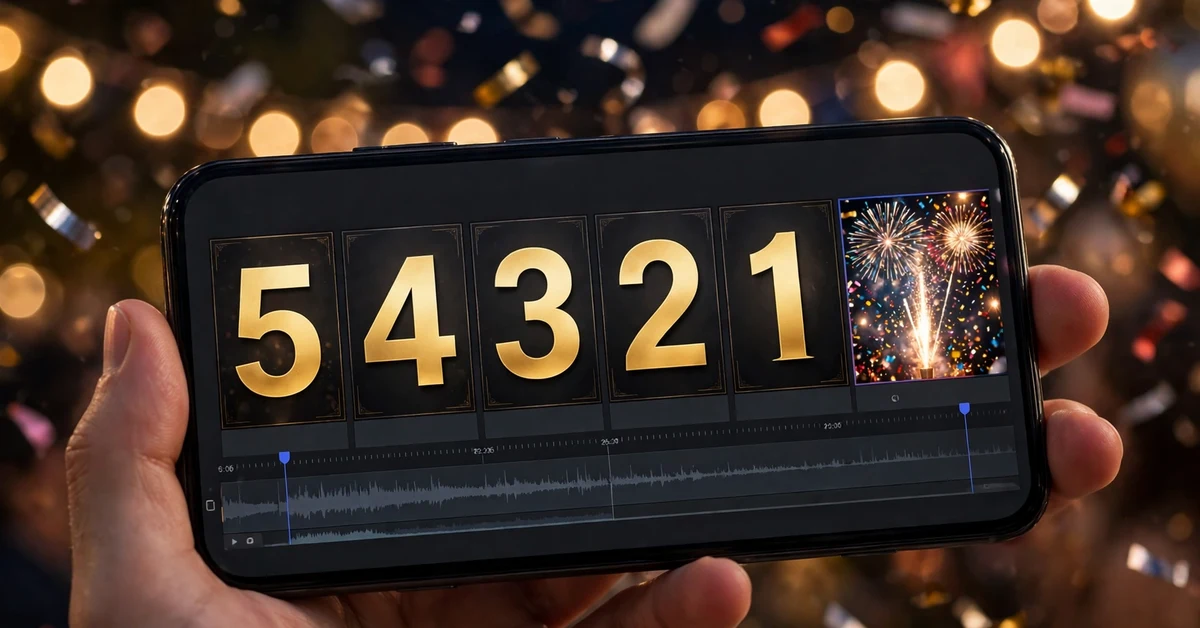
How to Build a Countdown Reel in CapCut: Full Step-by-Step Workflow
Step 1: Start a 9:16 project. Open CapCut, tap New Project, select your clips in story order, and set the canvas to 9:16 for Reels from the start, so text and numbers sit correctly and are not cut off later.
Step 2: Trim to countdown length. Trim each countdown clip to roughly one second, and keep the final celebration clip to at least two seconds. Remove failed takes now so the timeline stays clean and the countdown rhythm is easy to see.
Step 3: Add music and find the beats. Add your song first, before finalising text, because the beats decide where each number should change. Listen through the build-up section, mark the strong beats, and drag clips so number changes land on those beats.
Step 4: Add the countdown numbers. Add a text layer for each number, from 10 down to 1, using the same font, size, colour, and position for every number. Give each number a simple entrance animation, such as pop or scale, and set its duration to match its clip.
Step 5: Add transitions at the right places only. Use soft transitions between story clips, and save the strongest transition, such as a flash or zoom, for the zero moment. Adding a strong transition at every number change makes the edit tiring to watch.
Step 6: Adjust speed for the finish. If the last three seconds feel flat, select those clips and increase speed slightly, or add a gentle zoom-in effect, so energy rises towards zero. Preview the finish three times; it is the part viewers remember.
Step 7: Add the final message and check the whole reel. Add “Happy New Year” or your own wish only after zero, watch the full reel twice on mute and twice with sound, and fix any number that is hard to read, any cut that falls off the beat, and any clip that is too dark or shaky.
Countdown Text, Timing and Beat Sync Settings
Readable numbers matter more than fancy fonts. Choose a bold, rounded or clean sans-serif font, make the number large enough to read in the first half-second, and keep it in the same place for every number so viewers do not have to search the screen each time. A white number with a dark outline, or a gold number with a soft shadow, works over most backgrounds, while a thin or decorative font can disappear over busy party footage. Test readability by watching the reel on your phone at arm’s length; if you cannot read a number instantly, make it bigger or add an outline.
For timing, a ten-second countdown with one second per number is the safest starting point for a short reel, because it is long enough to build excitement and short enough to hold attention. If your song’s build is shorter, use five numbers instead of ten, or shorten each clip to about 0.7 seconds, but do not go below 0.5 seconds per number, because viewers need a moment to register each change. Place the zero moment on the strongest beat or drop in the song, and let the celebration clip start exactly there, not a beat early or late. Small timing errors at zero are more noticeable than small errors in the middle, so nudge the final clip until the payoff feels locked to the music.
For beat sync, keep the rule simple: number changes on beats, clip cuts on beats, and the zero moment on the biggest beat. If a clip change and a number change fall on the same beat, that is fine, but avoid adding a transition, a zoom, and a text animation all on the same beat, because the screen becomes too busy at the exact moment viewers should feel the payoff. Choose one strong effect for zero, such as a flash, a zoom, or a speed burst, and let the music and the celebration clip do the rest.
Common Countdown Editing Mistakes to Avoid
Numbers that change size or position. If each number sits somewhere different, the countdown feels jumpy. Lock the font, size, and position for all numbers before adding animations.
Too much text on every clip. A month label, a place name, a quote, and a countdown number on one clip is too much. Keep most clips to the number alone, and add captions sparingly.
A weak zero moment. If the celebration clip is short, dark, or shaky, the whole countdown feels wasted. Choose your best clip for zero and hold it for at least two seconds.
Strong transitions everywhere. Flashes and zooms lose impact when used ten times. Save the strongest effect for zero.
Music that does not build. A flat song makes even perfect timing feel dull. Pick a song with a build and a peak, and place zero on that peak.
Unreadable numbers over busy footage. Always add an outline or shadow, and preview on a phone screen, not just in the editor.
Troubleshooting Countdown Reels
Numbers feel out of sync with the music: Check whether the song’s beat markers match what you hear, and nudge each text layer by a fraction of a second until the number change lands on the beat. If the whole countdown drifts, the clips may not be equal in length; trim them to matching durations first, then re-sync the text.
The reel feels too long: Shorten each countdown clip slightly, or switch from ten numbers to five, and cut any clip that does not add story or energy. A countdown should feel exciting, not like waiting in a queue.
Text looks blurry after export: Make sure you exported at 1080 x 1920, that the number font size is large enough, and that you did not stretch a small text layer. Re-check the exported file on a phone, because the editor preview can look sharper than the final upload.
Night clips look too dark: Brighten night clips slightly in CapCut’s adjustment tools, choose numbers with a strong outline, and avoid very dark clips for the final zero moment, since the payoff needs to be visible.
Audio sounds off after export: If the music feels shifted, nudge the audio track slightly in the timeline and export again. Fix sync before posting, because re-uploading a corrected version splits your early viewers.

Frequently Asked Questions
How long should a CapCut countdown reel be?
For most New Year reels, a total length of about 12 to 18 seconds works well: roughly ten seconds of countdown plus two to three seconds of celebration. Shorter five-number countdowns suit faster songs, while longer story-driven countdowns can run a little longer if every clip adds something new.
Do I need a template link to make a countdown reel?
No. Every idea in this guide is built manually with CapCut’s text, trimming, transition, and music tools. Template-style projects exist in the CapCut community, but you do not need one for this tutorial, and none is provided here.
What is the best font size for countdown numbers?
There is no single size that suits every phone and background, but as a rule, the number should fill a good part of the screen height without covering the main subject completely. Preview on a phone at arm’s length, and increase size or add an outline if any number is hard to read instantly.
Should the countdown start at 10 or 5?
Start at 10 when you have ten good clips and a song with a long build, because the longer countdown builds more excitement. Start at 5 when your song builds quickly, your clips are fewer, or you want a punchier reel. Both work, as long as the timing matches the music.
Why does my countdown feel flat even though the timing is correct?
Usually because the music does not build, the clips do not change in energy, or the zero moment is weak. Try a song with a clearer build, arrange clips from calm to energetic, and make sure the final clip is bright, steady, and held for at least two seconds.
What export settings should I use for a New Year reel?
Export at 1080 x 1920 for a standard 9:16 Reel, at the frame rate CapCut suggests for your project, commonly 30 frames per second, and at a medium-high quality setting. Very high settings mainly increase file size, since social apps compress the video again on upload.
Conclusion
A good CapCut 2027 Countdown Template style reel is not about a secret download. It is about three habits: pick clips that tell a story from calm to celebration, keep the numbers large, steady, and locked to the beat, and save your strongest clip and strongest effect for zero. Start with the classic photo countdown, then try the beat sync drop and the city lights night version. Once the timing feels natural, you will be able to build a countdown for any celebration, with your own clips and your own style, in under an hour.
Related Guides
Keep learning with these guides from Rajan Template:
- CapCut 5 photo beat sync template – beat sync timing that also improves countdown reels.
- VN cinematic slow motion template – slow motion ideas for softer celebration moments.
- Diwali CapCut template 2026 – festive editing ideas that pair well with New Year reels.
- 3 photos edit CapCut template – short photo edit ideas for quick reels.